
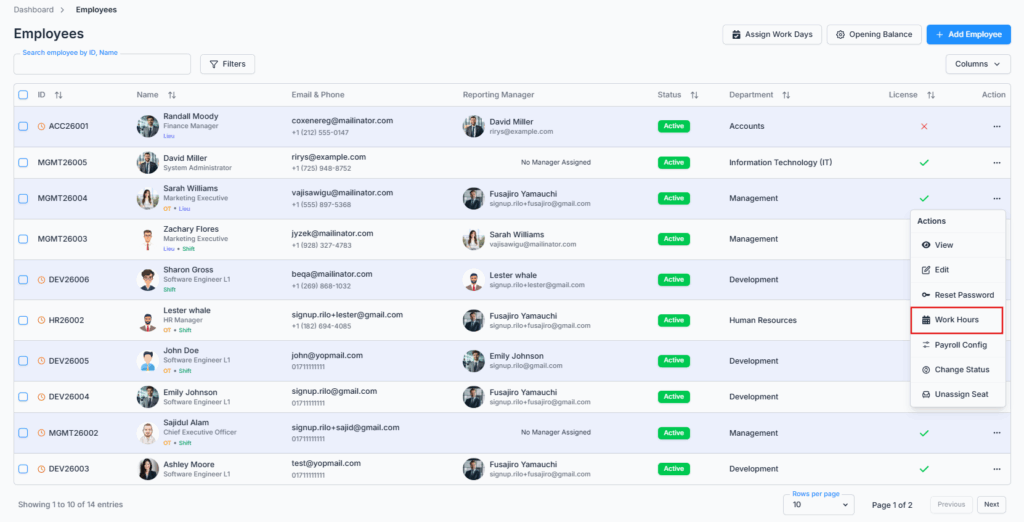
The Work Hours / Shift Hours page is accessed via the Action Menu of the Employee Table under the Employees route. This page allows admins and permitted users to define or modify an employee’s daily work schedule.
Who Can Use This Feature #
Subscriber Admin can always set the work schedule of any licensed employee, without needing any specific permission.
Employees can set another employee’s work schedule only if they hold the permission below.
Permission Behavior
This is controlled from: Admin → Permission → Employee → Manage Work Hours (For All)
- Manage Work Hours (For All)
Required action: Create
Lets you view and set the work schedule of any licensed employee, including the Assigned Work Days list on this same page.
Without this permission (and without being the Subscriber Admin), the Work Hours option doesn’t appear in the employee’s Action Menu — and like Edit Employee and Reset Password, this is genuinely enforced, not just hidden: opening the Work Hours page directly by URL is also blocked server-side and shows Access Denied.
This permission can be assigned directly to an employee, or to an entire team at once. See the Permissions Management guide for how to assign permissions.
Seat Requirement
Work Hours is only available for an employee who currently has a license/seat assigned. If the employee has no seat, the option doesn’t appear in their Action Menu at all, and this is enforced on the server too — a direct link to the Work Hours page for an unlicensed employee is blocked. Assign them a seat first (Assign/Unassign Seat) if you need to set their schedule.
Overview #
This page provides flexibility to manage both shift-based and fixed schedules. Every employee already has one or the other set from their Employment Info — this page doesn’t have its own switch to choose between them:
- Non-Shift Employees: Set standard start and end times along with break duration for consistent daily hours.
- Shift Workers: Enter total shift hours and break duration per day, allowing schedules that can vary day to day.
Which form you see is decided automatically by whether the employee is marked as a Shift Worker in their Employment Info (see Add/Edit Employee) — there’s no toggle here to switch between the two.
Important Notes:
- Selected days represent working days, while unselected days are treated as weekends.
- Work hours are employee-specific, not global — there’s no company-wide default schedule that new employees inherit. Every employee’s schedule is set individually here.
Non-Shift Work Hours #
For employees with a fixed schedule:
- Day Checkbox: Select which of the 7 days (Sun–Sat) are working days.
- Start Time and End Time: Chosen from a dropdown of on-the-hour times only (1:00 AM, 2:00 AM, and so on) — you can’t set a time like 9:30 AM through this form.
- Break Duration: Entered as a number of hours (for example,
0.5for 30 minutes).
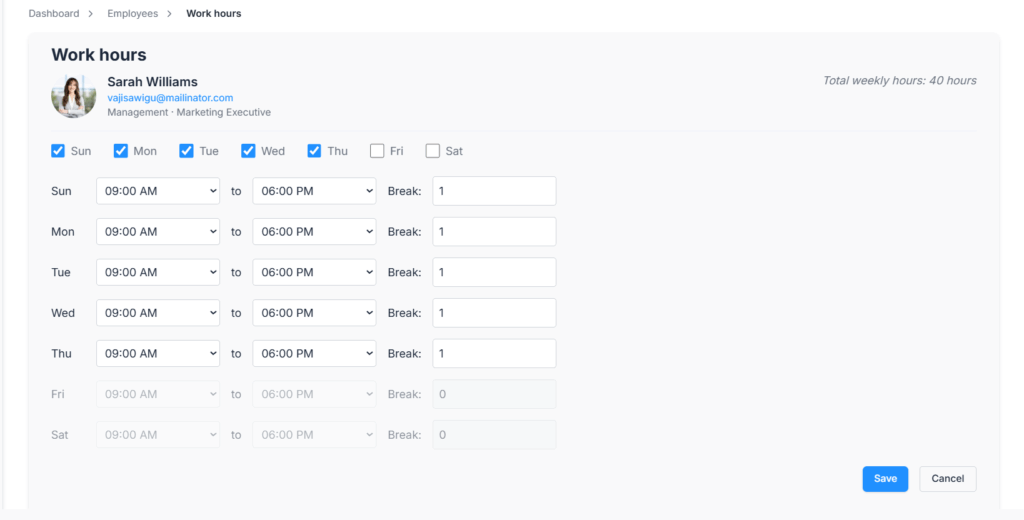
Each working day has its own independent Start Time, End Time, and Break — you’re not limited to one set of hours applied to every checked day; Monday can have different hours from Thursday if needed.
As you fill this in, the form checks:
- End Time must be later than Start Time.
- Break can’t be left empty on a working day — Save stays disabled until every checked day has a break value.
- Break can’t be negative, and can’t be more than 8 hours.
- Break can’t be longer than that day’s own Start-to-End duration.
Shift Work Hours #
For Shift Workers, instead of Start/End times, you enter the total hours directly:
- Day Checkbox: Select which days are working days.
- Shift Hours: A plain number for the total hours worked that day.
- Break Duration: Entered as a number of hours, same as the non-shift form.
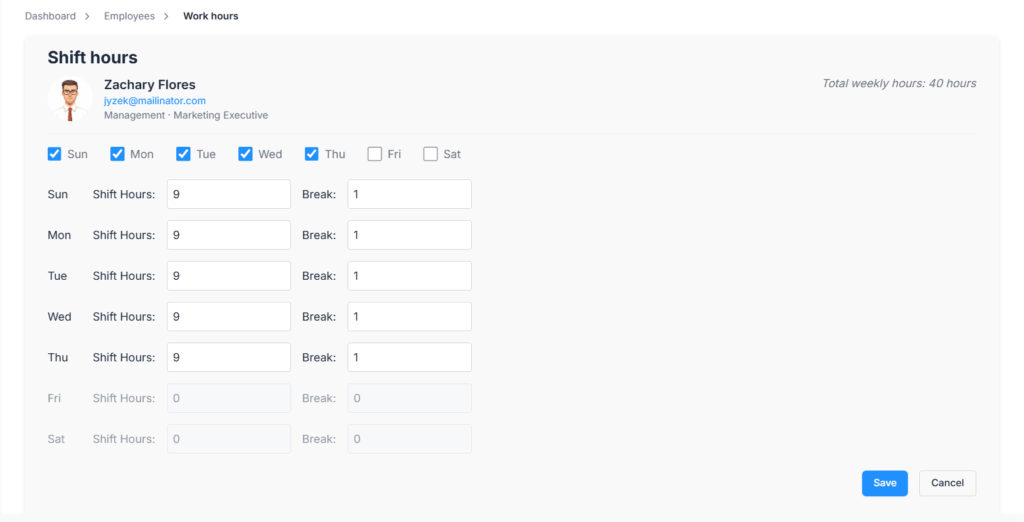
Each working day again has its own independent Shift Hours and Break value.
Unlike the non-shift form, these rules are only checked when you click Save (not as you type):
- Shift Hours must be greater than 0, and can’t exceed 24.
- Break can’t be negative, and can’t be more than 8 hours.
- Break can’t be longer than that day’s Shift Hours.
Save Changes
After setting or modifying the schedule, click Save. On success you’ll see “Work schedule saved successfully,” and you’re taken back to the Employees list. Cancel takes you back to the same place without saving anything.
Good to know: changing an employee’s schedule here takes effect immediately for any future payroll (if applicable) run, and even for a past month’s payroll preview if you regenerate it before submitting — Office-X always reads whatever schedule is currently saved, there’s no “effective from” date. It does not, however, change payroll that’s already been submitted — those records keep the schedule that was in effect at the time they were generated, permanently.
Assigned Work Days #
The Assigned Work Days section is displayed on this same page whenever the employee has assigned work day records.
This section shows additional or adjusted work days assigned to the employee outside their regular schedule — for example, an extra Saturday they were asked to come in for. It’s read-only here; these are added and managed from the separate Assign Work Days feature (the top button on the Employees list), not from this page.
The table includes:
- Date
- Schedule — the start and end time for that assigned day.
- Break
- Work Hours
- Reason
- Assigned By
If multiple assigned work days are available, the table is paginated (10 per page by default, adjustable), with the most recent dates shown first.

This section is covered by the same Manage Work Hours (For All) permission as the rest of the page — there’s no separate permission just for viewing it.
Summary #
The Work Hours / Shift Hours page lets the Subscriber Admin, or anyone holding Manage Work Hours (For All), set an individual employee’s daily schedule — automatically shown as a fixed Start/End form or a Shift Hours form depending on whether that employee is a Shift Worker. Changes apply immediately to future and not-yet-submitted payroll, but never rewrite payroll that’s already been finalized, and unchecking a day is permanent the moment you save.