
The Reset Password action lets admins or permitted users manually set a new login password for an employee — for example, if they’ve forgotten their password or need their access restored. After a successful reset, the employee can log in right away using the new password.
Who Can Use This Feature #
Subscriber Admin can always reset the password of any licensed employee, without needing any specific permission.
Employees can reset another employee’s password only if they hold the permission below.
Permission Behavior
This is controlled from: Admin → Permission → Employee → Reset Employee Password (For All)
- Reset Employee Password (For All)
Required action: Update
Lets you reset the password of any licensed employee.
Without this permission (and without being the Subscriber Admin), the Reset Password option doesn’t appear in the employee’s Action Menu — and like Edit Employee, this is genuinely enforced, not just hidden: opening the reset-password page directly by URL is also blocked server-side and shows Access Denied.
This permission can be assigned directly to an employee, or to an entire team at once. See the Permissions Management guide for how to assign permissions.
Seat Requirement
Reset Password is only available for an employee who currently has a license/seat assigned.
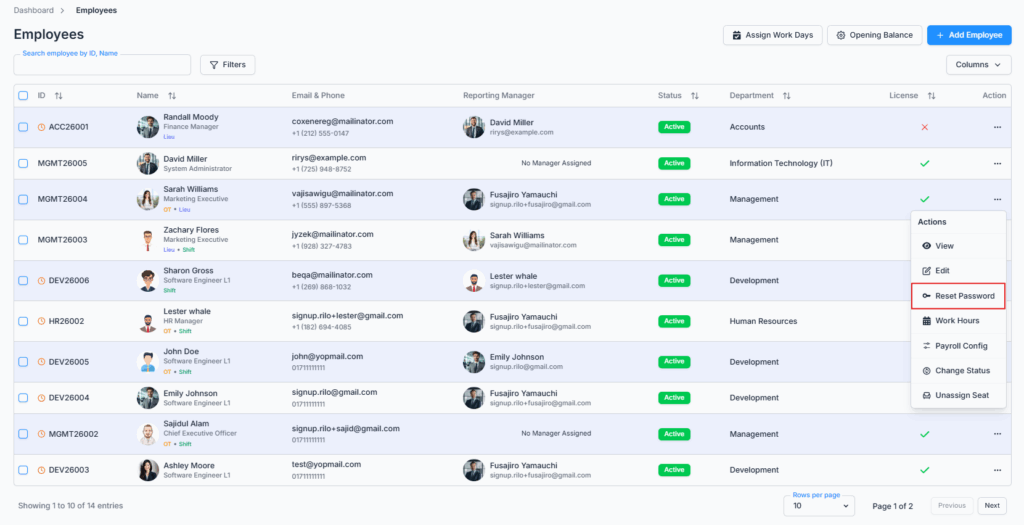
If the employee has no seat, the Reset Password option doesn’t appear in their Action Menu at all. If you need to reset a password for someone who doesn’t have a seat yet, assign them one first (Assign/Unassign Seat), and the option will appear.
Access / Navigation #
- Go to Dashboard → Employees.
- Find the employee.
- Open the three-dot Action menu on their row.
- Click Reset Password.
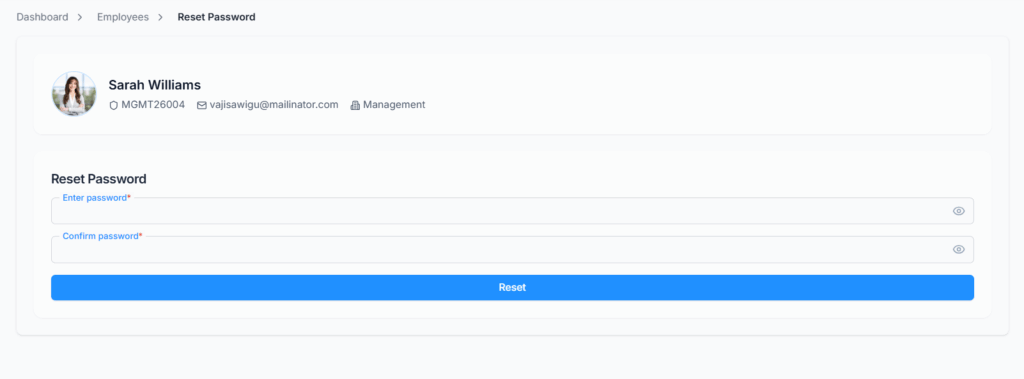
This opens its own dedicated page — not a popup — showing the employee’s photo, name, Employee ID, email, and department at the top, so you can double-check you’re resetting the right person’s password before continuing.
Setting the New Password #
The form has two fields — Enter password and Confirm password — each with a small eye icon you can click to reveal what you typed instead of seeing dots. There’s no “generate a password for me” button; you type the new password yourself in both fields.

The new password must:
- Be at least 8 characters long.
- Include at least one uppercase letter, one lowercase letter, and one number.
- Include at least one of these special characters:
@ $ ! % * ? & - Match exactly in both the Enter password and Confirm password fields.
Once both fields are valid and matching, click Reset to save.
What Happens After a Successful Reset #
- You’ll see a confirmation: “Password reset successfully.”
- You’re taken back to the Employees list.
- The employee’s password is updated immediately — they can log in with the new password right away.
- An email is sent to the employee’s work email with their new password.
Good to know: if the employee is currently logged in on another device, resetting their password does not sign them out of that existing session — they’ll stay logged in there until it naturally expires, even though their password has changed. Office-X also doesn’t force them to change the password again the next time they log in with it; if you want them to pick their own password afterward, you’ll need to tell them to do so from their own Security settings.
Email Notification #
After a successful reset, Office-X emails the employee at their work email address.
The email includes:
- A login link
- The new password
- A note to change the password after logging in
This uses the same customizable “Employee Password Reset” template from Email Templates — so if your company has edited that template’s design or wording, the employee sees your version. If no active template exists, Office-X falls back to a simple plain-text version of the same information.
Good to know: the password reset itself always goes through, even if the email can’t be delivered for some reason (for example, an SMTP problem). The success message you see doesn’t wait on the email — sending happens afterward, in the background — so a failed email never undoes or blocks the password change. If an employee says they never received their new password, double check their work email address and your SMTP setup, then reset their password again if needed.
Summary #
Reset Password gives the Subscriber Admin, or anyone holding Reset Employee Password (For All), a quick way to set a new password for a licensed employee and get it to them by email. The change takes effect immediately, doesn’t sign the employee out of any session they’re already in, and always succeeds even if the notification email happens to fail.