If your company uses Office-X Payroll for Bangladesh, the Payroll Configuration for Bangladesh section under Business → Payroll Configuration controls how employee deductions and income tax are calculated.
This guide explains the Bangladesh-specific payroll settings, including the fields available on each employee’s Payroll Config page.
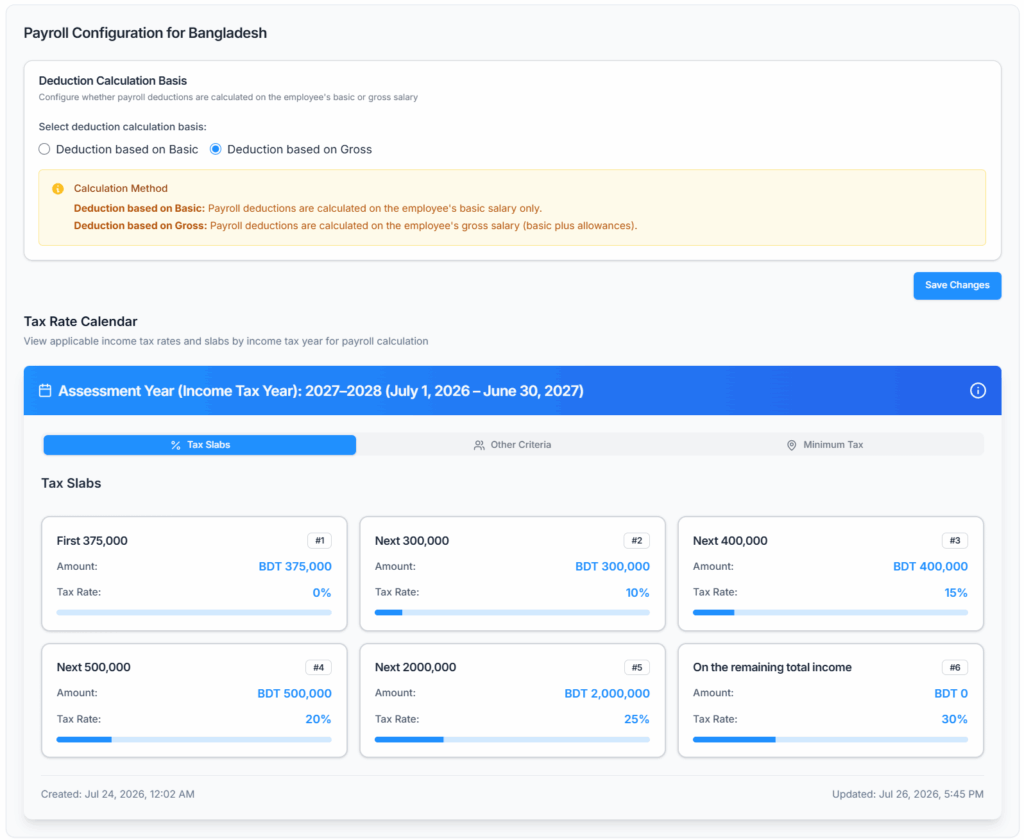
Payroll Configuration for Bangladesh #
Deduction Calculation Basis #
This setting determines whether hour-based deduction lines (such as absent deductions, excess leave deductions, and opening balance deductions) are calculated using the employee’s Basic salary only, or their Gross salary (Basic plus all monthly benefits).
- Deduction based on Basic — deductions use the basic salary per-hour rate only.
- Deduction based on Gross — deductions use the gross per-hour rate (basic salary plus benefits).
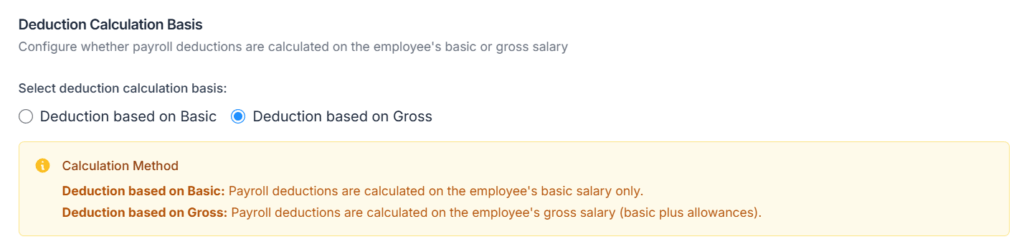
Good to know: If you never pick one, Bangladesh companies use Gross. Nothing is saved until you choose an option and click Save. You can switch to Basic later at any time.
Example (Gross basis):
Monthly Salary: BDT 60,000
Monthly Benefits: BDT 5,000
Expected Hours: 176
Gross Per Hour Rate: (60,000 + 5,000) ÷ 176 = BDT 369.32/hour
If the employee is absent for 8 hours:
Absent Deduction: 8 × 369.32 = BDT 2,954.55
Tax Rate Calendar #
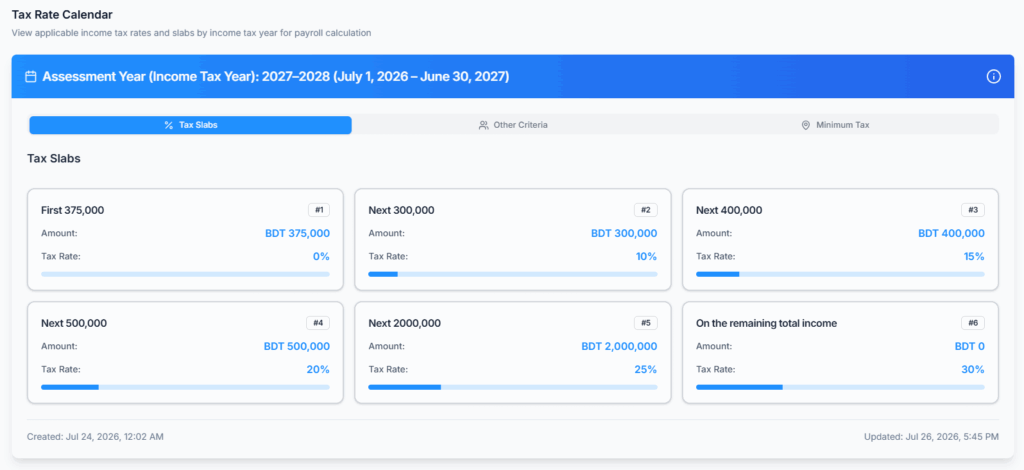
Your Office-X platform administrator maintains a Tax Rate Calendar, updated for each income tax year in line with Bangladesh Government (NBR) regulations. The slab amounts, exemption limits, and minimum tax figures shown below reflect what’s currently configured for your company — they can change from one income tax year to the next, and may differ for other companies.
How to read a year label
Wherever Office-X shows a tax year, it writes it in this form:
2027–2028 (July 1, 2026 – June 30, 2027)
In “2027–2028 (July 1, 2026 – June 30, 2027)”: 2027–2028 is the Assessment Year, and (July 1, 2026 – June 30, 2027) is the Income Tax Year it covers. Following Bangladesh tax convention, the Assessment Year is always exactly one year ahead of the Income Tax Year. The dates in brackets are the ones your payroll months fall into, so use them whenever you need to be sure which year you are looking at.
Example — 2027–2028 (July 1, 2026 – June 30, 2027):
| Slab | Taxable Amount (BDT) | Tax Rate |
|---|---|---|
| 1 | First 375,000 | 0% |
| 2 | Next 300,000 | 10% |
| 3 | Next 400,000 | 15% |
| 4 | Next 500,000 | 20% |
| 5 | Next 2,000,000 | 25% |
| 6 | Remaining income | 30% |
The first slab (0% rate) is automatically replaced by the employee’s applicable exemption limit, based on their personal tax status (see Special Taxpayer Categories below) — it isn’t added on top of the standard 375,000; the higher number simply takes its place.
Minimum Tax
Regardless of what the slab calculation produces, a minimum annual tax also applies:
| Category | Annual Minimum Tax (BDT) |
|---|---|
| General Minimum Tax | 5,000 |
| Minimum Tax for New Taxpayers | 1,000 |
If the slab-calculated annual tax comes out lower than the applicable minimum, the minimum tax is used instead, and the paystub shows a Minimum Tax Applied (Yearly) row in the Tax Breakdown section.
Good to know:
- The lower “New Taxpayer” minimum only applies to an employee for the one specific income tax year declared for them as a new taxpayer on their Payroll Config (see below) — not for every year going forward. Outside that year, they’re compared against the General Minimum Tax instead, like everyone else.
- The minimum tax only steps in when the slab calculation already produces some tax above zero. An employee whose entire taxable income falls inside their 0% exemption bracket pays nothing — they aren’t bumped up to the minimum tax.
Special Taxpayer Categories
Different taxpayer categories are entitled to a higher exemption limit than the standard first slab. The system automatically works out which categories apply to each employee (from their Payroll Config and profile) and uses the single highest exemption they qualify for — these don’t add together.
| Category | Exemption Limit (BDT) | Notes |
|---|---|---|
| General Taxpayer | 375,000 | Standard first-slab exemption |
| Women Taxpayers | 425,000 | Applies to all women taxpayers |
| Senior Citizens | 425,000 | Age 65 and above |
| Disabled Taxpayers | 500,000 | — |
| War-Wounded Freedom Fighters & July Fighters | 525,000 | Covers both war-wounded freedom fighters and those injured in the July 2024 Mass Uprising — a single shared exemption |
| Third Gender Taxpayers | 500,000 | Based on the employee’s Gender field (set to “Other” on their profile) — there’s no separate tax question for this |
| Guardian of Disabled Children | +50,000 per child | Added on top of the standard 375,000 (not on top of other categories) — see example below |
Guardian of Disabled Children — how the child count works:
If an employee’s spouse is also claiming some of the same children as disabled dependents on her own tax return, those children are subtracted from the employee’s count first, so they aren’t claimed twice. The system won’t let the spouse-claimed number exceed the employee’s own total.
Example: Total Disabled Children: 2, Spouse Claiming: 1
Eligible Children (for this employee) = 2 − 1 = 1
Guardian Exemption = 375,000 + (1 × 50,000) = BDT 425,000
This figure is then compared against any other category the employee qualifies for, and the higher one is used.
These limits are applied automatically once the employee’s tax status is set on their Employee Payroll Config, under Tax Information.
Employee Payroll Configuration #
Path: Employees → Action → Payroll Config
Every employee who gets income tax must be individually configured for tax and work location before payroll can be run for them. That means all salary employees, and all hourly employees except those whose Employment Type is Contractor (see Hourly employees and income tax below).
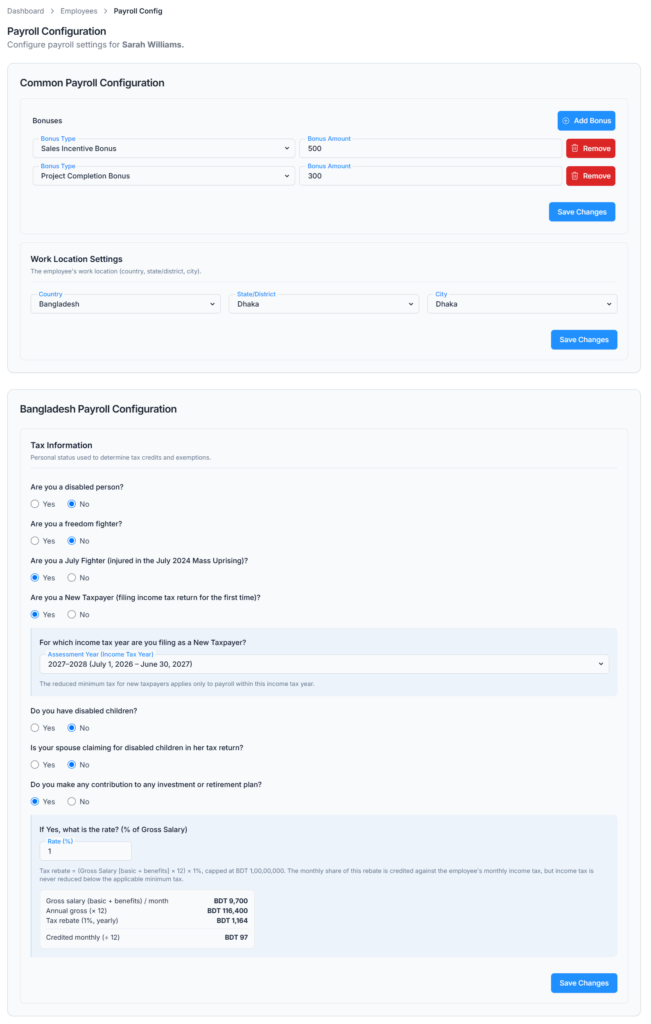
Tax Information
Set the employee’s personal tax status. These answers determine which exemption limit and minimum tax apply.
- Are you a disabled person? (Yes / No)
- Are you a freedom fighter? (Yes / No)
- Are you a July Fighter — injured in the July 2024 Mass Uprising? (Yes / No)
- Are you a New Taxpayer, filing an income tax return for the first time? (Yes / No — if Yes, select the year this applies to)
- Do you have disabled children? (Yes / No — if Yes, enter how many)
- Is your spouse claiming for disabled children in her tax return? (Yes / No — if Yes, enter how many; this cannot be more than the employee’s own disabled children count)
- Do you make any contribution to any investment or retirement plan? (Yes / No — if Yes, enter the rate as a % of Gross Salary). This drives the Investment Rebate, explained in Step 5 below.
Good to know: “Third Gender” isn’t asked here — it’s picked up automatically from the employee’s own profile Gender field.
Good to know: the exact questions on this page follow the Tax Rate Calendar active for your company. Some calendars ask fewer questions than the list above, so if you don’t see one of them on your screen, that question simply doesn’t apply to your company’s current tax rules.
Good to know — the New Taxpayer year: this dropdown is labelled Assessment Year (Income Tax Year) and shows options like “2027–2028 (July 1, 2026 – June 30, 2027)”. Pick the option whose bracketed dates contain the months you will actually run payroll for.
Work Location Settings
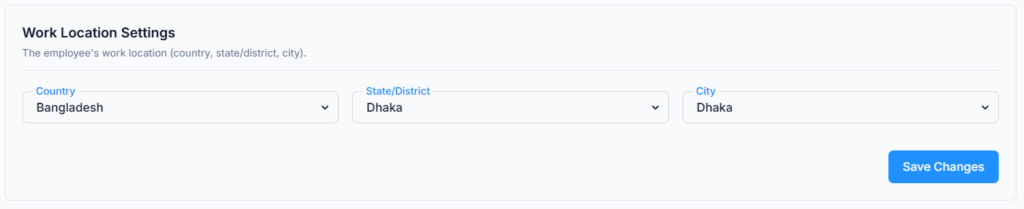
Select the employee’s work address using the three dropdowns: Country, State/District and City.
Good to know: this is collected for record-keeping and does not change the tax amount. The minimum tax is a flat figure for everyone (see Minimum Tax above), not based on where the employee works.
⚠️ Work location is required for every employee who gets income tax. If it’s not saved, the payroll run is blocked with the message: “Work location not set for {Name}. Please add work location from Employee Payroll Config.” Because a blocked employee stops the whole run, no one else in that run is processed either.
Hourly employees and income tax
Income tax is calculated for hourly employees. There are only two exceptions:
- An employee whose Employment Type is Contractor — contractors are paid gross, with no tax withheld.
- A month in which the employee earned nothing — there is no pay to withhold tax from.
For an hourly employee, the yearly taxable amount is worked out from their assigned work schedule for the whole year, not from the hours they happened to work. So a quiet month with fewer hours does not lower that month’s tax — the same way a salary employee’s tax doesn’t drop because they were absent for a few days.
⚠️ Because of this, every hourly employee except Contractors also needs both of the following, or their payroll run is blocked:
- A saved work location on this page — otherwise: “Work location not set for {Name}. Please add work location from Employee Payroll Config.”
- An assigned work schedule under Employees → Action → Work Hours — otherwise: “No work schedule found for {Name}”.
How the System Calculates Tax #
The system follows these steps for every taxable employee during payroll processing — all salary employees, and all hourly employees except Contractors.
Step 1 — Determine the Applicable Exemption Limit
The system checks the employee’s Tax Information and profile Gender, works out every exemption category that applies, and keeps the single highest one. This exemption replaces the first slab (0% rate).
Step 2 — Calculate Annual Income
For a salary employee: Monthly Income for Tax = Full Monthly Salary + taxable additions (benefits, taxable adjustments, etc.).
For an hourly employee: the yearly figure is built from their assigned work schedule for the whole year (full-year scheduled hours × hourly rate), plus monthly benefits, and then treated as a monthly-equivalent so the rest of the steps work identically. Hours actually worked on assigned weekend or holiday days are added on top.
Annual Income = Monthly Income × 12, then add the year’s total Bonus (from all Bonus Types configured for the employee) and the current month’s Overtime Pay.
Step 3 — Apply the One-Third Non-Taxable Rebate
As per NBR rules, one third of the annual income is non-taxable.
Taxable Income = Annual Income − (Annual Income ÷ 3)
Step 4 — Apply Progressive Tax Slabs
Tax is calculated slab by slab on the Taxable Income, using the slabs from Step 1 with the employee’s exemption limit already applied to the first bracket.
Step 5 — Compare with Minimum Tax and Divide by 12
If the slab-calculated annual tax is greater than zero but still less than the applicable minimum tax (General or New Taxpayer — see Minimum Tax above), the minimum tax is used instead. Monthly Tax = Final Annual Tax ÷ 12.
Step 6 — Subtract the Investment Rebate (only if one applies)
If the employee answered Yes to “Do you make any contribution to any investment or retirement plan?” and a rate is saved, a rebate is credited against their monthly income tax:
- Yearly rebate = Annual Gross Salary (Basic plus benefits) × the saved rate. The rebate itself is capped at BDT 1 crore (10,000,000) per year.
- That yearly figure is divided by 12 and taken off the same month’s income tax.
- The rebate can only bring the tax down as far as the applicable minimum tax (Step 5) — never below it. If the rebate is bigger than the room available, only the part that fits is credited.
Example: Gross Salary BDT 100,000/month = Annual Gross BDT 1,200,000, with a 10% rate saved. Yearly rebate = 10% × 1,200,000 = BDT 120,000 (well under the 1 crore cap), credited as 120,000 ÷ 12 = BDT 10,000 off that month’s income tax.
Where you see it: the Income Tax deduction line on the paystub shows the final amount, already net of the rebate. The rebate itself is shown in the paystub’s Tax Breakdown section, as Investment Rebate (Yearly) and Investment Rebate (Monthly) rows. If no investment or retirement contribution is saved for the employee, no rebate applies and neither row appears.
Tax Calculation Examples
These examples assume no investment or retirement contribution is saved, so Step 6 doesn’t apply.
Example 1 — General Taxpayer, General Minimum Tax Applied
Monthly Salary: BDT 50,000
Benefits: BDT 0
Bonus: BDT 0
Overtime (this month): BDT 0
Tax Status: General (exemption limit BDT 375,000)

Step 1 - Annual Income:
50,000 x 12 = BDT 600,000

Step 2 - One-Third Rebate:
600,000 / 3 = BDT 200,000
Taxable Income = 600,000 - 200,000 = BDT 400,000

Step 3 - Slab Calculation:
First 375,000 at 0%  = BDT 0
Next 25,000 at 10%   = BDT 2,500
Total Annual Tax     = BDT 2,500

Step 4 - Minimum Tax Check:
Calculated: BDT 2,500 vs General Minimum: BDT 5,000
2,500 is less than 5,000 -> use minimum tax: BDT 5,000
Paystub will show: Minimum Tax Applied (Yearly)

Step 5 - Monthly Deduction:
5,000 / 12 = BDT 416.67/month
Example 2 — Higher Salary with Benefits, Bonus and Overtime, Disabled Taxpayer
Monthly Salary: BDT 100,000
Benefits: BDT 10,000
Bonus (annual): BDT 20,000
Overtime (this month): BDT 5,000
Tax Status: Disabled (exemption limit BDT 500,000)

Step 1 - Annual Income:
(100,000 + 10,000) x 12 = 1,320,000
Add Bonus: + 20,000
Add Overtime: + 5,000
Total Annual Income = BDT 1,345,000

Step 2 - One-Third Rebate:
1,345,000 / 3 = BDT 448,333.33
Taxable Income = 1,345,000 - 448,333.33 = BDT 896,666.67

Step 3 - Slab Calculation:
First 500,000 at 0%     = BDT 0
Next 300,000 at 10%     = BDT 30,000
Remaining 96,666.67 at 15% = BDT 14,500.00
Total Annual Tax        = BDT 44,500.00

Step 4 - Minimum Tax Check:
44,500 is greater than 5,000 -> use calculated tax: BDT 44,500.00

Step 5 - Monthly Deduction:
44,500.00 / 12 = BDT 3,708.33/month
Example 3 — New Taxpayer, Minimum Tax for New Taxpayers Applied
Monthly Salary: BDT 47,500
Benefits: BDT 0
Bonus: BDT 0
Overtime: BDT 0
Tax Status: General (exemption limit BDT 375,000)
New Taxpayer: Yes, declared for 2027-2028 (July 1, 2026 - June 30, 2027)
(this payroll is being run for a month inside those dates)

Step 1 - Annual Income:
47,500 x 12 = BDT 570,000

Step 2 - One-Third Rebate:
570,000 / 3 = BDT 190,000
Taxable Income = 570,000 - 190,000 = BDT 380,000

Step 3 - Slab Calculation:
First 375,000 at 0%  = BDT 0
Next 5,000 at 10%    = BDT 500
Total Annual Tax     = BDT 500

Step 4 - Minimum Tax Check:
Calculated: BDT 500 vs New Taxpayer Minimum: BDT 1,000
500 is less than 1,000 -> use minimum tax: BDT 1,000
Paystub will show: Minimum Tax Applied (Yearly)

Step 5 - Monthly Deduction:
1,000 / 12 = BDT 83.33/month
Good to know: if this same employee’s New Taxpayer year had already ended (payroll now running in a later income tax year), the same BDT 500 calculated tax would instead be compared against the General Minimum Tax (BDT 5,000), and the minimum tax applied would be BDT 5,000/year — not BDT 1,000.
Tax Transparency and Compliance #
All tax calculations and deductions are visible in:
- Paystub Tax Breakdown section — shows each slab, taxable amount, rate, and tax amount, plus a Minimum Tax Applied (Yearly) row when the minimum tax was used, and the Investment Rebate rows when a rebate applied.
- Payroll Records — shows the Income Tax deduction per employee during payroll review, before submission.
- Income and Tax Statement — a yearly income and tax report for each employee, available from the Payroll List.
Good to know: once a payroll is submitted, its paystub keeps showing the slabs, rates and minimum tax figures that were active at the time it ran — even if your company’s Tax Rate Calendar changes later. So an old paystub always continues to explain the tax it actually deducted, and a new calendar only affects payrolls run from that point onwards.
All tax calculations follow Bangladesh NBR regulations for the active income tax year (July to June). The Tax Rate Calendar in Business Payroll Configuration reflects the official slabs, exemption limits, and minimum tax figures your Office-X administrator has set for the current year.
When to Update These Settings #
- Before the first payroll of a new income tax year — check that the Tax Rate Calendar shown under Business → Payroll Configuration is the one you expect for the new year.
- Before an employee’s first ever payroll — their Tax Information and Work Location must be saved, or the run is blocked for everyone in it.
- Whenever an employee’s tax status changes — a new disability certificate, freedom fighter or July Fighter status, a change in disabled children, or a new investment / retirement contribution.
- When a New Taxpayer’s declared year ends — nothing needs to be switched off by hand. Outside that year the employee is automatically compared against the General Minimum Tax instead.
Good to know — editing settings never changes an old paystub. Every submitted payroll freezes its own copy of the deduction basis, the tax answers and the tax rules that produced it. So you can safely correct an employee’s Tax Information today without any already-issued paystub changing. The corrected values apply from the next payroll run onwards.