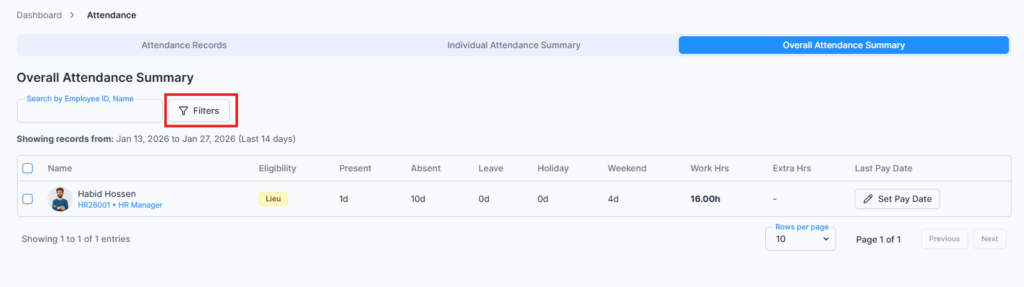
The Overall Attendance Summary tab gives you a complete attendance overview for all employees within a selected date range. It helps you review work hours, overtime, leave, holidays, and weekends in one place.
This view is especially useful for payroll preparation and for exporting attendance data to a third-party payroll system.
Who Can Use This Feature #
Subscriber Admin can always open this tab, without needing any specific permission.
Employees can open it only if they hold one of the permissions below.
Permission Behavior
This is controlled from: Admin → Permission → Attendance
- Overall Attendance Summary (For All)
Lets you view every employee’s attendance in this worksheet. - Overall Attendance Summary (For Subordinates)
Lets you view only employees in your own reporting chain (people who report to you, directly or through someone else who reports to you).
Without either of these (and without being the Subscriber Admin), the tab doesn’t appear at all in the Attendance module.
Good to know: a manager holding (For Subordinates) sees their reporting chain here, but not their own row — this worksheet is for reviewing your team, not yourself. To see your own figures, use the Individual Attendance Summary or your profile’s Att. Overview tab.
This permission can be assigned directly to an employee, or to an entire team at once. See the Permissions Management guide for how to assign permissions.
How It Works #
When you open the tab, it loads data automatically — you don’t need to apply a filter first:
- By default, it shows the last 14 days through today.
- If your company registered with Office-X less than 14 days ago, it shows everything since your company joined instead, since there’s no attendance data before that.
- A banner at the top confirms exactly which range you’re looking at.

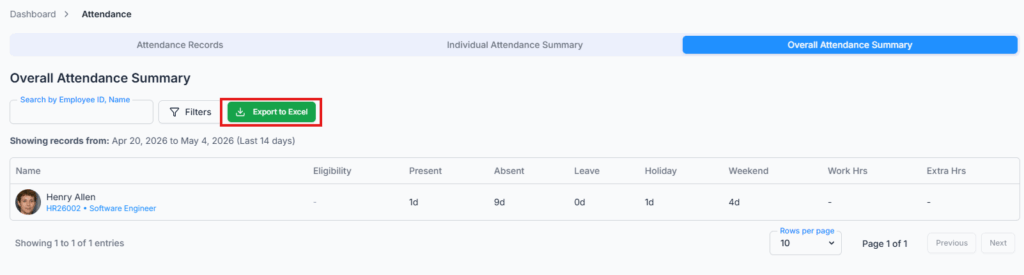
Three controls sit in the toolbar above the worksheet: a Search box (by Employee ID or name — it filters as you type), the Filters button, and the Export to Excel button.
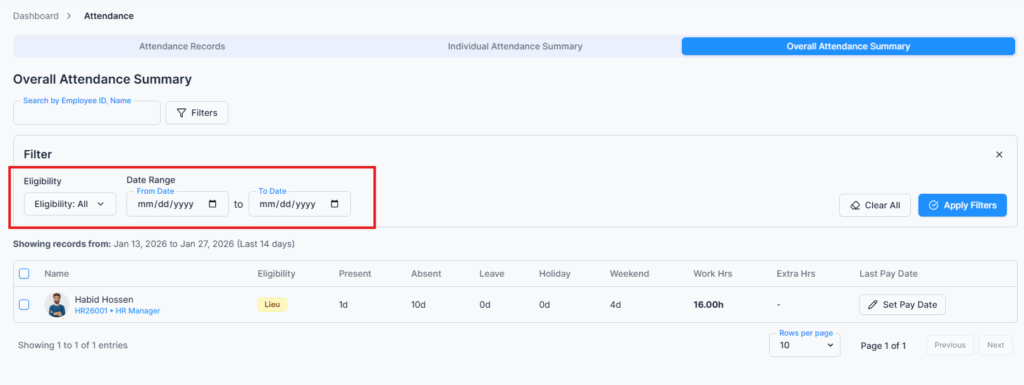
Open Filters to change what you’re looking at, then click Apply — or Clear to go back to the default:
- Date Range — your own Start Date and End Date. These are plain date fields, not preset ranges. You can’t pick a date earlier than when your company’s Office-X account was created.
- Eligibility — All / OT + Lieu (Both) / Overtime Only / Lieu Only / Non Eligible.
- Worker Type — Shift Worker / Regular Worker (this filter only appears if your company has at least one shift-worker employee set up).
- Employment Type — All / Full-Time / Part-Time / Contractor.
At the bottom you can page through the results and choose 10, 20 or 50 employees per page.
Good to know: only employees with an active licence appear in this worksheet. If someone is missing entirely, check their licence before checking their attendance.

Attendance Metrics Displayed #
Each row is one employee — their photo, name, Employee ID, designation and email, plus an Eligibility column showing their badges: Overtime, Lieu, both, or Non Eligible.
Beyond that, for each employee you’ll see, in both day-count and hour form:
- Present — days attended, with hours.
- Absent — days absent, with hours.
- A column per leave type your company actually uses (e.g. “Sick Lv.”, “Casual Lv.”), only shown if there’s data for it in the selected range. If your company doesn’t use Office-X’s own payroll, these split further into Paid and Unpaid.
- Lieu Lv. — a separate column for Lieu Leave taken, shown only if it applies to anyone in the range.
- Holiday and Weekend — how many of each fell in the range.
- Regular — hours worked at the normal rate.
- Lieu Hrs — hours banked as Lieu credit, if applicable.
Good to know: there’s no single “Extra Hours” column. Just like the Attendance Records list, extra hours are broken into up to 20 separate overtime/premium columns (Night Premium, Daily OT, Daily OT Night, Daily Tier-2 OT, Daily Tier-2 OT Night, Weekly OT, Weekly OT Night, Rest Day Premium/Night/OT/OT Night/Tier-2 OT/Tier-2 OT Night, Holiday Premium/Night/OT/OT Night/Tier-2 OT/Tier-2 OT Night, Monthly Excess OT) — on top of the separate Lieu Hrs column above — only the ones your company has configured and that actually have data for someone in the selected range are shown.
Good to know: A leave, overtime, or premium column only appears when at least one employee has data for it in the selected date range. Once the column appears, employees who are not eligible for that type will see “Not eligible” instead of a blank or zero. This is the same on the screen and in the Excel export.
Good to know: like everywhere else in Attendance, this worksheet counts approved attendance only. A day whose check-out is still pending contributes no hours, and overtime that hasn’t been approved yet reads as zero. If a month looks light, approve the pending records on the Attendance Records tab first, then come back.
Overall Attendance Summary is built to give you a wide, at-a-glance worksheet across everyone, not a deep per-employee breakdown.
Export to Excel #
The Overall Attendance Summary can be exported to Excel for payroll preparation, HR reporting, and record keeping. Click Export to Excel in the toolbar and the file downloads straight away. The button is greyed out while the worksheet is still loading, and when there are no rows to export.

The export uses whatever date range and filters you currently have applied on screen — or the same default (last 14 days, or since your company joined) if you haven’t set any.
It exports everyone, not just the page you’re looking at. Whatever your Search, Eligibility, Worker Type, Employment Type and date range are set to, the file contains every matching employee — up to 10,000 of them — regardless of how many rows are on screen. So you don’t need to page through and export repeatedly; one click covers the whole filtered set.
The file is named after the period you exported, for example overall_attendance_summary_2026-08-01_to_2026-08-31.xlsx, or overall_attendance_summary_last14days.xlsx if you kept the default range.
Good to know: the exported spreadsheet isn’t a plain copy of the on-screen table — it’s laid out a bit differently:
- It adds separate Employee Name, Employee ID, Designation, Eligibility, Date From, and Date To columns — Eligibility spells out “Lieu”, “Overtime”, or both, since the on-screen badges don’t carry over into a spreadsheet.
- Every day-based figure (Present, Absent, and so on) is split into two separate columns — one in days, one in hours — instead of the combined “days (hours)” format shown on screen.
- It adds a Break (In Hours) column — total unpaid break time for the period — which isn’t shown on-screen at all.
- Column names are spelled out in full rather than shortened, so you’ll see “Present (In Days)”, “Present (In Hours)”, “D/OT (In Hours)”, “Rest D/T2 OT (In Hours)” and so on.
Good to know: Every export is recorded in the Activity Log. It shows who exported the file, when it was exported, the file name, number of employees, date range, and applied filters.
Because an export may contain sensitive employee data, Office-X keeps a record of every export for tracking and auditing.
Summary #
The Overall Attendance Summary tab gives you a company-wide, ready-to-use overview of everyone’s attendance for any date range you choose, with the same granular overtime/premium detail found elsewhere in Attendance — and an Excel export built for feeding straight into payroll, whether that’s Office-X’s own or a third-party system.
The Overall Attendance Summary tab acts as a worksheet for payroll processing:
- Quickly review everyone’s attendance within a specific date range.
- Identify overtime or extra hours that need to feed into payroll.
- Keep leave and absence tracking accurate.
- Export a ready-to-use spreadsheet for a third-party payroll system.
- Generate a snapshot of workforce attendance for managerial and HR reporting.