
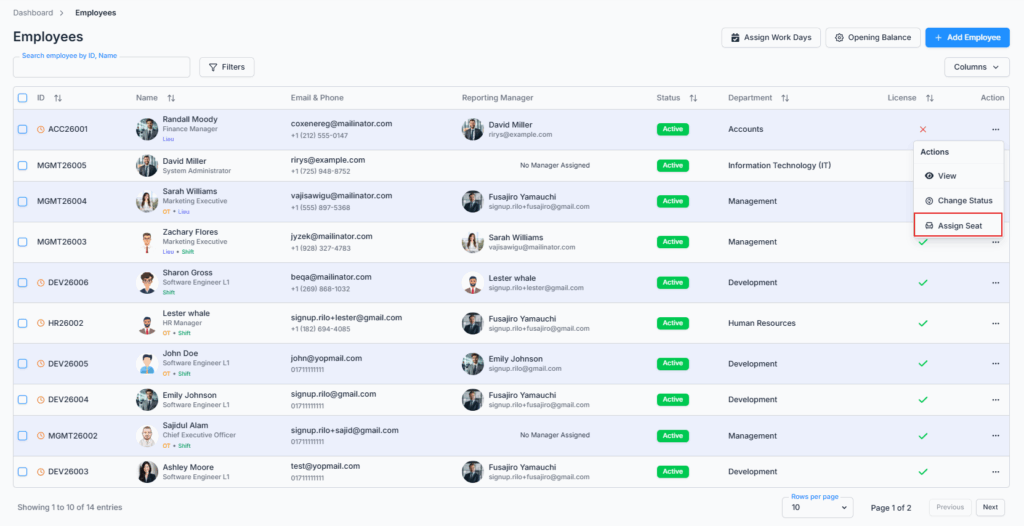
The Assign/Unassign Seat action is available from the Action Menu of the Employee Table under the Employees route. It lets admins and permitted users manage which employees currently have a license/seat — and with it, the ability to log in and use Office-X.
Who Can Use This Feature #
Subscriber Admin can always assign or unassign any employee’s seat, without needing any specific permission.
Employees can assign or unassign seats only if they hold the permission below.
Permission Behavior
This is controlled from: Admin → Permission → Employee → Assign/Unassign Seats (For All)
- Assign/Unassign Seats (For All)
Required action: Create
Lets you assign a seat to an unlicensed employee, or unassign one from a licensed employee. This one permission covers both directions — there’s no separate permission for assigning versus unassigning.
Without this permission (and without being the Subscriber Admin), the Assign Seat / Unassign Seat option doesn’t appear in the employee’s Action Menu.
This permission can be assigned directly to an employee, or to an entire team at once. See the Permissions Management guide for how to assign permissions.
Overview #
Seats are what let an employee log in and use Office-X. When an employee leaves the organization or no longer needs access, you can unassign their seat instead of deleting their record — their profile, history, and data all stay exactly as they were, and the seat becomes available to assign to someone else.
This is a direct action from the row’s Action Menu — clicking Assign Seat or Unassign Seat takes effect right away.
How Many Seats You Have
The number of seats you can assign is tied to your subscription plan. You can see how many you’re using two places:
- The Employee Seats card on your Dashboard, showing “X of Y used” with a progress bar and a link to manage your seats.
- The Business → Billing & Payment page, which also shows how many seats are available and warns you if you try to reduce your plan below what you’re currently using.
Both of these update immediately as you assign or unassign seats — there’s no separate sync step.
Assigning a Seat #
Click Assign Seat on an unlicensed employee’s row. If a seat is available, it’s assigned immediately — you’ll see “License assigned successfully.”
If you’ve run out of seats, you’ll see an error instead, telling you exactly how many licenses your plan allows (for example, “License limit reached. You can only assign 9 licenses.”). Office-X won’t let you over-assign beyond your plan — you’d need to free up a seat elsewhere (by unassigning someone else’s) or upgrade your plan first.
Good to know: assigning a seat doesn’t send the employee a new welcome email or new credentials — they already received their login details when their profile was first created (see Adding a New Employee). Assigning a seat simply unlocks the login they already have.
Once assigned, the employee’s row immediately gains access to the actions that require a seat — Edit, Reset Password, Work Hours, and Payroll Config all become available in their Action Menu.
Unassigning a Seat #
Click Unassign Seat on a licensed employee’s row. You’ll see “License unassigned successfully,” and that seat is freed up immediately for reassignment to someone else. The employee’s row also loses access to Edit, Reset Password, Work Hours, and Payroll Config right away, since those all require a seat.
Good to know: unassigning a seat blocks the employee from logging in again — but it does not immediately end a session they’re already logged into. If they’re actively using Office-X in an open tab when you unassign their seat, they won’t be kicked out that instant; access is cut off the next time they move to a different page in the app, or the next time they try to log in. If you need someone’s access revoked right away for security reasons, be aware there can be a short window before it fully takes effect.
Good to know: If you need to revoke access immediately for security reasons, you can remove all of the employee’s permissions. The permission changes take effect the next time they visit or navigate to a page, preventing further access even if their session is still open.
Unassigning doesn’t delete or hide the employee — they stay visible in the Employees list with all their history intact, just without a seat, until you either assign them one again.
Audit Trail #
Every assign and unassign is recorded in the Activity Log, noting which employee’s license was assigned or unassigned and by whom — useful if you need to check later who had access at a given time.
Summary #
Assign/Unassign Seat gives the Subscriber Admin, or anyone holding Assign/Unassign Seats (For All), direct control over who currently has login access, without deleting anyone’s data. Seats are capped by your subscription plan and can never be over-assigned; unassigning frees a seat immediately but doesn’t force out a session that’s already open, only the employee’s next login or next in-app navigation.