The Task History page keeps a record of field work that has already been handed out: what was planned, what actually happened, and how the job ended.
The Schedule shows what is happening. Task History shows what happened. The most recent jobs appear first, and you can open any task to see its full details.
Task History is a record, not a performance report. It has no scores, ratings, rankings or trends, and it does not affect attendance, payroll or performance anywhere.
It simply gives you the facts you need when you want to review or discuss a past job.
Where to Find It #
- Log in to Office-X.
- In the left menu, click Tasks.
- Click History.
The page address is /dashboard/tasks/history. Clicking a row opens that task at /dashboard/tasks/<task id>. The Tasks menu has three items: Schedule, History (this page) and Customers.
Who Can Use This Feature #
Everyone can open this page. What changes is how much of it you see.
| Who you are | What you see |
|---|---|
| Subscriber Admin | Every task in the company. No permission needed. |
| Employee with View Task History (For All) | Every task in the company. |
| Any other employee | Their own tasks, plus the tasks of everyone who reports to them — their team members, and their team members’ team members, all the way down. |
Good to know: seeing your own record — and your reporting chain’s — is the starting point for everybody. Nobody has to switch it on for you. View Task History (For All) is the permission that widens that view to the whole company. It is granted from Admin → Permissions, on the Employee Permission tab, in the Task Management group.
There is no employee dropdown on this page. To see one person’s record, type their name into the search box. This is the same way the Schedule page works, and it means the page can never disagree with itself about whose record it is showing.
This permission can be given directly to an employee, or to a whole team at once (so everyone on that team inherits it). See the Permissions Management guide for how to assign permissions.
Before You Start #
- Tasks is a paid add-on. You can buy Task Management from Business → Billing & Payment. Once it is added, the Tasks menu and the Task Management permissions become available.
- There has to be some history. A brand-new company sees “No task history yet.”
- Check your company time zone. Every date and time on this page — and in the Excel file — is shown in the time zone set in Business → Company.
One Job, One Status #
A task has one status, even when several people are on it. Everyone assigned shares the same status and the same actual times, because a visit either happened or it did not.
| Status | What it means |
|---|---|
| Assigned | Booked, nobody has started yet. |
| In Progress | The work has begun. |
| Done | The work was finished. |
| Cancelled | The whole visit was called off, with a reason. The task is closed. |
| No Show | The customer did not attend. The job still needs doing, so the task stays open until somebody reschedules it. |
Good to know: No Show is about the customer, not the employee. It means your team turned up and the customer was not there, or turned them away. It is recorded as a fact only — Office-X takes no attendance, payroll or performance action from it anywhere.
Good to know: a No Show task that is later rescheduled goes back to Assigned and the no-show note is cleared, so the job can be done on the new date. The original No Show entry stays in the task’s Timeline forever, so nothing is lost.
What the Columns Show #
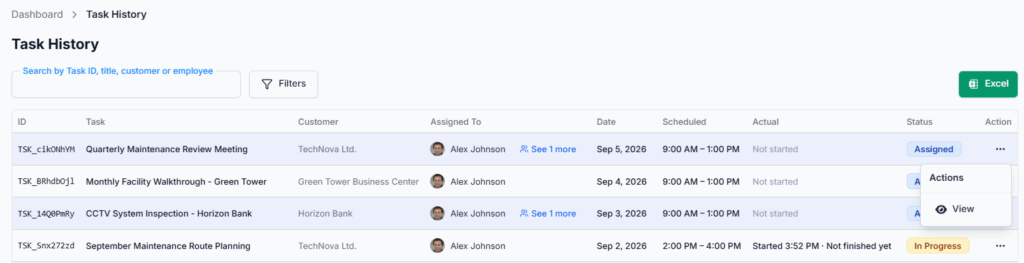
| Column | What it means |
|---|---|
| ID | The task ID, for example TSK_a1B2c3D4. This is the number your team quotes on the phone. |
| Task | The title, for example Full apartment cleaning — Riverside. A long title is shortened; hover over it to read the whole thing. |
| Customer | The customer’s name, read live from their customer record. If somebody corrects the name, this column shows the corrected one. |
| Assigned To | Who was on the job. One name is shown; if there were more, a See N more button lists the rest. |
| Date | The day the task was scheduled for. A job running over several days shows both ends — 24 Aug 2026 – 26 Aug 2026. |
| Scheduled | The planned window, for example 9:00 AM – 1:00 PM. If the job was planned to end on a different day, that date is shown too. |
| Actual | When the work really started and finished. It reads Not started if nobody ever pressed Start, and “Started 9:00 AM · Not finished yet” if a job was started but never closed. |
| Status | The task’s status: Assigned, In Progress, Done, Cancelled or No Show. |
| Action | A menu with View, which opens the task. It is empty on a task you are not allowed to open. |
Finding the Records You Need #
Search #
The search box applies as you type — there is no button to press. It matches:
- the task ID — paste in TSK_a1B2c3D4 and you land on it
- the task title
- the site address saved on the task
- the customer’s name, phone number or email
- an employee’s name or email — this is how you look up one person’s record
The label above the box tells you which of those apply to you. If you can see the whole company it reads “Search by Task ID, title, customer or employee”; if you can only see your own side of the company it reads “Search by Task ID, title or customer”, because searching a colleague outside your team would return nothing.
Filters #
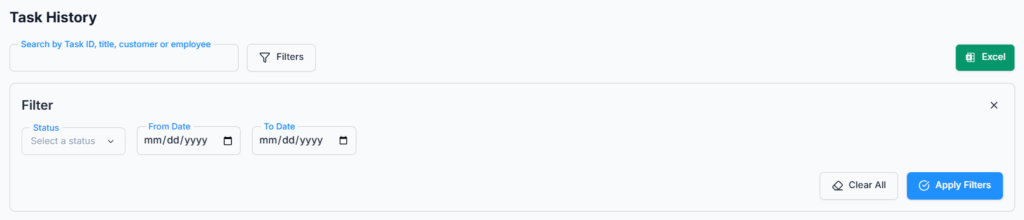
Click Filters to open the panel. It has three fields, and unlike search they only take effect when you press Apply:
- Status — Assigned, In Progress, Done, Cancelled or No Show
- From Date and To Date — matched against the scheduled start date, not the day the task was created
A small number on the Filters button tells you how many are active. Clear removes all of them at once. Each date works on its own — a From Date with no To Date means “from then onwards”.
Because there is one status per task, the Status filter means exactly what it says. Filtering by Cancelled returns visits that were actually called off — never a job that went ahead.
Paging #
The table shows 10 rows at a time, and you can switch to 20 or 30 at the bottom.
Export to Excel #
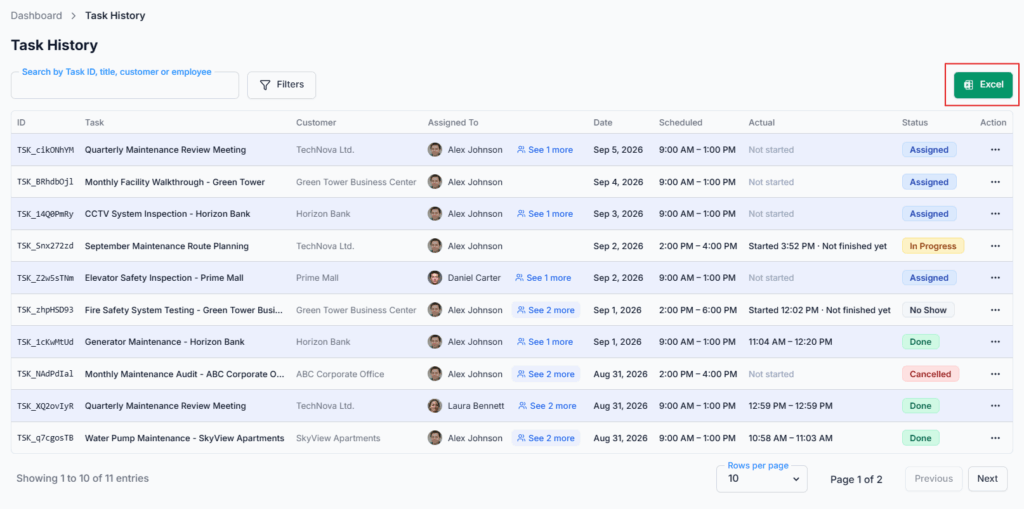
The Excel button downloads the record as task-history.xlsx, with a title row and the date it was generated in your company’s time zone.
- It exports everything that matches your filters, not just the rows on screen. You do not need to raise the page size first.
- The columns are: Task ID, Task, Customer, Location, Assigned To, Date, Scheduled, Actual, Status. Location is the extra one — it is too long for the table but is exactly what a printed run sheet needs.
- If nothing matches, the button tells you “There is nothing to export.”
- Very large exports are capped at 5,000 tasks. If you hit that, you are told “Only the most recent 5000 tasks were exported. Narrow the date range to get the rest.” — so a short file is never handed to you quietly.
Opening a Task From Here #
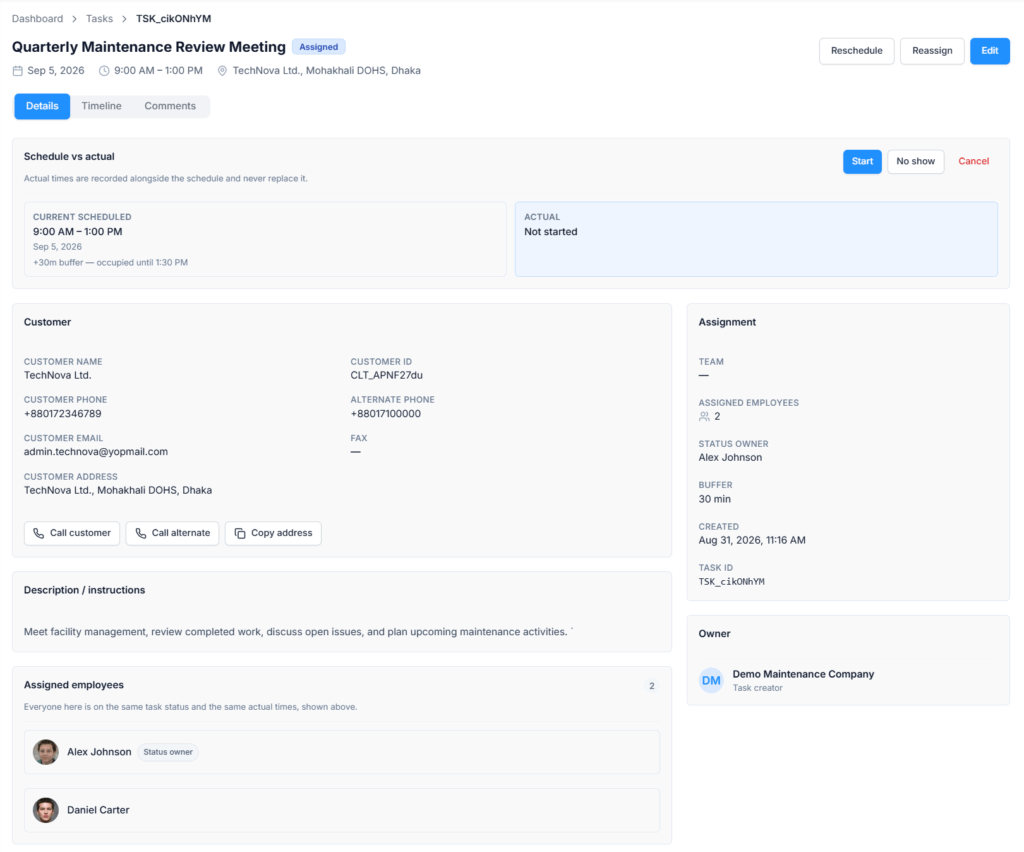
Click a row, or use Action → View, to open the task itself. That is where the detail lives:
- Current Scheduled, Actual and — if the task was ever moved — Initial Scheduled, side by side
- The customer’s details and the site address, with Call customer and Copy address buttons
- Who was assigned, and who was the Status owner — the one person who reported the outcome
- The cancellation or no-show reason, stated once, with who recorded it and when
- The Timeline tab — every change to the task, who made it, when, and why
- The Comments tab
Some rows do not open. Opening a task shows the customer’s phone number, every comment and the full history, so reading a task you had nothing to do with is its own permission. A row you cannot open is not clickable and its Action menu is empty; hovering it says “You can only open your own tasks.”
| You can open a task if… | |
|---|---|
| You are assigned to it | Always |
| You created it | Always |
| You are the Subscriber Admin | Always |
| You hold View Tasks (For All) or View Task Details (For Others) | Any task in the company |
Good to know: a reporting manager sees their team’s jobs listed here without any permission, but needs View Task Details (For Others) to open one they were not part of. Seeing that a job happened and reading the customer’s file are two different things.
Whether you can act on the task from there depends on your permissions, and a task that is Done or Cancelled is closed to changes for everybody. See the Task Schedule help page for all of that.
Notifications and Activity Log #
Viewing this page does not send notifications and changes nothing. Notifications and emails are triggered by actions on a task — assigning, starting, completing, rescheduling, reassigning, cancelling or recording a no-show — and are covered in the Task Schedule help page.
If you need to see who changed a task and when, check either:
- The task’s Timeline tab
- Activity Log from the left menu, filtered by Task
Both keep a permanent record of the changes.
Common Messages and What They Mean #
| Message | Why you are seeing it | What to do |
|---|---|---|
| No task history yet. | No tasks have been raised for anybody you can see. | Nothing — the record fills itself as work is handed out. |
| No tasks match this search or filter. | There are records, but not for this search, status or date range. | Widen the dates, or clear the filters. |
| There is nothing to export. | The Excel button was pressed with an empty result. | Clear the filters, then export again. |
| Only the most recent 5000 tasks were exported… | Your filters matched more than the export cap. | Export one month at a time. |
| You can only open your own tasks. | The row belongs to somebody else and you do not hold View Task Details (For Others). | Ask your admin for that permission if you need to read those records. |
Your Routine at a Glance #
- Checking one customer’s history — type their name or phone number into search. Every visit you have made for them is listed, newest first.
- Checking one employee’s month — type their name, then set From Date and To Date to the month and press Apply.
- Chasing loose ends — filter Status → In Progress and look at the Date column. Anything from last week was probably never closed off.
- Finding visits to rebook — filter Status → No Show. Those customers were not there and the job still has to be done. Open the task and use Reschedule.
- Reviewing cancellations — filter Status → Cancelled for the month, then open a few rows and read the reasons.
- Keeping records — filter to the month and press Excel.
Summary #
- Tasks → History is the factual record of field work, most recent first.
- Anyone can open the page. You see your own tasks and your reporting chain’s by default, and the whole company with View Task History (For All).
- Opening a task you were not part of needs View Task Details (For Others). Other rows are simply not clickable.
- There is no employee dropdown — type a name into the search box instead.
- Search applies as you type; the Filters panel applies on Apply.
- One task, one status. Filtering by Cancelled returns visits that were really called off.
- No Show means the customer did not attend. Those tasks stay open until they are rescheduled.
- Scheduled and Actual sit side by side. Neither overwrites the other.
- Excel exports every row that matches your filters, up to 5,000.
- The page is read-only. Open a task to act on it.
- No scores, no ratings, no rankings, and no effect on attendance, payroll or performance.