On Admin→ Support Category, configure and organize your internal support ticket system.
Each category defines how support requests are routed and handled.
Good to know: Support Category management is only available if your company’s subscription plan includes the Support feature. If your plan doesn’t, this page and its permission aren’t available at all, regardless of role.
You can specify:
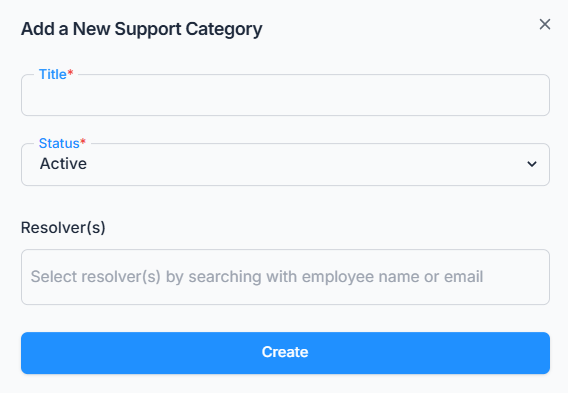
- Category Title — required, and must be unique within your company.
- Status (Active/Inactive) — required. Only Active categories are offered to employees when they create a new ticket; switching a category to Inactive hides it from that dropdown without touching any tickets already filed under it.
- Resolver(s) (responsible employees) — optional; search and select one or more employees by name or email.
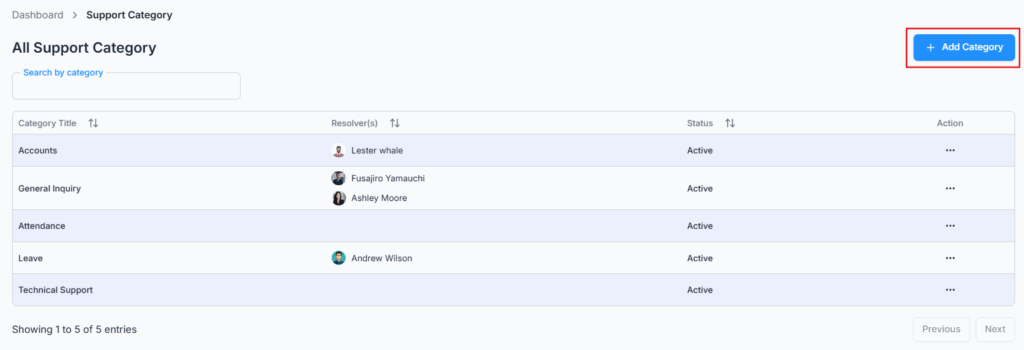
When an employee creates a support ticket under a specific category, everyone listed as a Resolver for that category is instantly notified — both an in-app notification and an email — and only those resolvers (plus admins) can see and act on tickets filed under that category, from Support → Resolve.
This ensures that every issue reaches the right people without manual intervention.
How a Ticket Reaches Its Resolvers #
The Resolvers you add to a category aren’t just a notification list — they’re also the access list for that category’s tickets:
- An employee submits a new support ticket and picks this category.
- Every Resolver assigned to that category gets an in-app notification and an email about the new ticket right away.
- Any of those Resolvers (or an admin) can open Support → Resolve to see the ticket and take action on it — move it to In Progress, mark it Resolved, or Close it.
Resolvers who are not assigned to a category won’t see that category’s tickets on the Resolve page at all, even if they’re a Resolver on other categories. There’s no “claiming” step — whichever assigned Resolver gets to it first can act on it, and any other Resolver on that category can just as easily pick it up if needed.
Important: Resolver(s) is optional when you create a category, but a category with no Resolver assigned won’t notify anyone when a ticket comes in — it will simply sit there until someone happens to check. Always assign at least one Resolver to every category you make Active. This includes the “Technical Support” category your company starts with — it’s created automatically with no Resolver assigned, so add one before relying on it.
Good to know: adding or removing someone from a category’s Resolver list also sends them an in-app notification letting them know they’ve been added or removed as a resolver for that category.
Note: A category can’t be deleted while any support ticket has already been filed under it — deletion is blocked with a message telling you so.
Good to know: switching a category to Inactive only stops it from being offered when someone starts a new ticket. It does not remove that category’s Resolvers’ access to tickets already filed under it — those Resolvers can still see and act on those existing tickets from Support → Resolve exactly as before. If you also want to cut off a Resolver’s access, remove them from the category’s Resolver list directly, rather than relying on marking the category Inactive.