The Resolve Support Requests module is where the people responsible for a Support Category — its Resolvers — review and act on tickets raised under it.
Route: Dashboard → Support → Resolve
Who Can Use This Feature #
Subscriber Admin can see and act on every support ticket in the company from this page, without needing any specific permission.
Employees can access this page, and act on tickets, if they’re listed as a Resolver on at least one Support Category — see the Support Category guide for how Resolvers are assigned.
Good to know: there’s no separate “Resolve” permission to assign in Admin → Permission — access to this whole page comes purely from being added as a Resolver on a category. If you’re not a Resolver on any category (and you’re not the Subscriber Admin), opening this page shows no access at all.
Good to know: your access here isn’t affected by whether the category itself is currently Active or Inactive. If you’re a Resolver on a category that later gets switched to Inactive, you keep full access to that category’s tickets on this page — Inactive only stops new tickets from being raised under it, it doesn’t remove existing Resolvers.
What You’ll See #
This page lists every ticket raised under a category you’re a Resolver on — across all other employees. Tickets you raised for yourself are always excluded from this list, even under a category you resolve for — you’ll find those in your own Support → Create list instead. If you’re a Resolver on more than one category, all of their tickets appear together in one list, not split into separate views.
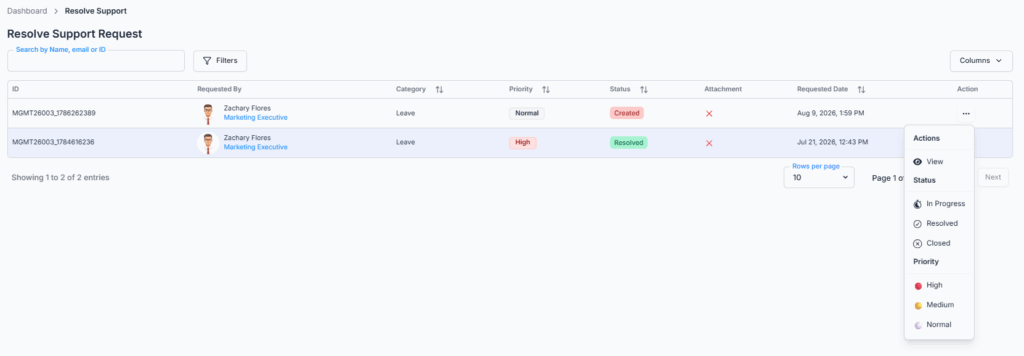
You will not see tickets for categories you aren’t assigned to as a Resolver, even if you can see other categories’ tickets here.
You can search by employee name/email/ID, and filter by Priority, Status, and a submission date range.
Viewing a Ticket’s Details #
Clicking View (or the ticket itself) opens its full details, titled “Support Request Details” along with its Request ID, organized into three tabs:
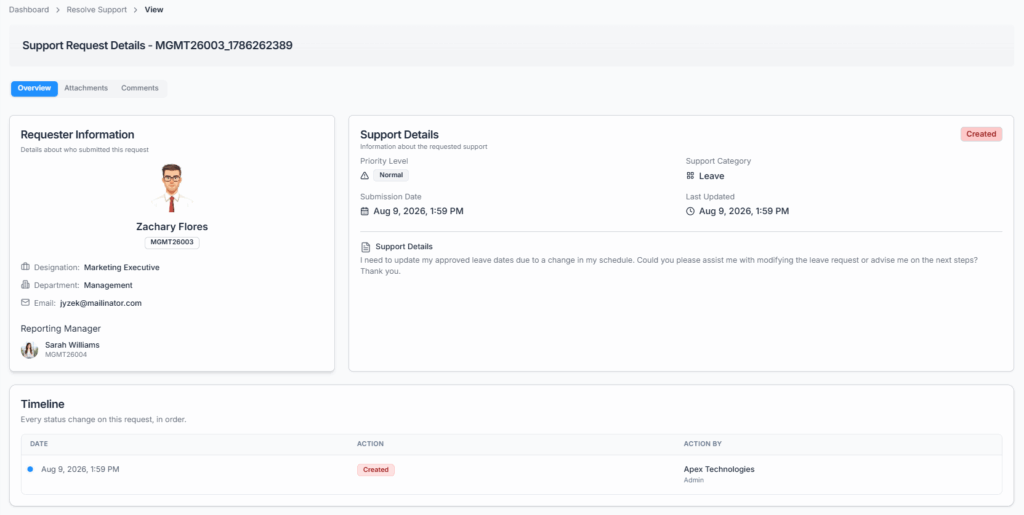
- Overview — a Requester Information card (the employee’s name, photo, employee ID, designation, department, email, and their reporting manager, or “No reporting manager assigned” if they don’t have one), plus a Support Details card showing the current Status, Priority Level, Support Category, the Submission Date, the Last Updated date, and the full issue description the employee wrote.
- Attachments — any files the employee uploaded with the ticket.
- Comments — the full comment thread on the ticket, with a count badge showing how many comments exist.
Good to know: if the requester is the Subscriber Admin rather than a regular employee, the Requester Information card shows “Admin” in place of a designation.
Acting on a Ticket #
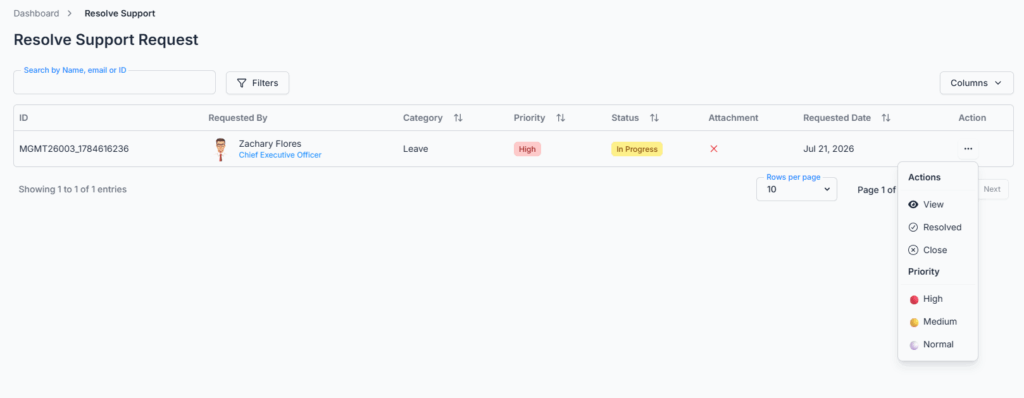
From the action menu on any ticket you have access to, you can:
- View — open the ticket’s full details.
- Set status to In Progress — lets everyone know it’s being worked on.
- Set status to Resolved — marks the issue as fixed.
- Set status to Closed — closes the ticket without necessarily marking it as resolved (for example, a duplicate or a request that’s no longer relevant).
- Change Priority — Normal, Medium, or High. This option disappears once the ticket is Resolved or Closed.
These take effect immediately when clicked — there’s no confirmation prompt for any of them.
Good to know: there’s no “claiming” step. Any Resolver assigned to that category can act on a ticket at any time — whoever gets to it first can move it along, and any other Resolver on the same category can just as easily pick it up afterward if needed. Office-X doesn’t lock a ticket to whoever acted on it first.
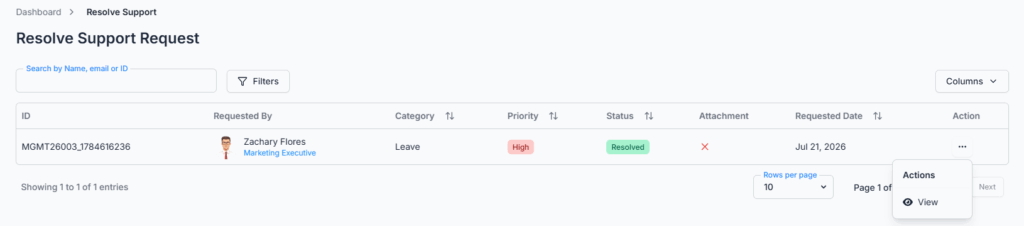
Good to know: Resolved and Closed are both final — once a ticket reaches either one, it can’t be moved to any other status, by you, another Resolver, or the Subscriber Admin. There’s no reopen option anywhere.
Good to know: you can’t reassign a ticket to a different category from this page — that can only be done by editing the ticket from the requester’s side (see the Create Support Request guide), and only by the ticket’s owner or someone holding Edit Support Request (For On Behalf).
Notifications and Email #
Marking a ticket Resolved or Closed notifies both the employee it belongs to and every Resolver on that category — an in-app notification (e.g. “Support Request Resolved”) and, if your company has email configured for it, an email too.
Good to know: moving a ticket to In Progress does not send any notification — only Resolved and Closed do. If you want to let someone know you’ve started looking into their ticket, leave a comment instead.
Comments #
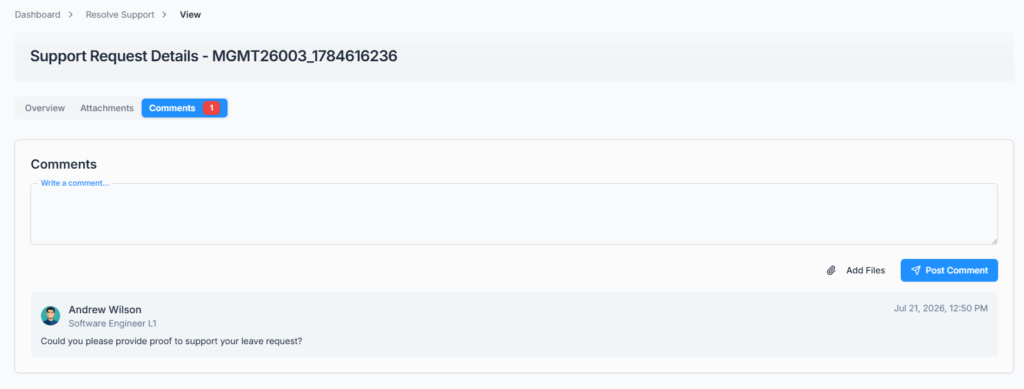
You can comment on any ticket you have access to, with up to 5 file attachments (JPG, PNG, or PDF) per comment — the same as the requester can. Commenting closes once the ticket is Resolved or Closed. Everyone else with visibility into that ticket is notified whenever a comment is added.
Summary #
The Resolve Support Requests page gives every category’s Resolvers — and the Subscriber Admin — a shared queue for handling internal tickets. Access comes purely from being assigned as a Resolver (no separate permission needed), any assigned Resolver can act on any ticket in that category with no “claiming” or confirmation step, and Resolved/Closed are permanent outcomes with no way back. Only Resolved and Closed actions notify the requester; use a comment to communicate anything in between.