Every task is done for somebody. The Customers page under Tasks is where those people live — their name, their phone numbers, their email and their address.
You do not have to build this list. It fills itself. The first time you raise a task for a new customer, Office-X files them here automatically. The second visit is a two-character search.
And these are not “task-only” contacts. A customer recorded from a task is a real, company-wide customer record. If you purchase the CRM later, the Subscriber Admin — and everyone else with the right permissions — finds the very same customers already there, ready to be used across the whole app for estimates, agreements and bookings. Nothing has to be exported, re-typed or imported.
Example: you run a home cleaning company on the Tasks add-on. Over six months your dispatchers raise 400 jobs, and 180 customers quietly build up on this page. Next year you add the CRM to start sending quotes. On day one, all 180 customers are already in CRM → Clients — you pick one and send them an estimate straight away.
Where to Find It #
- Log in to Office-X.
- In the left menu, click Tasks.
- Click Customers.
The page address is /dashboard/tasks/customers. The Tasks menu has three items: Schedule, History and Customers (this page).
Who Can Use This Feature #
| Who you are | What you can do |
|---|---|
| Subscriber Admin | Everything on this page. No permission needed. |
| Employee with View All Customers | Open the page and read the list. |
| Employee with Manage Customers | Open a customer’s record and correct their details. |
| Any other employee | Nothing — the page shows Access Denied. |
This page is different from Schedule and History. On those two, every employee at least sees their own work. Here there is nothing like that to fall back on — a customer belongs to the company, not to an employee — so without View All Customers there is simply nothing to show, and the page says so plainly instead of showing an empty table you cannot explain.
Both permissions come from Admin → Permissions, on the Employee Permission tab, in the Task Management group. They can be given to one employee, or to a whole team at once. See the Permissions Management guide.
Before You Start #
- Tasks is a paid add-on. You can buy Task Management from Business → Billing & Payment. Once it is added, the Tasks menu and the Task Management permissions become available.
- You need View All Customers unless you are the Subscriber Admin.
- There is no “Add Customer” button here, and that is on purpose. Customers are created by raising a task for them, so the list can never fill up with contacts nobody ever sent anybody to. See How a Customer Gets Onto This List below.
How a Customer Gets Onto This List #
There are three ways, and you will mostly use the first.
- You raise a task for somebody new. Type their name, phone, and address into Create Task, save, and they are filed here with a customer ID such as CLT_a1B2c3D4. The address you typed becomes their address.
- They already exist, and Office-X spots it. When you type a phone number that already belongs to somebody, the create form tells you: “This number already belongs to Mr. Sullivan. This task will be linked to them.” No duplicate is made. If it really is a different person — a shared landline, an office reception number — click Create a separate customer instead.
- They came from somewhere else in Office-X. If you also use the CRM, every customer added there appears here too. Public booking forms file their customers into the same list as well.
Good to know: an email address can only belong to one customer. If you type an email that somebody already holds, the task is linked to them and you are told. There is nothing to override — if that is not the person you mean, change the email.
Good to know: vendors never appear here. A task is work you do for a customer, so suppliers and vendors are left out of this list completely, even though they live in the same place in the CRM.
What the Columns Show #
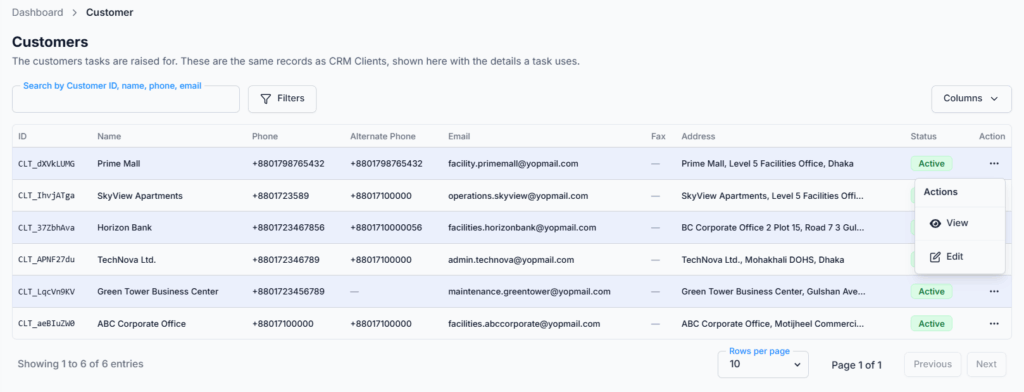
| Column | What it means |
|---|---|
| ID | The customer ID, for example CLT_a1B2c3D4. Office-X creates it; you never type it. |
| Name | The customer’s name, as it appears on every task for them. |
| Phone | The main number. This is the one Office-X matches on when a task is raised. |
| Alternate Phone | A second number, if one was given. |
| Where their visit emails go. Empty means they get none. | |
| Fax | A fax number, if one was given. |
| Address | Their address on one line. Long ones are shortened — hover to read the whole thing, or open the row. |
| Status | Active or Inactive. |
| Action | A menu with View and Edit. It is empty if you only hold View All Customers. |
An empty field reads as a dash, not as a blank — so you can tell “no fax” from “the column did not load”.
Too many columns? Use the column chooser above the table to hide the ones you do not need — Fax and Alternate Phone are the usual candidates. Action cannot be hidden, because it is the only way to reach Edit.
Finding a Customer #
The search box applies as you type — there is no button to press. It matches:
- the customer ID
- the name and the company name
- the email
- any of their numbers — phone, mobile or alternate
Searching by number matters more here than anywhere else in Office-X: a dispatcher taking a call usually has nothing in front of them but the number on the screen. Type it in and the customer comes up.
Click Filters for the Status filter — Active or Inactive. Unlike search, it applies when you press Apply. Clear removes it.
The table shows 10 rows at a time, newest customer first, and you can switch to 20 or 30 at the bottom. A customer filed from a task minutes ago is the one most likely to be looked up next, so they sit at the top.
View a Customer #
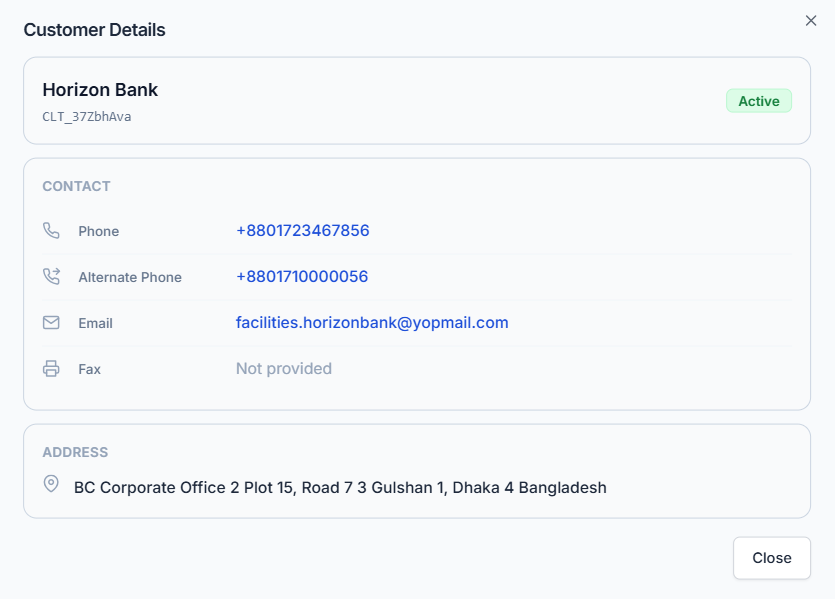
Click the row, or use Action → View. You get their name, customer ID, company and status at the top, then:
- Contact — phone, alternate phone, email and fax. The numbers and the email are clickable, so you can ring or write to them from here.
- Address — their address in full, not shortened.
Anything they never gave you reads Not provided.
Good to know: viewing needs Manage Customers. With only View All Customers the row is not clickable and the Action menu is empty — you can read the list, not open the record.
Edit a Customer #
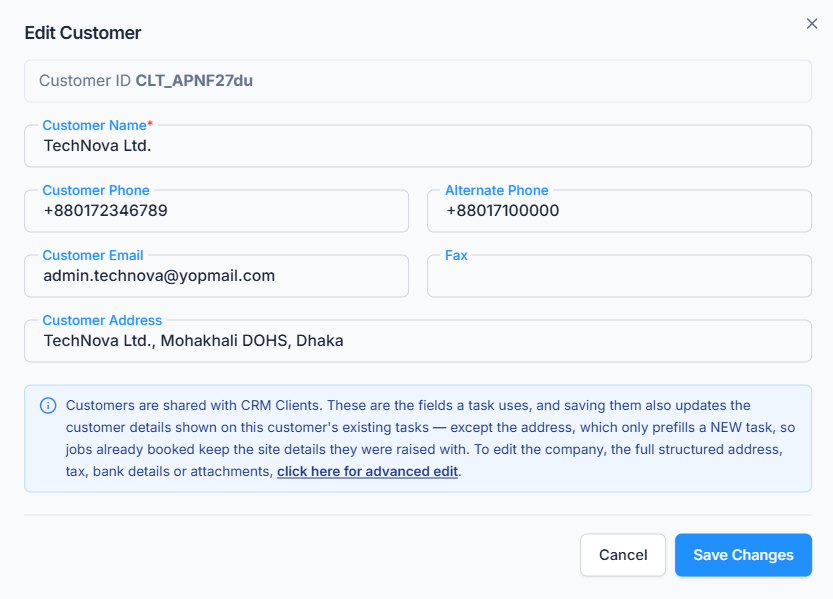
Needs Manage Customers. Use Action → Edit. You can change six things — exactly the fields the Create Task form collects:
- Customer Name (required, up to 100 characters)
- Customer Phone and Alternate Phone (up to 20 characters each)
- Customer Email — leave it empty if they have none
- Fax (up to 30 characters)
- Customer Address (up to 500 characters)
This is the right place to correct a customer. A phone number belongs to the customer, not to one job, so it is fixed once — here — rather than on each task. That is also why those fields are read-only on the task’s own Edit form.
What saving does
- Every task for that customer shows the new details immediately — the schedule grid, the history table, the task details page and the emails Office-X sends them. Tasks read the customer record live, so there is no delay and nothing to update by hand.
- Except the address. Changing it here changes where new tasks start from. Jobs already booked keep the site details they were raised with — “3rd floor, blue gate, ask for Rahim” is about that visit, and a technician’s directions must not be rewritten because somebody retyped the registered address.
- The change is written to Activity Log with the old and new values, so it is always clear who corrected what.
What you cannot change here
Company name, the full structured address (street, city, state, ZIP, country), billing versus shipping address, tax details, bank details, notes and attachments all belong to the wider customer record. The dialog says so, and offers a click here for advanced edit link that opens the CRM’s own form in a new tab.
That link needs CRM and its own permissions — which is correct. Correcting a phone number is a dispatcher’s job; changing a customer’s bank details is not.
One Customer, Shared Across Office-X #
This is the part worth understanding, because it decides how much work you have to do later.
A customer on this page is not a copy, a note or a task-only contact. It is one company-wide customer record, the same kind of record the CRM keeps. Task Management is simply a window onto it — a window that shows the fields a task needs and asks for no CRM permission.
So while you are only using Tasks, every job you raise is quietly building your customer list. And on the day you add the CRM add-on:
- Every customer is already there. They appear in CRM → Clients with the type Customer, alongside any vendors you add. No export, no import, no re-typing, no duplicates.
- The Subscriber Admin can use them anywhere in the app. Send an Estimate, raise an Agreement, take a Booking — all of them pick from the same customers your dispatchers have been filing all along.
- It works in both directions. A customer added in the CRM shows up on this page straight away, ready for a task to be raised for them.
- One correction fixes everything. Change a phone number in either place and every task, estimate, agreement and email follows it. There is only ever one record of that customer.
See the Clients help guide for what the CRM adds on top: company details, billing and shipping addresses, tax and bank details, notes and attachments.
Common Messages and What They Mean #
| Message | Why you are seeing it | What to do |
|---|---|---|
| Access Denied instead of the page | You do not hold View All Customers. | Ask your admin for it. There is no partial view of this page. |
| No customers yet. One is added the first time a task is raised for a new customer. | No tasks have been raised yet. | Nothing — raise a task and the list starts filling. |
| No customers match this search or filter. | There are customers, but not for this search or status. | Try their phone number instead of the name, or clear the filter. |
| Customer name is required | The name box was emptied. | Every customer needs a name. |
| Please enter a valid email address | The email is mistyped. | Fix it, or clear the box completely — an empty email is allowed. |
| A message saying the email is already in use | Another customer in your company already holds that address, and an email can only belong to one. | Search for that address first — you have probably found the same person twice. |
| Customer not found | The customer was removed while your page was open. | Refresh the list. |
Your Routine at a Glance #
- A customer rings in — type their number into search. If they come up, go to Tasks → Schedule and raise the job against them. If they do not, just raise the task and type their details; they are filed automatically.
- A customer changed their number — fix it here, once. Every task for them updates immediately.
- A customer is not getting visit emails — open their record and check the email is there. An empty one means no emails are sent.
- You think somebody is in the list twice — search their phone number and their email separately. Two records usually means one was filed under a second number; correct one of them and use that from now on.
- You need company, tax or bank details — use click here for advanced edit to open the CRM form.
Permissions in Detail #
| Permission | What it lets them do |
|---|---|
| View All Customers | Open Tasks → Customers and read the list, search it and filter it. Without this the page is Access Denied — there is no “own customers” to fall back on. |
| Manage Customers | Open a customer’s record from that page and correct their name, phone, alternate phone, email, fax and address. It covers both reading the record and changing it, because changing a phone number without reading the rest of the record first is not a useful thing to be able to do. |
Both are in the Task Management group and are checked against the Tasks add-on. Neither one grants any CRM access, and CRM permissions do not grant these.
A sensible starting point: give your dispatchers both. Give a supervisor who only needs to look numbers up just View All Customers. Keep the CRM’s own client permissions for whoever handles quotes and contracts.
Summary #
- Tasks → Customers is the list of people you do work for. It fills itself as you raise tasks.
- There is no Add Customer button — a customer is created by raising a task for them.
- Office-X matches on the phone number to avoid duplicates, and tells you when it does. An email can belong to only one customer.
- View All Customers opens the page; Manage Customers opens and edits a record. Neither needs CRM.
- You can edit the six fields a task uses. Everything wider is in the CRM’s own form, behind the advanced-edit link.
- A correction here reaches every task for that customer immediately — except the address, which only prefills new tasks.
- These are real, company-wide customer records. Add the CRM later and they are all already there, in CRM → Clients, ready for estimates, agreements and bookings — nothing to export, import or re-type.
- Vendors are never shown here. A task is work you do for a customer.