
The View All Travel Requests module allows authorized users to view all travel requests submitted by employees, across every travel mode and every status (Pending, Approved, Rejected). It’s a company-wide, read-only monitoring view — it doesn’t let you approve, reject, edit, or delete anything from here.
Access to this module is permission-based. Route: Dashboard → Travel → View (the page itself is titled “All Travel Requests”).
Who Can Use This Feature #
Subscriber Admin can always access View All Travel Requests and see every travel request in the company, without needing any specific permission.
Employees can access it only if they hold the required permission below.
Permission Behavior #
One permission controls access to this entire page:
- View All Travel Requests (Route Access)
Required action: View
Grants access to the View All Travel Requests page, showing every employee’s travel requests company-wide.
Without this permission (and without being the Subscriber Admin), attempting to open this page shows a “no access” message instead of the travel request list.
This permission can be assigned directly to an employee, or to an entire team at once (so everyone on that team inherits it, including teams set up as “all employees” or “all reporting managers”). See the Permissions Management guide for how to assign permissions.
What the List Shows #
Each row in the All Travel Requests table shows:
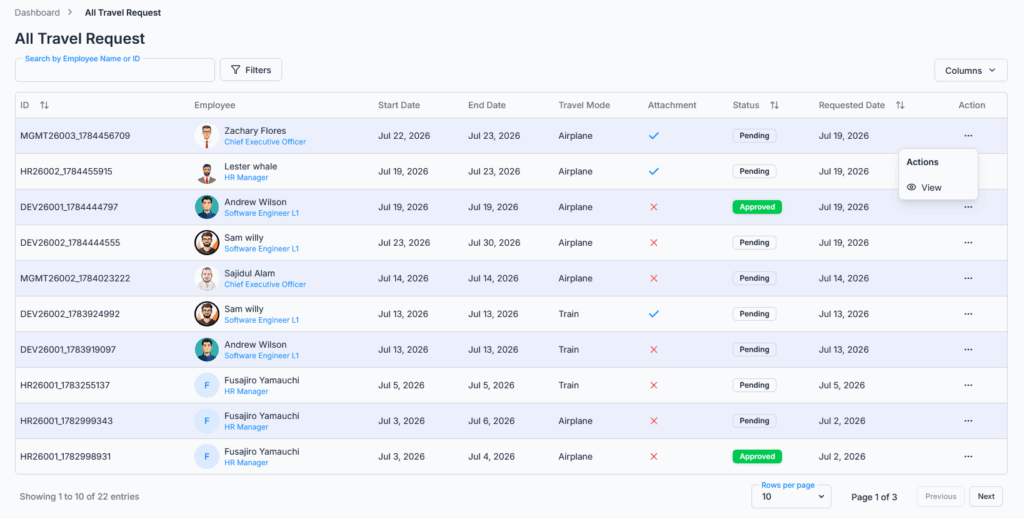
- ID — the request’s own Request ID, or the employee’s ID if a Request ID isn’t available.
- Employee — the requester’s photo, name, and designation.
- Start Date / End Date — the travel period.
- Travel Mode — Airplane, Train, Bus, Car, or Other.
- Attachment — a simple checkmark or cross showing whether the request has any attachments, not a download link itself.
- Status — Pending, Approved, or Rejected.
- Requested Date — when the request was originally submitted.
- Action — a View option that opens the request’s details.
You can show or hide most of these columns yourself using the Columns option above the table.
By default, the newest submitted requests appear first.
Good to know: clicking a column heading (like ID, Status, or Requested Date) to sort only reorders the rows currently loaded on your screen — it doesn’t re-sort the entire company-wide list across pages. To find something across the whole list, page through, or narrow things down with search/filters first.
Search and Filters #
You can narrow the list using:
- Search — by employee name or employee/request ID.
- Requested Date (From / To) — a date range.
Good to know: the Requested Date filter narrows results by when the request was submitted, not by the travel period shown in the Start Date/End Date columns. If you’re trying to find every trip happening within a particular window (rather than requests submitted during that window), this filter won’t do that — check the Start Date/End Date columns directly instead.
All searching and filtering happens on the server, so it stays accurate and fast even with a large number of travel requests, and results are spread across pages (10 per page by default, adjustable to 20 or 30) rather than loaded all at once. There’s no default date range limiting what’s shown — with no filter applied, every travel request ever submitted for the company is available, just paginated.
Viewing a Travel Request’s Details #
Clicking View (or clicking anywhere on a row) opens that travel request’s details, showing:
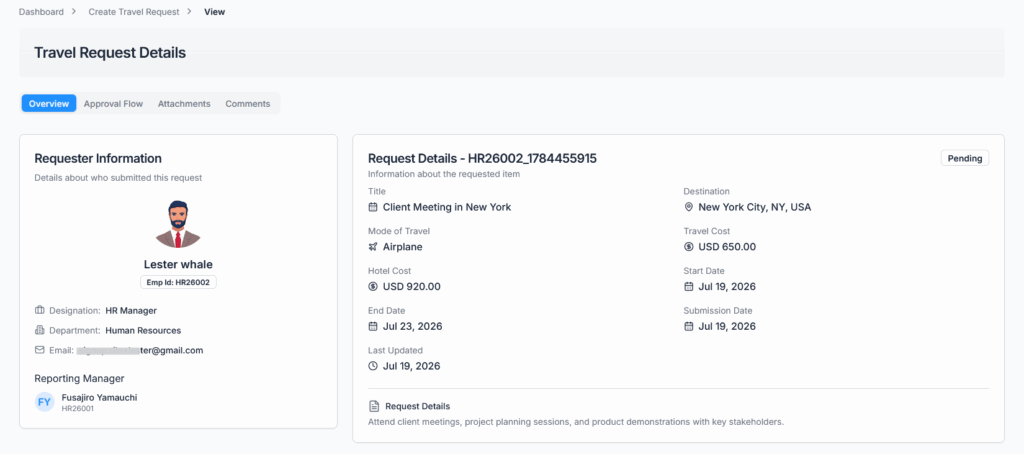
- An overview of the request — employee, title, destination, dates, travel mode, transportation and hotel costs, and currency.
- The approval flow steps and history, if the request has one.
- Uploaded attachments.
- Comments on the request.
There are no Approve/Reject actions here even for eligible approvers — those only appear from the Approve Travel Request page. Commenting is still possible from this details page, on the same terms as anywhere else in Office-X — only while the request is still Pending.
Known limitation: View All Travel Requests is meant to let anyone holding its permission open any request’s details from here. In practice, if you’re not the requester, their reporting manager, a named approver on the request’s approval flow, or the Subscriber Admin, clicking into a specific request’s details can send you back to the list instead of showing the details — even though the request appeared there in the first place. If this happens, ask the Subscriber Admin, the employee’s reporting manager, or one of the request’s approvers to pull up the details for you.
Good to know: there’s currently no Excel or PDF export option on this page — the Attachment column only shows whether attachments exist; opening a request’s details is how you actually view or download them.
Summary #
The View All Travel Requests module ensures that authorized users have full visibility of all travel submissions, across all travel modes and statuses. It’s mainly used to monitor travel activity and maintain historical records — it does not offer any way to act on a request, only to search, filter, and review it. Permission controls (the View All Travel Requests (Route Access) permission, or Subscriber Admin status) maintain security while providing a single source of truth for company-wide travel visibility.