The Tasks feature helps you manage work that happens outside the office — customer visits, repairs, installations or home services. You create a task, choose the employees who will do the work, set the schedule, and let them report what happened.
Example: imagine you run a home cleaning company. A customer books a full apartment cleaning for Tuesday morning. Someone in the office creates a task, assigns two cleaners and adds 30 minutes of travel time. The cleaners see the job on their side, press Start when they arrive and Complete when it is finished. The customer gets an email when the visit is booked and another when it is done.
It is written in two parts, because two different people use this feature:
- Part 1 — Assigning and Managing Tasks, for whoever hands the work out and keeps the schedule straight.
- Part 2 — If a Task Is Assigned to You, for the employee doing the job.
The sections before Part 1 — where to find it, who can use it, what to set up first, and the task statuses — apply to everybody. If you both hand work out and go on jobs yourself, read both parts.
Where to Find It #
- Log in to Office-X.
- In the left menu, click Tasks.
- Click Schedule.
The page address is /dashboard/tasks. Clicking any task opens its details page at /dashboard/tasks/<task id>.
The Tasks menu has three items:
- Schedule — this page: the calendar of who is doing what, and where new tasks are raised.
- History — the record of work already handed out.
- Customers — the people you raise jobs for, with their phone numbers and addresses.
Who Can Use This Feature #
- Subscriber Admin — full access to everything here, with no permission needed. You see every task in the company, you can create, edit, reschedule, reassign and cancel any of them, and you can act on any employee’s behalf.
- Every employee — can open the Tasks page and see their own work, plus the work of anyone who reports to them. This needs no permission at all. It is the starting point, because an employee who is given a job has to be able to see it, and a manager has to be able to see their team’s week.
Permissions widen that view and let one person act for another. The full list is at the end of this page, under Permissions in Detail — most readers do not need it, because the two rules below cover almost every case.
1. Being on a task is not the same as being able to move it. Every task has one Status Owner — the single person who reports whether the job happened. Only they press Start, Complete, No show and Cancel. See The Status Owner below.
2. Seeing a job listed is not the same as reading it. A manager sees their team’s tasks on the grid without any permission, but the details page carries the customer’s phone number, every comment and the full history — so opening a task you were not part of needs View Task Details (For Others).
Before You Start #
Five things to check. The first two will stop you completely; the rest just make the feature work properly.
- Tasks is a paid add-on. You can buy Task Management from Business → Billing & Payment. Once it is added, the Tasks menu and the Task Management permissions become available.
- You need at least one employee who can be assigned. Only employees who have a seat (a license) and whose employment status is Active appear in the pickers and as rows on the grid.
- Set your company time zone. Every time on this page — the grid columns, the schedule you type, the start and finish times — is read in your company’s time zone, set in Business → Company. Get this right first, or a 9:00 AM job will not sit where you expect it.
- Set up teams if you assign work by team. Teams come from Admin → Teams. You can add a whole team to a task in one click.
- Check your two task email templates. Office-X sends two different kinds of email: one to your staff and one to your customer. They come from the Templates page in the left menu, under the features Task and Task Customer.
Task Statuses #
A task has one status, and everyone on it shares that status. A visit either happened or it did not, so there is one answer, not one per person. Everyone assigned also shares the same actual start and finish times.
| Status | Meaning | Can it still be changed? |
|---|---|---|
| Assigned | Booked, not started yet | Yes |
| In Progress | Work has begun | Yes |
| Done | Work finished | No — closed |
| Cancelled | The whole visit was called off, with a reason | No — closed |
| No Show | The customer did not attend, with a reason | Yes — the job still has to be rebooked |
Overdue is not a status. It is a flag on any Assigned or In Progress task that has gone past its scheduled end. It just tells you the job is running late.
Good to know: A No Show task stays open because the job still needs to be completed. You can still edit, reassign, or comment on it. To book the job for another date, simply reschedule the task. It will move back to Assigned, the no-show note will be removed, and the recorded times will be reset so the crew can start fresh.
The original No Show entry will always remain in the Timeline.
Once a task is Done or Cancelled it is closed: it cannot be edited, rescheduled, reassigned, or commented on. You will see a message like “This task is done and can no longer be changed.”
Part 1 — Assigning and Managing Tasks #
This part is for whoever runs the schedule: the Subscriber Admin, or an employee holding the Task Management permissions. It covers the grid, raising and assigning work, and every change you can make to a task afterwards.
If you are the person doing the job rather than handing it out, skip to Part 2 — If a Task Is Assigned to You.
How the Schedule Grid Works #
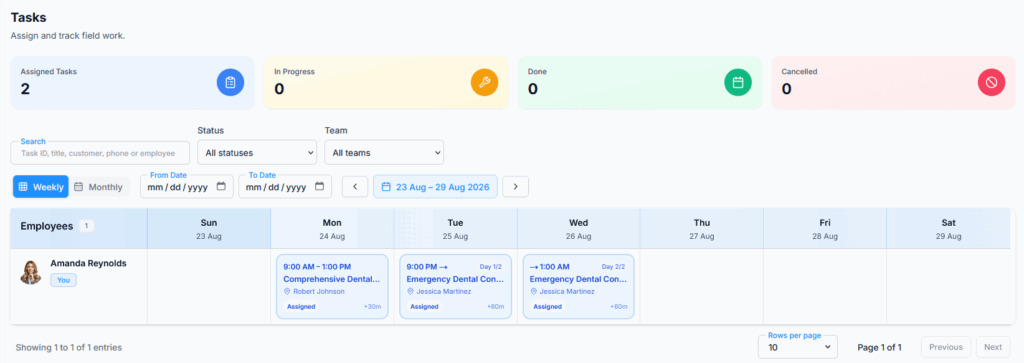
The schedule is a grid, not a list. Employees are the rows. Days are the columns. A task appears in the row of every employee assigned to it, so at a glance you can see who is busy and who is free.
At the top there are five counters for everything in the date range you are looking at — not just the rows on screen, so they do not change as you turn the pages: Assigned Tasks (the total), In Progress, Done, Cancelled and No Show.
Moving around the calendar
- Weekly shows seven columns starting from today. It does not jump back to Sunday; it simply runs forward a week from where you are.
- Monthly shows the whole calendar month.
- The < and > buttons move one week or one month at a time.
- From Date and To Date, inside the Filters panel, show any range you like. You need both dates — a half-filled range is ignored. While a custom range is in force the < and > buttons switch off; press Clear All in the panel to get them back.
- A month or a long custom range is wider than the screen, so the grid scrolls sideways. Two extra arrow buttons appear next to the Weekly / Monthly tabs to scroll it.
- Today’s column is highlighted, and your own row carries a You badge instead of a job title.
Reading a task block
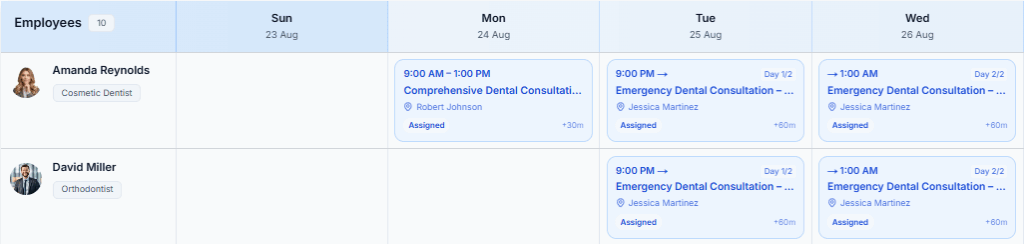
Each coloured block shows the time, the task title, the customer’s name and a status pill.
- The status on the block is the task’s status. Every row of the same task shows the same thing, so two screens can never disagree about one job.
- +30m at the bottom of a block means the task has 30 minutes of buffer time after it.
- A task that runs over several days appears on every day it touches, so nobody looks free on a Wednesday they are actually booked. Those blocks are labelled Day 1/3, Day 2/3 and so on. The first day shows the start time, the last day shows the end time, and the days in between read All day.
- Hover over any block for the task’s full window, its task ID, the buffer, the customer, the address and the status.
- A task past its scheduled end but not finished is marked Overdue. It still reads Assigned or In Progress — Overdue only means it is running late.
Click a block to open the task’s details page. Some blocks do not open. If the task is not yours and you do not hold View Task Details (For Others), the block still shows you that the person is busy — but hovering it says “You can only open your own tasks.”
Rows and paging
The grid loads 10 employee rows at a time, and you can switch to 20 or 30 at the bottom. The paging counts employees, not tasks, because that is what grows as your company grows.
Create a Task #
Click Create Task at the top right of the schedule. There is no Task ID field — Office-X creates one for you when you save, in the form TSK_.
Step 1 — the job
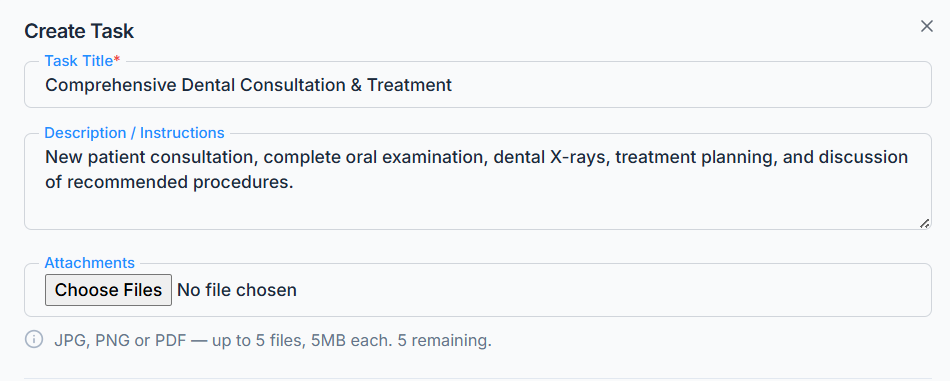
- Task Title (required) — short and recognizable, up to 200 characters. For example, AC Repair at Downtown Branch.
- Description / Instructions — anything the person going needs to know before they arrive. “Bring the carpet machine. Elevator is out of service, use the stairs. Ask for Mr. Sullivan at the front desk.”
- Attachments — up to 5 files, JPG, PNG or PDF, 5 MB each. Useful for a photo of the fault, a floor plan or a signed quote. The field tells you how many you have left.
Step 2 — the customer
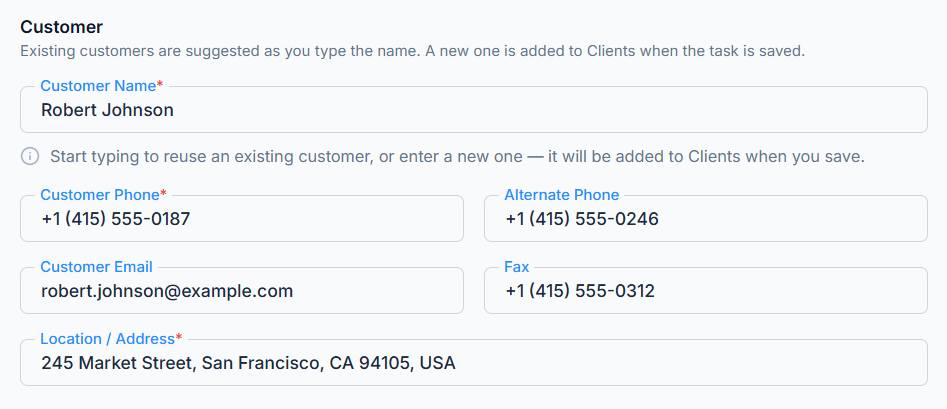
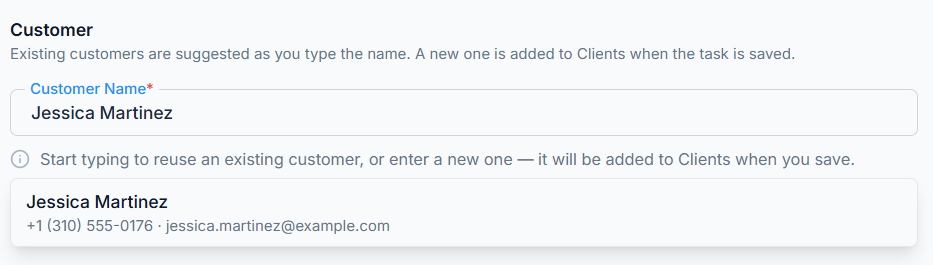
Start typing in Customer Name. After two characters, Office-X suggests customers you already have. Pick one and the phone, alternate phone, email and fax fill in automatically, and the address is offered as a starting point.
When you pick an existing customer, their contact fields become read only. This is on purpose — a task is not the place to correct a customer record. If a number is wrong, fix it on the customer instead, from Tasks → Customers, and every task for them shows the corrected number straight away.
The Customer Address field always stays editable, because the site detail — “3rd floor, side entrance” — belongs to this visit.
If the customer is new, just type their details. They are filed in your Customers list when the task is saved, so the second visit is a two-character search.
- Customer Name (required for a new customer)
- Customer Phone (required for a new customer)
- Alternate Phone, Customer Email, Fax — all optional. A walk-up customer often gives nothing but a mobile number, and that is fine.
- Customer Address (required) — where the work happens.
Good to know: the customer email is optional. If you add one, Office-X emails the customer about their visit. If you leave it blank, no emails are sent to the customer — everything else still works.
Good to know: every task must have a customer. If the customer cannot be saved for some reason, the task is not saved either — you are told, and nothing you typed is lost.
Two notices you may see under the customer fields
Office-X tells you in advance which customer record your task will be linked to, so nothing happens quietly.
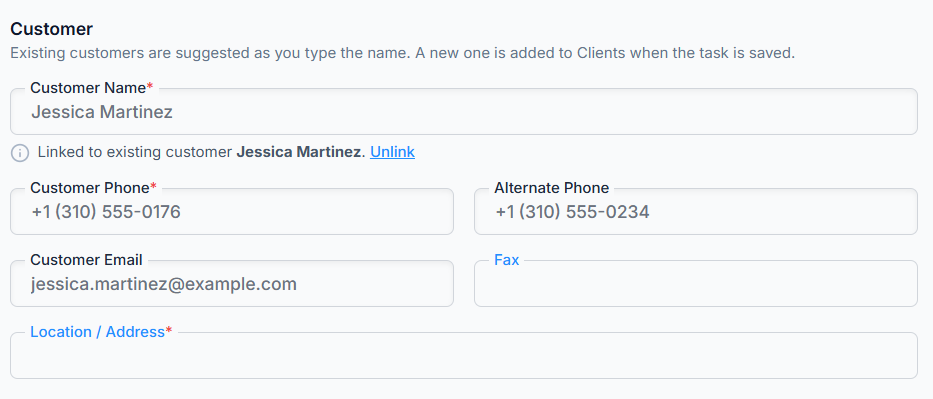
- “This number already belongs to Mr. Sullivan. This task will be linked to them.” — a phone number is matched against your existing customers. Most of the time that is exactly right. When it is not — a shared landline, an office reception number, a number a whole family answers — click Create a separate customer instead. You can change your mind again with Link to Mr. Sullivan instead.
- “This email already belongs to Mr. Sullivan. This task will be linked to them.” — an email address can only belong to one customer, so a match here always links. There is nothing to override. If that is not the person you mean, change the email.
Neither notice appears when you picked the customer from the list — that is already a clear choice, and Office-X honours it.
Step 3 — the schedule
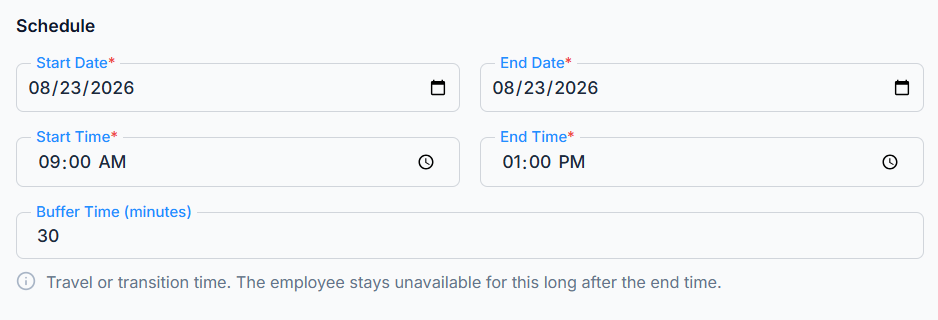
- Start Date and End Date — both default to today. A one-day job is one field: change the start date and the end date follows it. A job that runs Monday to Wednesday just needs a later end date.
- Start Time and End Time — default to 09:00 and 13:00. Any minute is allowed, not just whole hours.
- Buffer Time in Minutes (optional) — travel or packing-up time. The employee stays unavailable for this long after the end time. Leave it at 0 if they are free straight after. It does not change the task’s end time.
The end must be after the start, or you get “End time must be after start time”.
Past dates are allowed on purpose. If a cleaner did an emergency job on Saturday and nobody entered it, you enter it on Monday with Saturday’s date. See Recording work that already happened below.
Step 4 — who is going
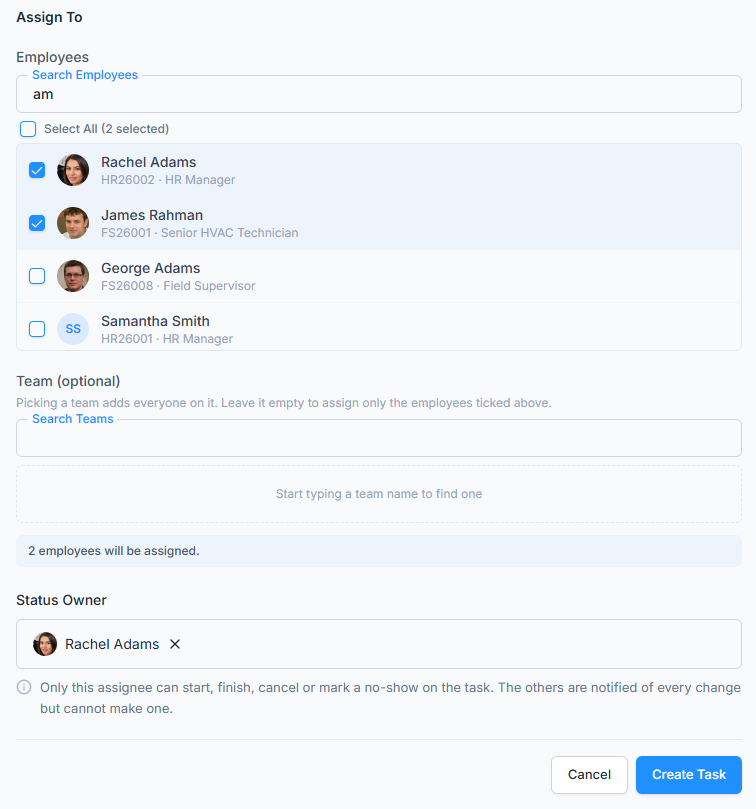
The Assign To picker has two halves, and you can use both together.
- Employees — search by name, employee ID or email and tick as many as you like. Select All ticks everyone currently listed, and the count beside it tells you how many are picked.
- Team (optional) — search by team name and tick one. Picking a team adds everyone on it. Only one team can be chosen; picking another replaces it. Untick it to mean “no team”.
A line under the picker confirms what you have done: “5 employees will be assigned, including 3 from Night Crew.” Someone who is both on the team and ticked by name counts once.
You need at least one employee or a team, or you get “Assign the task to at least one employee or a team”.
Good to know: when you assign a task to a team, Office-X saves the team’s current members as individual assignees. If someone later joins or leaves the team, the existing task does not change. That keeps old task records accurate.
Good to know: a team row sometimes reads “4 of 9 members assignable”. That happens when you hold Create Task (For Subordinate) — you can only assign work to people who report to you, so only those members will be added.
Step 5 — the Status Owner

As soon as two or more people are on the task, a Status Owner picker appears and you must choose one of them. With a single assignee it does not appear — that person owns it automatically.
The helper text says it plainly: “Only this assignee can start, finish, cancel or mark a no-show on the task. The others are notified of every change but cannot make one.”
If you skip it you get “Choose which assignee will update this task’s status when it starts, finishes or is cancelled.”
What Office-X checks before it saves
Office-X checks every assigned employee for a clash — their existing tasks, plus buffer time, against the new window. If anyone is busy, nothing is saved and the form tells you exactly who and what:
Scheduling conflict — Maria Lopez already has TSK_9Xy4Kp2M (25 Aug 2026, 9:00 AM–1:30 PM).
Every assigned person is checked, so you see the whole picture in one go rather than fixing one clash and hitting the next. Fix the time, or remove that person, and save again.
You may also see “One of these employees is being scheduled by someone else right now — please try again in a moment.” That means two people in your office were booking the same person at the same second. Wait a moment and save again.
What happens after you save
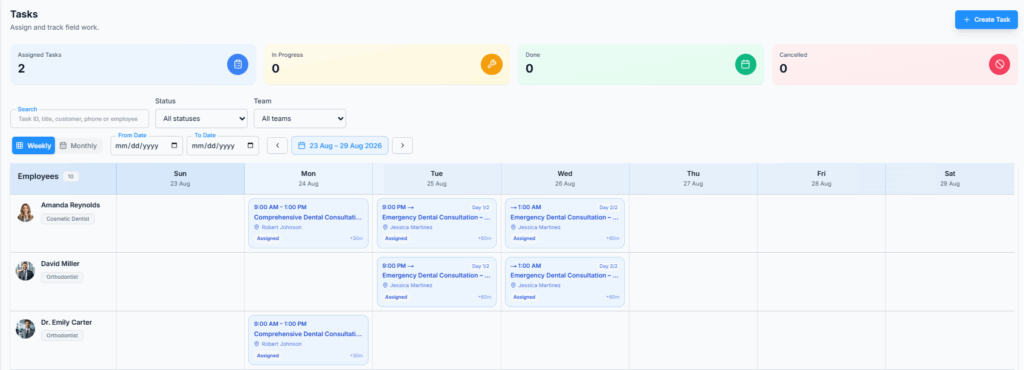
- The task gets its ID and appears on the grid, in the row of every assignee, on every day it touches.
- Every assignee gets an in-app notification, New Task Assigned, and an email.
- If the customer gave an email, they get a booking confirmation naming the time, the address and who will attend.
- The customer is filed in your Tasks → Customers list, if they were not there already.
- The task’s Timeline gets its first two entries: Created and Assigned.
Recording work that already happened
There is no separate manual task option. To record work that already happened, create a normal task with a past date, then use Start and Complete and type the real start and finish times. Any past time is allowed in those dialogs.
Office-X marks this as entered after the fact in the Activity Log, so it is clear to anyone auditing that the task was added later.
The Status Owner #
This is the key idea in Tasks, and it matters most on jobs with several employees.
A task has one outcome, so it has one person who reports it. If three cleaners are sent to one apartment, the job either was completed or it was not. If each cleaner could set their own status, you could end up with one marked complete, one cancelled and one untouched — and no answer to the only question that matters: did the customer get their service?
So one assignee is named the Status Owner, and:
- The Start, Complete, No show and Cancel buttons are shown to them. They sit at the top of the details page, on the Schedule vs actual card.
- Whatever they press applies to the whole task. The owner presses Complete at 1:20 PM and the job is done at 1:20 PM for all three cleaners.
- The other assignees are notified in the app each time, so they know where the job stands.
- Their row carries a Status owner tag on the details page, and the Assignment card on the right names them.
A single-assignee task has an owner too — that one person — so it behaves exactly as you would expect.
If the owner is unavailable, there are two ways forward:
- Anyone in the office holding Update Task Status can start, finish, cancel or record a no-show on the task themselves.
- Anyone holding Reassign Task can hand the status to a different assignee — see Reassign a Task below. Nothing else about the job changes.
Good to know: on a very old task — one raised before Status Owner existed — there is no owner at all, and any assignee can move it. That is the same latitude those tasks always had.
Buffer Time #
Buffer time is travel time. Your cleaner finishes at 1:00 PM in Riverside and cannot possibly be in Oak Park at 1:05. So you add 30 minutes of buffer, and Office-X treats them as occupied until 1:30 PM.
Worked through with that example — a 9:00 AM to 1:00 PM task with a 30-minute buffer:
| You try to book them at… | Result |
|---|---|
| 12:30 PM | Rejected — inside the job itself |
| 1:15 PM | Rejected — inside the buffer |
| 1:30 PM | Accepted — the buffer has just ended |
| 2:00 PM | Accepted |
Times that touch exactly are fine. A job ending at 1:30 and one starting at 1:30 do not clash.
When a slot frees up early
- Finished early? Office-X uses the real finish time. That 9:00–1:00 job actually finished at 11:26, so with a 30-minute buffer the crew is free from 11:56 — and you can book them at noon. This is one of the main reasons recording actual times is worth doing.
- Cancelled, or marked no show? The slot is released immediately for everyone on the task. No work took place, so there is nothing left to protect, and the crew can take other jobs in that window.
- Still running? Nobody knows when it will actually end, so it holds the full booked window plus buffer.
Good to know: assignment checks only other tasks. Work shifts, leave and holidays are not consulted — field work does not keep office hours.
Edit a Task #
Needs Edit Task. Open the task and click Edit at the top right.
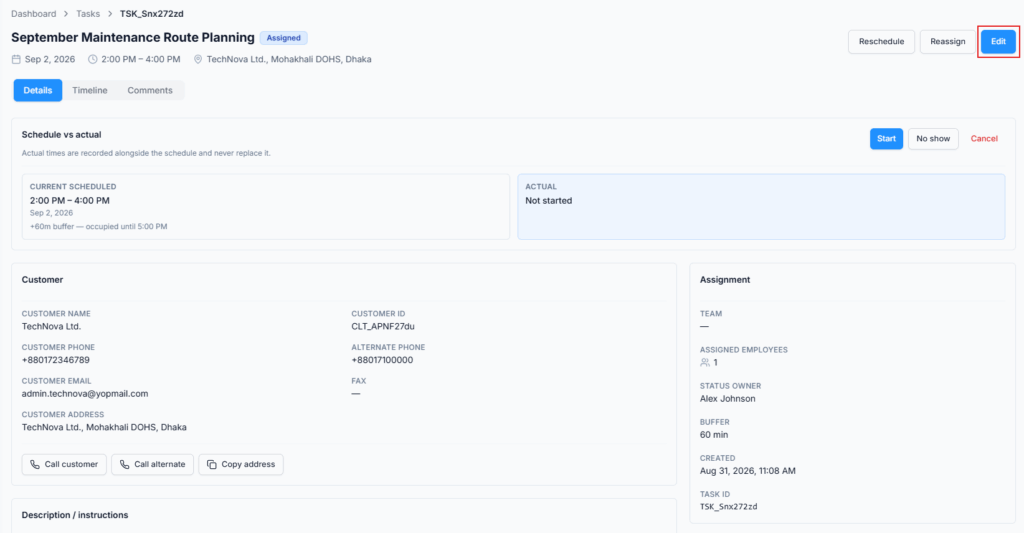
Edit covers the information on the task:
- the title and the description / instructions
- the attachments
- the Customer Address — the site this visit happens at
- which customer the task is for — search and pick a different one
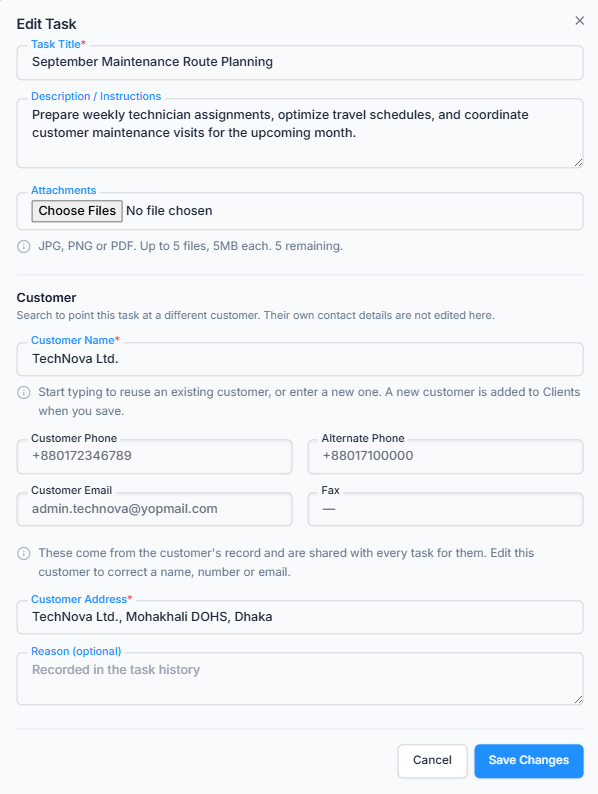
What Edit does not cover:
- The customer’s own phone, email and fax. They are shown here so you can read them, but they belong to the customer’s record and are shared by every task for that customer. The dialog has an Edit this customer link that opens the right screen.
- The schedule — that is Reschedule.
- The people — that is Reassign.
Each of those has its own permission and its own record of what changed.
- You can edit a task that has already started — finding a wrong address mid-job is exactly when it needs fixing. But a Reason becomes required: “This task has already started — a reason is required to edit it.”
- A No Show task can still be edited. A Done or Cancelled one cannot.
- If nothing actually changed you get “Nothing was changed.” — no empty entry is added to the history.
Every assignee gets a Task Updated notification and email, with your reason if you gave one. The Timeline records each field as old → new. Attachments are recorded as a count — “2 file(s) → 3 file(s)” — rather than by file name.
The customer is emailed only when something they can see changed — the service name or the address. An edit to the internal instructions or the attachments does not put a message in their inbox. If you moved the task to a different customer, the new one gets a booking confirmation, because it is the first they have heard of the visit.
Reschedule a Task #
Needs Reschedule Task. Use it when the customer asks you to come another day.

Open the task, click Reschedule, and set the new start and end date and time. A Reason is required — you are moving a commitment, and six weeks later somebody will ask why.
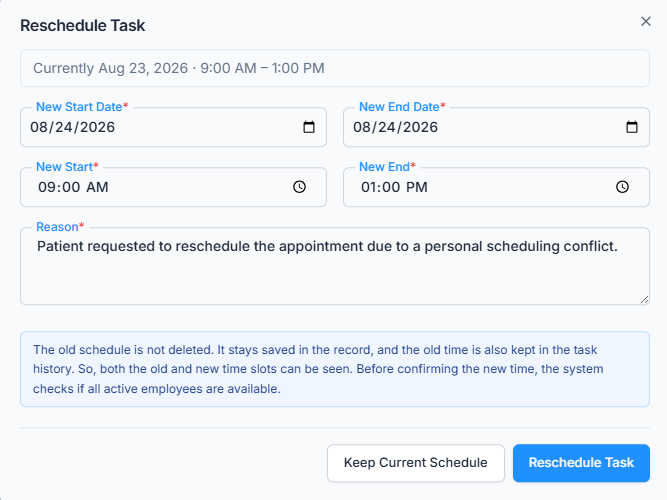
The dialog says what will happen: “The old schedule is not deleted. It stays saved in the record, and the old time is also kept in the task history. So, both the old and new time slots can be seen. Before confirming the new time, the system checks if all active employees are available.”
- The first schedule the task ever had can never be changed by anyone. Once a task has been moved, the details page shows a third block, Initial Scheduled, next to Current Scheduled and Actual.
- Everyone on the task is re-checked for clashes in the new window.
- Assignees get Task Rescheduled, in the app and by email, showing old → new.
- The customer is emailed that their visit has moved, with the old and new times and your reason.
You can reschedule a task that has already started. Holding Reschedule Task is the whole test — there is no extra permission for moving a job in progress. Only Done and Cancelled tasks are closed to it.
Rebooking a no-show. On a task marked No Show, the button reads Reschedule visit — and this is how you send the job back out. The task returns to Assigned, the no-show note is cleared and the recorded times are reset, so the crew starts fresh on the new date. The original No Show entry stays in the Timeline, so the record still reads assigned → in progress → no show → rescheduled.
Reassign a Task #
Needs Reassign Task. Use it when the crew changes — somebody drops out, somebody is added, or the whole job moves to a different team.

Reassign is not a one-for-one swap. Open the task, click Reassign, and you get the same Assign To picker the create form uses, already showing who is on the job — people currently assigned are marked On task. Tick anyone you want to add, untick anyone coming off, change the team if you need to, and save once.
- Reason — required.
- At least one person has to remain, or you get “Keep at least one employee on the task, or pick a team”.
- Anyone added is checked for a scheduling conflict in the task’s window first. Everyone already on the job keeps the slot they were checked against.
- Somebody joining a job that is already running joins it as it stands. The status and the recorded times do not change just because the crew did.
Handing the status to someone else. The same dialog is how you change the Status Owner. Your lead cleaner has gone off shift, the job is half done and the other two are still there — you do not want to change the crew, you just want somebody else to be able to press Complete. Leave the crew exactly as it is, pick a different Status Owner, give a reason and save.
- Nothing else changes: “the task keeps the status it has now — nothing is restarted, and the recorded times stay as they are.”
- This is recorded as a Status Owner entry in the Timeline, not as a reassignment, so the record does not claim a crew change that never happened.
- Everyone still on the task, plus the person who raised it, gets a Task Status Owner Changed notification in the app. No email — nobody’s schedule moved and nothing new is being asked of the crew.
If you change nothing at all, you get “Nothing changed. Add or remove an assignee, or hand the status to somebody else.”
What happens to the Status Owner when the crew changes: if the owner is still on the task, they stay the owner and you are not asked anything. If they are being removed, you must name who takes over — unless only one person is left, who then owns it automatically.
Notifications: anyone added gets New Task Assigned, in the app and by email. Anyone removed gets Task Reassigned, also by email, so they do not turn up at the customer’s door anyway.
Like Reschedule, Reassign works on a task that has already started, and on a No Show task. Only Done and Cancelled tasks are closed to it.
Cancel a Task #
Cancelling calls off the whole visit. It is not a per-person action: a job with three cleaners on it does not half-happen because one of them withdrew. If one person cannot go, use Reassign to take them off and put somebody else on.
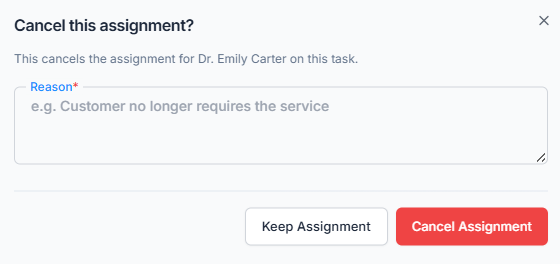
Open the task and click Cancel on the Schedule vs actual card. A Reason is required. The dialog spells out who will be told — “This cancels the whole task. Maria Lopez, Danny Ruiz and Ana Silva will be told it is no longer going ahead, and so will Mr. Sullivan.” — and the buttons are Keep Task and Cancel Task, so there is no way to do it by accident.
Who can do it: the Status Owner, anyone holding Update Task Status, and the Subscriber Admin. On an old task with no Status Owner, any assignee can.
What happens next:
- Everyone’s slot is free immediately — you can book any of them for something else in the same window.
- No replacement job is created. A cancelled task is closed for good.
- The reason is shown on the task permanently, with who recorded it and when.
- If work had already started, the recorded times are kept. That work really happened, and erasing it would make the record disagree with the Timeline.
- Every assignee is emailed, along with the person who raised the task and the reporting manager. A technician who is not told will drive to the address anyway, so this one goes out by mail, not just as a badge in the app.
- The customer is emailed that their visit has been cancelled, with your reason.
Mark a No Show #
Use this when the customer did not attend — nobody was at the address, or your crew was turned away.
Click No show on the Schedule vs actual card and give a Reason. The dialog states what is being recorded: “Use this when the CUSTOMER did not attend — Mr. Sullivan was not there, or turned the visit away.”
And what happens next: “The task is not closed by this. It stays open so you can reschedule the visit, which sends the job back out. Mr. Sullivan is emailed that the visit could not be carried out and asked to arrange a new time.”
- Same people as Cancel: the Status Owner, anyone with Update Task Status, or the Subscriber Admin.
- It frees the crew’s slots straight away — no work took place in that window.
- The task stays open. Reschedule it to rebook the visit; see Reschedule a Task above.
- Every assignee is emailed, along with the person who raised the task and the reporting manager — they are the ones who will be sent back out.
- The customer is emailed too. They are the one person who can do something about it. The wording says the visit could not be carried out and asks them to get in touch; it does not accuse anybody.
Recording Work on Somebody’s Behalf #
Field employees normally press Start and Complete themselves. If they cannot — no signal, they have already left the site, or you are entering an earlier job — someone in the office can do it for them.
That is what Update Task Status is for. With it, the Start, Complete, No show and Cancel buttons appear for you on any task, and both time dialogs let you type the real times instead of “now” — so a job that ran 9:00 to 11:26 is recorded as 9:00 to 11:26 even though you are entering it at 4:00 PM.
The dialogs and the rules are exactly the same whoever presses the button. They are described in Part 2, under Start the Work and Finish the Work.
What the Task Details Page Shows #
The header carries the title, the status badge, an Overdue badge if it is late, then the date, the time window and the address. On the right are the task-level buttons — Reschedule, Reassign and Edit — each shown only if you may use it. On a Done or Cancelled task they all disappear.
Below that are three tabs.
Details #
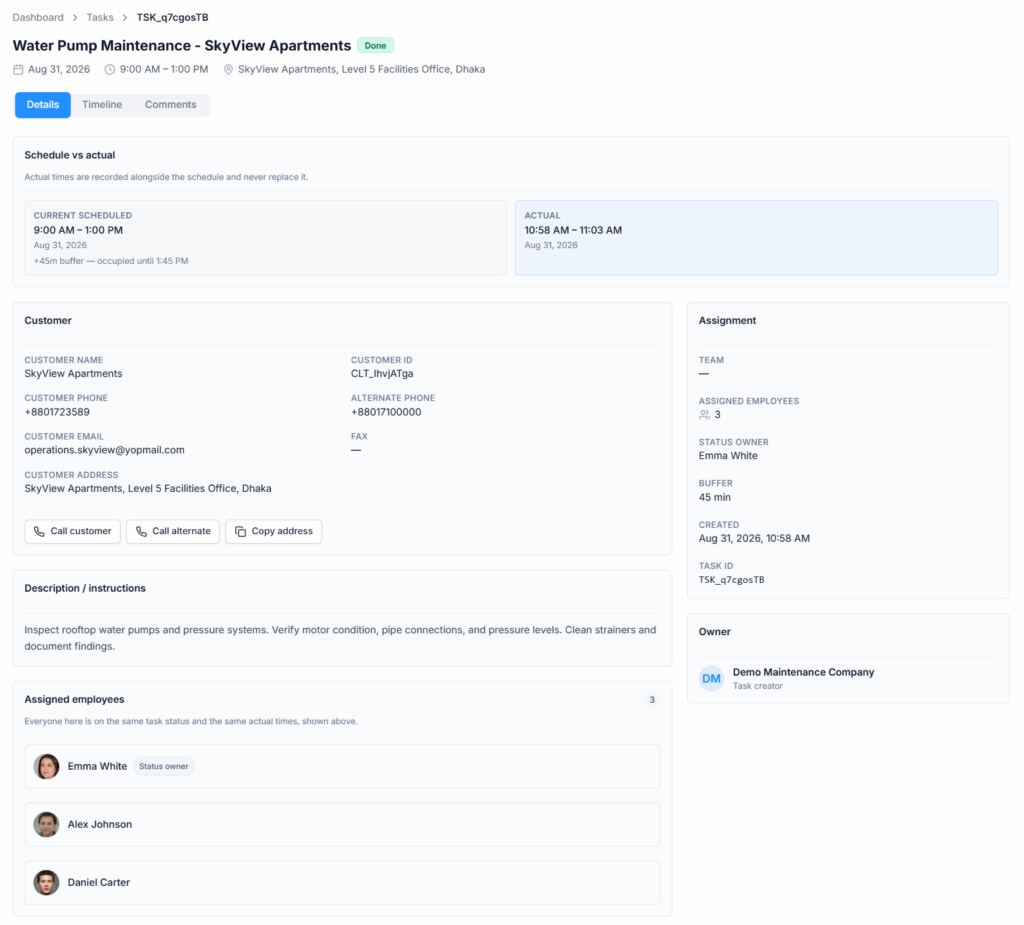
- Schedule vs actual — Current Scheduled and Actual side by side, plus Initial Scheduled if the task was ever moved. Where there is buffer, this card spells it out: “+30m buffer — occupied until 1:30 PM”. This card also carries the Start, Complete, No show and Cancel buttons — they live here, in one place, rather than beside each person’s name.
- The outcome, stated once — a cancellation or no-show reason appears here with who recorded it and when. On a no-show it adds: “The task is still open. Reschedule it to send the job back out.”
- Customer — name, customer ID, both phones, email, fax and the site address, read live from the customer’s record. Three buttons: Call customer, Call alternate and Copy address — genuinely useful on a phone at the customer’s gate.
- Attachments — the photos and PDFs, if any were added.
- Description / instructions — if one was written.
- Assigned employees — one row per person with their photo and job title, a You tag on your own row and a Status owner tag on the owner’s, who is listed first. There are no per-person statuses or times here, because everyone shares the task’s — the card says so: “Everyone here is on the same task status and the same actual times, shown above.”
- Assignment (right side) — team, number of assignees, status owner, buffer, when it was created, and the task ID.
- Owner (right side) — the person who raised the task.
Timeline #
The full story of the task, oldest first, in the same style as Leave, Bill and Purchase requests. Every entry shows what happened, who did it, when, and — where it applies — the old and new values and the reason in quotes.
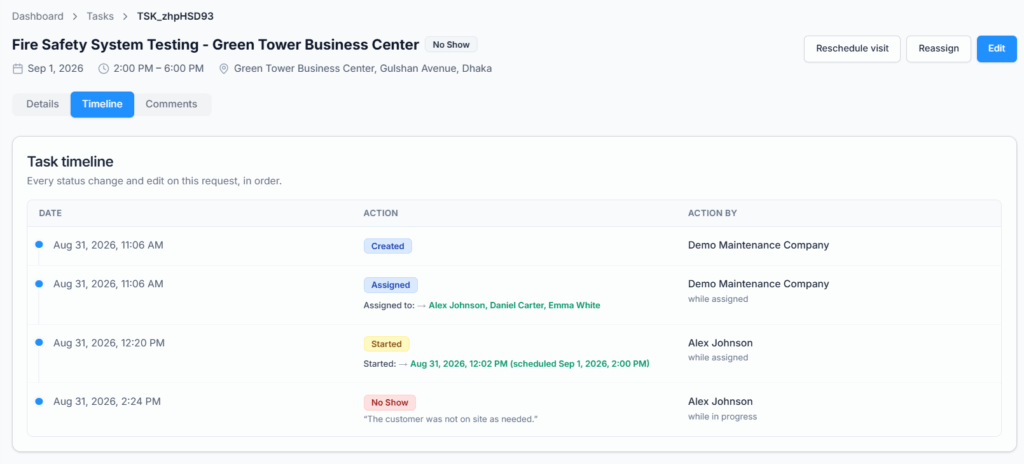
The entries you can see are: Created, Assigned, Edited, Started, Completed, Rescheduled, Reassigned, Cancelled, No Show and Status Owner.
Each entry also notes what state the task was in at the time — “while assigned”, “while in progress”. That is what makes an old Edited entry meaningful when you read it a month later. Names are saved as they were on the day, so the record still reads correctly after somebody is renamed or leaves the company.
Anyone who can open the task can read its Timeline. There is no separate permission for it — getting onto the page is the decision, and a page that shows the customer’s details but hides what happened to the task would be half a record.
Comments #
A conversation attached to the task — the right place for “gate code is 4471” or “customer wants us to come back for the balcony”.
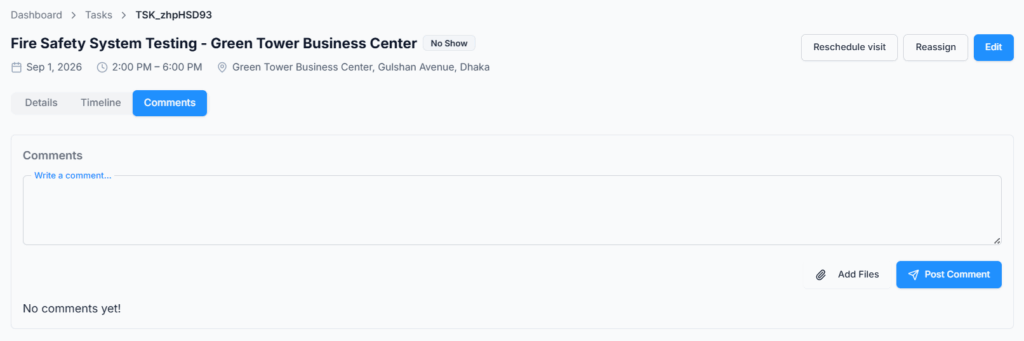
- Anyone on the task, and whoever raised it, can comment with no permission. So can the Subscriber Admin, and anyone with View Tasks (For All).
- Up to 5 files per comment.
- Everyone with a stake in the task gets a New Comment Added notification, except whoever wrote it.
- A Done or Cancelled task takes no more comments: “This task is closed out and no longer open for comments.” A No Show task still does — rebooking it is exactly the conversation that belongs there.
Finding the Task You Need #
The search box sits above the calendar and applies as you type. Everything else is behind the Filters button and applies on Apply.
- Search by Task ID, title, customer or employee — it matches the task ID, the title, the site address, the customer’s name, phone or email, and employee names and emails. Typing Maria shows Maria’s row and her whole week; typing 555-0142 finds the tasks for that number.
- Status — All statuses, or one of the five.
- Team — All teams, or tasks assigned through one particular team.
- From Date and To Date — a custom range. Both are needed.
Search and filters only look inside the dates you are viewing. This is the single most common reason a task “cannot be found” — it is real, it is just in another week. Switch to Monthly, or set a wide From Date and To Date, and search again.
When something is filtered but nothing matches, the page says “No tasks match these filters” and offers a Clear filters button. When there is no filter and still no rows, it says “No employees to show” — which points at the roster, not at the tasks (see Before You Start).
Tasks → Customers #
Every task is raised for a customer, and this is where those customers live. It is the same record as CRM → Clients, but reachable under Task Management’s own permissions — so a dispatcher can look up the customer who just rang without being given access to the rest of the CRM.
The table lists ID, Name, Phone, Alternate Phone, Email, Fax, Address, Status and an Action menu. Search by customer ID, name, phone or email, and filter by Active or Inactive.
- View All Customers is needed to open the page at all. Without it you get Access Denied — a customer belongs to the company, not to an employee, so there is no “your own customers” to fall back on.
- Manage Customers is what opens a row and lets you edit it. You can change the name, phone, alternate phone, email, fax and address — the same fields the Create Task form collects.
- Everything wider — company name, tax details, bank details, attachments — stays in the CRM’s own form, behind CRM permissions. The edit dialog has a link straight to it.
A new customer appears here the first time a task is raised for them. Until then the page reads “No customers yet. One is added the first time a task is raised for a new customer.”
Your Routine — Running the Schedule #
- Open Tasks → Schedule in Weekly view. Glance down today’s column: who is booked, and who is free.
- Look for Overdue blocks from yesterday. Call the crew, then either Complete the task with the real time, or record what happened.
- Take today’s calls. For each one, Create Task — customer, address, time, buffer, who is going, and who owns the status.
- If a customer moves an appointment, use Reschedule with the reason. They get the email automatically.
- If a cleaner calls in sick, Reassign — untick them, tick somebody the grid shows as free that day.
- Filter Status → No Show and ring those customers back. Each one is a job still waiting to be rebooked with Reschedule visit.
- End of day: filter Status → In Progress and chase anything that should have closed.
- Once a week, open Tasks → History and export to Excel for your records.
Part 2 — If a Task Is Assigned to You #
This part is for the person doing the job. Everything in it works with no permission at all — being on the task is the only thing that has to be true.
What You See, and What You Can Do #
Open Tasks → Schedule. You get your own row — marked with a You badge — and a coloured block on every day you are booked. If people report to you, you see their rows too. Unless you also hold View Tasks (For All), that is the whole of what you see.
Your next job also appears on the My Tasks card on your dashboard, so you do not have to go looking for it.
Tap your block to open the task. These are the things worth using before you set off:
- Description / instructions — what the office wants you to know before you arrive.
- Attachments — a photo of the fault, a floor plan, a signed quote.
- Call customer and Call alternate — dials straight from your phone, useful when you are running late.
- Copy address — paste it into your map app.
- Schedule vs actual — when you are expected, and what has been recorded so far.
- Assigned employees — who else is on the job, and who owns the status.
A full tour of the page is in Part 1, under What the Task Details Page Shows. You can always read the Timeline tab — the whole history of the job — because you are on the task.
Are You the Status Owner? #
On a job with more than one person on it, this is the first thing to check — because it decides whether you have any buttons at all.
Open the task and look at the Assigned employees card. One row carries a Status owner tag, and the Assignment card on the right names the same person. If that is you, the job’s outcome is yours to report.
| If you ARE the Status Owner | If you are NOT | |
|---|---|---|
| Start, Complete, No show and Cancel | Shown to you, on the Schedule vs actual card | Not shown |
| What your buttons do | Move the whole job at once — every colleague moves with you | — |
| The actual times | You record them | Set by the owner’s action, and they apply to you too |
| When the owner starts or finishes the job | — | You get an in-app notification, no email |
| When the office edits or reschedules the task | In-app notification and an email | In-app notification and an email |
| If the visit is cancelled or the customer did not attend | In-app notification and an email | In-app notification and an email |
| Reading the task and commenting on it | Yes | Yes |
If you are the Status Owner, remember that your buttons speak for everybody. Pressing Complete at 1:20 PM closes the job for all three cleaners at 1:20 PM, and pressing Cancel calls the whole visit off. Check with the crew before you press, not after.
If you are not the Status Owner, you are not being left out — you are being kept informed. You see the task, you read everything on it, you can comment, and you are notified each time the owner moves it. What you cannot do is report the outcome yourself, because a job has one outcome and one person answerable for it.
If the status needs changing and the owner is unreachable, ask the office. Anyone holding Update Task Status can act on the task, and anyone holding Reassign Task can hand the status to you instead — that changes nothing else about the job.
Good to know: on a job with only you on it, you are the Status Owner automatically. No tag is shown, and you simply have the buttons.
Good to know: on a very old task — one raised before Status Owner existed — there is no owner at all, and any assignee can move the task. If you have buttons on a multi-person job and no Status owner tag is shown anywhere, that is why.
Start the Work #
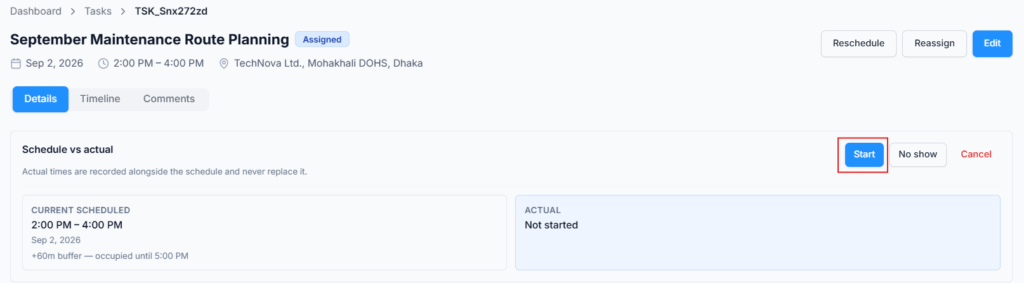
Press Start when the work begins. A small dialog opens with Started On and Started At, already filled with right now — so most of the time you just confirm.
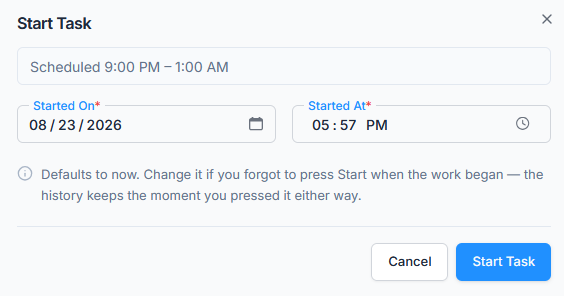
You can change them, and sometimes you should. If you started at 9:00 but only remembered to press Start at 11:00, type 9:00 — otherwise the real working window could never be recorded at all. The only rule is that a start time cannot be in the future: “The start time cannot be in the future.”
The dialog shows the scheduled window above the fields, and reminds you: “Defaults to now. Change it if you forgot to press Start when the work began — the history keeps the moment you pressed it either way.”
Finish the Work #
Press Complete when the work is finished. Same idea: Finished On and Finished At, filled with now, editable. The dialog also shows the recorded start, so you can see what you are finishing against.

- It cannot be in the future — “The finish time cannot be in the future.”
- It cannot be before the recorded start — “The finish time cannot be before the recorded start time.” The same minute is allowed, so a five-minute job can be recorded honestly.
- You must Start before you Complete — “Start the task before marking it as done.”
The scheduled time is never overwritten. Whether the job ran early or late, the plan stays as it was and the real times are recorded next to it. The details page shows both side by side. Nothing is calculated from the difference — no overtime, no lieu day, no performance score.
If the Customer Is Not There #
You arrive and nobody is home, or you are turned away. That is a No show, and if you are the Status Owner you can record it yourself — press No show and give a reason.
- It is about the customer, not about you. Office-X takes no attendance, payroll or performance action from it, anywhere.
- Your slot is freed straight away, so the office can send you somewhere else.
- The job is not finished. It stays open until the office reschedules the visit — and you may well be sent back out for it.
- The customer is emailed that the visit could not be carried out, and asked to arrange a new time.
- If you are not the Status Owner, ring the office — they can record it for you.
If the Visit Is Called Off #
Cancel calls off the whole visit, for everybody. It is not a way to drop out of a job while your colleagues carry on — that is a Reassign, and only the office can do it.
So if you cannot go but the job should still happen, tell the office and let them take you off it. If the customer has genuinely called the whole thing off and you are the Status Owner, press Cancel, give a reason, and confirm with Cancel Task. Keep Task backs out, so there is no way to do it by accident.
Everyone on the task is emailed, and so is the customer. A cancelled task is closed for good — it cannot be reopened.
Leaving a Comment #
The Comments tab is the place for anything the office should know: “gate code is 4471”, “customer wants us back for the balcony”, “needed an extra hour on the carpet”.
- No permission needed — being on the task is enough.
- Up to 5 files per comment, so you can attach a photo of what you found.
- Everyone with a stake in the task gets a New Comment Added notification. You never get one for your own comment.
- Once the task is Done or Cancelled it takes no more comments — so say what needs saying before you close the job.
Your Routine — Out in the Field #
- Open Tasks and find today’s job in your own row, or tap it on the My Tasks dashboard card.
- Read the instructions, check the attachments, use Copy address for your map app and Call customer if you are running late.
- On arrival, press Start. Nobody there? Press No show instead and say what happened.
- When you finish, press Complete. If you forgot to press Start earlier, fix the time in the dialog rather than leaving it wrong.
- Anything the office should know? Leave it in Comments before the job closes.
Notifications, Emails and the Activity Log #
Two rules run underneath all of this:
- Something happening to a task (assigned, edited, rescheduled, cancelled, no show) tells the people affected.
- Someone doing something (started, finished, cancelled, no show) tells the person who raised the task and that employee’s reporting manager.
Nobody is ever notified about their own action, and a person who falls into two groups is contacted once.
| Event | In-app subject | Who hears about it | Email to staff | Email to customer |
|---|---|---|---|---|
| Task created and assigned | New Task Assigned | Every assignee | Yes | Booking confirmation |
| Task edited | Task Updated | Every assignee | Yes | Only if the service name or address changed |
| Task rescheduled | Task Rescheduled | Every assignee | Yes | Yes — old time and new time |
| Crew changed (reassign) | New Task Assigned / Task Reassigned | Anyone added, and anyone removed | Yes, both | — |
| Status owner changed | Task Status Owner Changed | Everyone still on the task, plus the person who raised it | No | — |
| Started | Task Started | Whoever raised the task, and the reporting manager. Co-assignees are told in the app only. | Yes | — |
| Completed | Task Completed | Same as Started | Yes | Yes — the visit is complete |
| Task cancelled | Task Cancelled | Every assignee, plus whoever raised the task and the reporting manager | Yes | Yes — the visit is cancelled |
| Customer did not attend | Customer Did Not Attend | Every assignee, plus whoever raised the task and the reporting manager | Yes | Yes — asked to arrange a new time |
| New comment | New Comment Added | Assignees, plus whoever raised the task | No | — |
Every in-app notification links straight to the task, so one click gets you there.
What the customer hears
Your customer is emailed when their visit is booked, changed, moved, finished, called off, or could not be carried out because they were not there. Everything else is internal.
Their email deliberately never shows the buffer minutes or a link into a dashboard they cannot log into. It does name the representatives who will attend — and on a cancellation or a no-show it names nobody, because nobody is coming.
Both emails are yours to edit. The staff one is the Task template and the customer one is Task Customer, both on the Templates page in the left menu. Edit the wording, the design and the variables to match how your company talks to its customers.
Activity Log
Every action here is also written to Activity Log in the left menu, under the Task record type: created, edited, started, completed, rescheduled, reassigned, cancelled, marked no show, status owner changed, and comments added. Each entry names the task ID and the employee involved. That log is company-wide and permanent.
Common Messages and What They Mean #
| Message | Why you are seeing it | What to do |
|---|---|---|
| Scheduling conflict — Maria Lopez already has TSK_… (25 Aug 2026, 9:00 AM–1:30 PM). | Someone you picked is already booked in that window, buffer included. | Change the time, or take that person off the task. |
| One of these employees is being scheduled by someone else right now — please try again in a moment. | Two people in your office are booking the same person at the same second. | Wait a moment and save again. |
| End time must be after start time | The finish is earlier than the start. | Fix the times. |
| Assign the task to at least one employee or a team | Nobody was picked. | Tick an employee, or pick a team. |
| Choose which assignee will update this task’s status when it starts, finishes or is cancelled. | Two or more people are on the task and no Status Owner was named. | Pick one of them. |
| This task has already started — a reason is required to edit it. | Editing a job in progress must be explainable later. | Type a short reason and save. |
| Nothing was changed. | Save was pressed with no edits. | Change something, or close the dialog. |
| Nothing changed. Add or remove an assignee, or hand the status to somebody else. | Reassign was saved with the same crew and the same owner. | Change the crew, or pick a different Status Owner. |
| This task is done and can no longer be changed. | The task is Done or Cancelled — those are closed. | Raise a new task if more work is needed. |
| This task is already no show. | You tried to start or complete a visit the customer missed. | Reschedule it — that sends the job back out. |
| Start the task before marking it as done. | Complete was pressed on a task that was never started. | Press Start first and set the real start time. |
| The finish time cannot be before the recorded start time. | The two times are the wrong way round. | Correct the finish time, or fix the start first. |
| You can only assign tasks to employees who report to you. | You hold Create Task (For Subordinate). | Pick from your own team, or ask for Create Task (For All). |
| You can only open your own tasks. | The task is not yours and you do not hold View Task Details (For Others). | Ask your admin for that permission. |
| This task is closed out and no longer open for comments. | The task is Done or Cancelled. | Nothing — comment before closing next time. |
Permissions in Detail #
All of these live in Admin → Permissions, on the Employee Permission tab, in the Task Management group. They can be given directly to an employee, or to a whole team at once, so everyone on that team inherits them. See the Permissions Management guide.
In this table, “you” means the Subscriber Admin doing the granting, and “they” means the employee receiving it.
| Permission | What it lets them do |
|---|---|
| View Tasks (For All) | See every task in the company on the schedule and open any of them. Without it they still see their own work and their reporting chain’s. |
| View Task Details (For Others) | Open the details page of a task they had nothing to do with. Narrower than the list on purpose: a manager sees a team member’s job on the grid, but the details page carries the customer’s contact details, the comments and the full history, so reading it is its own decision. |
| Create Task (For All) | Raise a new task and assign anybody in the company to it. |
| Create Task (For Subordinate) | The same form, but they can only assign people who report to them. Teams show as “4 of 9 members assignable” to make that plain. |
| Edit Task | Change a task’s title, description, attachments, site address, and which customer it is for. |
| Reschedule Task | Move a task to a new date and time — including a task that has already started, and a no-show task that needs rebooking. |
| Reassign Task | Change who is on a task — add people, remove people, change the team — and hand the Status Owner role to a different assignee. |
| Update Task Status | Start, complete, cancel or record a no-show on somebody else’s task. This is what an office dispatcher needs. The Status Owner never needs it for their own task. |
| View Task History (For All) | See every employee’s record on the History page, not only their own and their reporting chain’s. |
| View All Customers | Open Tasks → Customers and see the list. Without it that page is denied. |
| Manage Customers | Open a customer’s record from that page and correct their name, phone, alternate phone, email, fax and address. |
Good to know: your own work is never locked behind a permission. If you are assigned to a task you can open it, read it and comment on it, and if you are its Status Owner you can start, complete, cancel and record a no-show on it. Permissions are for acting on other people’s work.
Summary #
- Tasks is for work at a customer’s location. It is a paid add-on.
- The Schedule is a grid: employees down the side, days across the top, and every task in the row of everyone assigned to it.
- Every employee sees their own work and their reporting chain’s with no permission needed. Permissions widen the view and let one person act for another.
- One task, one status, one pair of actual times, shared by everyone on the job.
- One Status Owner reports the outcome for everyone. The others are kept informed.
- Cancel calls off the whole visit. To change who is going, use Reassign.
- No Show means the customer did not attend. The task stays open, and Reschedule sends the job back out.
- Reassign edits the whole crew in one pass, and is also how the Status Owner is handed over.
- Reschedule and Reassign need a reason, and both work on a task that has already started.
- The customer’s details live on the customer, not on the task. Correct them once, in Tasks → Customers, and every task shows the correction.
- Buffer time is travel time. It keeps you from double-booking someone, and it never becomes overtime.
- Assignment checks only other tasks — not shifts, leave or holidays. Field work does not keep office hours.
- Scheduled and actual times live side by side. Neither overwrites the other, and nothing is calculated from the gap.
- Every change is recorded on the task’s Timeline and in the company Activity Log.