
The Payroll Configuration page is where you set the rules the system uses to calculate every employee’s overtime, premium pay, hourly rate, bonuses, deductions, and income tax. Set these rules once and the system applies them automatically every time you run payroll (if applicable).
Navigate to: Business → Payroll Configuration
This page is divided into two sections:
- Common Payroll Configuration – Contains payroll settings that apply to all organisations.
- Country-Specific Payroll Configuration – Displays payroll settings based on the country selected by the Subscriber Admin during registration. If payroll configuration is available for the selected country, the corresponding country-specific section will appear here.
Who Can Use This Feature #
Subscriber Admin can view and edit every setting on this page, without needing any specific permission.
Employees need the permission below to open this page at all — without it, the page is completely hidden from them. There is no “view-only” version of this page.
Permission Behavior
- Manage Business Payroll Configuration
Required action: Update
Grants full access to the Payroll Configuration page — every card described in this guide, including overtime/premium rules, the hourly rate basis, bonus types, and (where applicable) country-specific settings like Bangladesh’s deduction basis and tax rate calendar.
Good to know: there’s no separate “view only” variant of this permission — anyone granted it can edit every card on the page, the same as the Subscriber Admin. It can be assigned directly to an employee, or to an entire team at once, from Admin → Permissions (expand the Business group and turn on Manage Business Payroll Configuration). See the Permissions Management guide for how to assign permissions.
Each card on this page saves independently — every card has its own Save Changes button and its own confirmation message. There is no single global save button.
Common Payroll Configuration #
Overtime Calculation Setting #
This is your organisation-wide control panel for all overtime and premium pay. Two important things to understand first:
- Enabling a rule here makes it available per employee. The switches and values on this page act as your organisation defaults. When you add or edit an employee, only the rules you enabled here appear on their profile — and each employee can have their own multiplier values. Payroll always uses the employee’s own values, so two employees with the same hours can be paid differently.
- All overtime and premium pay is built on one base hourly rate. For salaried employees the system converts the salary into an hourly rate using the Regular Hourly Rate Divisor (see below):
Base Hourly Rate = Monthly Salary ÷ Divisor. Every multiplier you configure is then applied on top of this base rate.
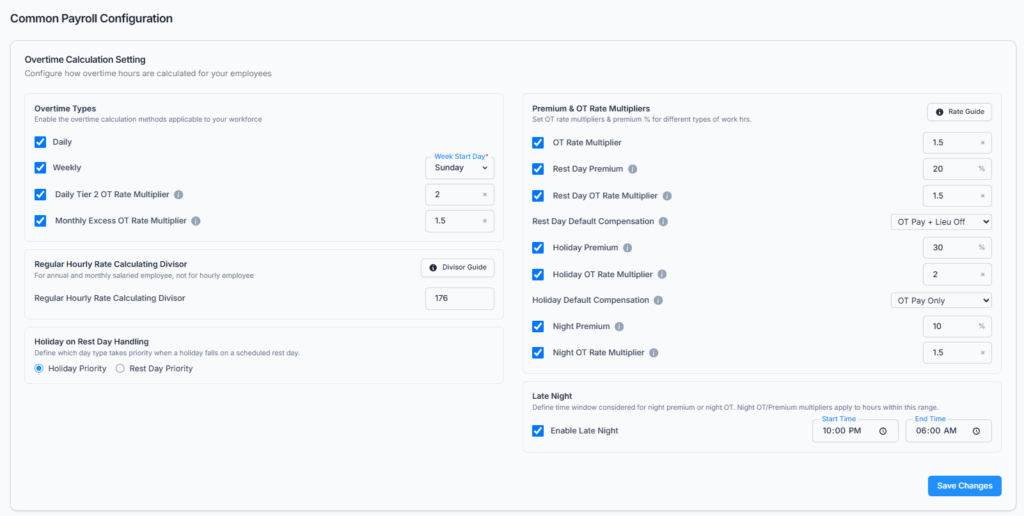
1. Overtime Types
These are on/off switches for each overtime method, plus its pay rate. The hour thresholds themselves (what counts as a “long day” or a “long week”) come from each employee’s attendance/work schedule, not from a field on this page — here you only turn a rule on and set how much extra it pays.
- Daily Overtime — turns on overtime pay for hours an employee works beyond their normal daily schedule.
- Weekly Overtime — turns on overtime pay for hours worked beyond the normal weekly schedule. When enabled, you also choose the Week Start Day (default: Sunday) so the system knows when your work week resets.
- Daily Tier 2 OT — a second, higher overtime tier that kicks in after a longer day (for example, “double-time” after 12 hours in a day). You set the multiplier here (default 2×). This is only available when Daily Overtime is enabled.
- Monthly Excess OT — for countries with a monthly overtime cap (for example, Japan). Once an employee’s overtime for the month crosses their cap, the hours above the cap are re-priced at a single statutory multiplier you set here (default 1.5×). The cap itself is not configured on this page.
2. Rate Multipliers
Set the pay multiplier applied to the base hourly rate for each type. Premiums are entered as a percentage (e.g. 25%); overtime rates are entered as a factor (e.g. 1.5×).
- OT Rate Multiplier — the factor for normal daily/weekly overtime hours (e.g. 1.5×).
- Rest Day Premium — extra pay for working on a scheduled rest day / weekly off (e.g. 25%).
- Rest Day OT Rate Multiplier — the factor for overtime hours worked on a rest day.
- Holiday Premium — extra pay for working on a public holiday (e.g. 30%).
- Holiday OT Rate Multiplier — the factor for overtime hours worked on a holiday.
- Night Premium — extra pay for hours worked inside the night window (e.g. 10%).
- Night OT Rate Multiplier — an optional dedicated rate for overtime hours that fall inside the night window (still shown on their own line, separate from daytime overtime). When turned on, this rate replaces the OT Rate Multiplier as the base rate for those hours — Night Premium, if also enabled, still adds on top of it. When left off, those hours simply use OT Rate Multiplier + Night Premium%, the same as before.
3. Rest Day Default Compensation & 4. Holiday Default Compensation
These are two independent settings — one for rest days, one for holidays — so you can treat them differently if you want to. An employee can be eligible for both overtime pay and lieu (compensatory) off. When such an employee works a rest day or a holiday, the matching compensation method decides what they receive:
| Option | What the employee gets for working that day |
|---|---|
| OT Pay Only | Paid the overtime/premium for the hours worked. No lieu off. |
| Lieu Off Only | Earns a lieu (compensatory) day off to take later. No extra overtime pay. |
| OT Pay + Lieu Off | Both — paid the overtime/premium and earns a lieu day off. |
Regular-day overtime is always paid as overtime regardless of this setting. This is only about rest-day and holiday work — and each has its own dropdown, so, for example, you could pay OT Pay Only for rest days but OT Pay + Lieu Off for holidays.
5. Late Night Window
Define the time range counted as “night” (for example, 10:00 PM to 6:00 AM). The Night Premium applies only to the worked hours that fall inside this window. This is only available once Night Premium is enabled.
6. Regular Hourly Rate Divisor
This converts a salaried employee’s salary into the base hourly rate used for all overtime and premium calculations. Hourly-paid employees do not use the divisor — their overtime is calculated directly from their hourly rate.
Base Hourly Rate = Monthly Salary ÷ Divisor
Example: 41,600 ÷ 208 = BDT 200 / hour
Common divisors: 208 (Bangladesh, India, Pakistan, Thailand, Vietnam, Cambodia, Malaysia, Jordan, Egypt, Iraq — 26 days × 8 hours), 240 (Saudi Arabia / UAE — 30 days × 8 hours), 208–240 (Qatar, Kuwait, Bahrain, Oman), 2080 (USA — annual ÷ 52 weeks ÷ 40 hours), 2080–2288 (Canada), 173–174 (Japan), 173 (Indonesia), 209 (South Korea). Click Divisor Guide on this card for the full country reference table and worked examples.
7. Holiday on Rest Day Handling
Decides which rule wins when a public holiday falls on an employee’s scheduled rest day. Choose Holiday Priority (treat the day as a holiday) or Rest Day Priority (treat the day as a rest day).
How Worked Hours Split Into Earning Categories #
When an employee works, the system automatically sorts each hour into the correct earning category based on the day type (normal / rest day / holiday), whether the hour is overtime, and whether it falls in the night window. Each category is paid at its own multiplier on top of the base hourly rate.
| Earning Category | When it applies | Pay multiplier (on base rate) |
|---|---|---|
| Regular Pay | Normal hours on a normal day | 1× |
| Night Premium | Normal hours worked inside the night window | 1 + Night%* |
| Daily Overtime | Hours beyond the daily threshold | OT× |
| Daily Overtime (Night) | Daily overtime hours inside the night window | (Night OT Rate Multiplier×** if set, else OT×) + Night%* |
| Daily Tier 2 OT | Hours beyond the second (higher) daily threshold, on a normal working day | Tier 2× |
| Weekly Overtime | Hours beyond the weekly threshold | OT× |
| Weekly Overtime (Night) | Weekly overtime hours inside the night window | (Night OT Rate Multiplier×** if set, else OT×) + Night%* |
| Rest Day Premium | Normal hours worked on a rest day | 1 + Rest Day% |
| Rest Day Premium (Night) | Rest day hours inside the night window | 1 + Rest Day% + Night%* |
| Rest Day Overtime | Overtime hours on a rest day | Rest Day OT× (or 1 + Rest Day% + extra OT***) |
| Rest Day Overtime (Night) | Rest day overtime inside the night window | above + Night%* |
| Rest Day Tier 2 OT | Hours beyond the second (higher) daily threshold, on a rest day | Tier 2× (or 1 + (Tier 2× − 1) + Rest Day% if Rest Day Premium is enabled†) |
| Holiday Premium | Normal hours worked on a holiday | 1 + Holiday% |
| Holiday Premium (Night) | Holiday hours inside the night window | 1 + Holiday% + Night%* |
| Holiday Overtime | Overtime hours on a holiday | Holiday OT× (or 1 + Holiday% + extra OT***) |
| Holiday Overtime (Night) | Holiday overtime inside the night window | above + Night%* |
| Holiday Tier 2 OT | Hours beyond the second (higher) daily threshold, on a holiday | Tier 2× (or 1 + (Tier 2× − 1) + Holiday% if Holiday Premium is enabled†) |
| Monthly Excess OT | Monthly overtime above the monthly cap | Monthly Excess× |
Good to know: Daily Tier 2 OT isn’t limited to normal working days — the same higher threshold also applies on rest days and holidays, as Rest Day Tier 2 OT and Holiday Tier 2 OT, each with their own line on the payroll preview and paystub.
Good to know: unlike every other overtime category, none of the three Tier 2 categories (Daily, Rest Day, or Holiday) has a Night variant. Hours past the Tier 2 threshold that happen to fall inside the night window are still just paid at the plain Tier 2 rate — Night Premium is never added on top of Tier 2, even if Night Premium is enabled for the employee.
Each category that has hours appears as its own line on the payroll preview and on the employee’s paystub, so the breakdown is always fully transparent.
* Every “+ …%” term above is only added when that specific premium is turned on for the employee (Night Premium, Rest Day Premium, Holiday Premium). If it’s off, treat the term as 0 — the category can still be paid (at the plain OT/base rate), it just skips that bonus.
** Night OT Rate Multiplier only ever replaces the OT Rate Multiplier as the base — it does not turn overtime on by itself. Daily/Weekly Overtime must already be enabled for these two rows to be paid at all.
*** “extra OT” is not a separate setting — it’s the bump the OT Rate Multiplier normally adds on top of 1×, i.e. OT Rate Multiplier − 1. It only comes into play when no dedicated Rest Day OT / Holiday OT Rate Multiplier is set, so the system derives one from the premium instead. Example: OT Rate Multiplier = 1.5× → extra OT = 1.5 − 1 = 0.5. With Rest Day Premium = 25% and no dedicated Rest Day OT Rate Multiplier, Rest Day Overtime = 1 + 0.25 + 0.5 = 1.75× (only the “extra” 0.5 is added, not the full 1.5× — the base “1” is already covered by the “1 + Rest Day%” part, so adding the full OT× would double-count it). If Regular OT is disabled entirely, extra OT = 0, and rest-day/holiday overtime is then paid the same as rest-day/holiday regular hours.
† Rest Day/Holiday Tier 2 OT works differently from Rest Day/Holiday Overtime’s “extra OT” — here it’s always the “extra” portion of the Tier 2 multiplier itself, Tier 2× − 1, that gets added to “1 + Rest Day%/Holiday%,” never the OT Rate Multiplier. Example: Tier 2× = 2.0 → extra Tier 2 = 2.0 − 1 = 1.0. With Rest Day Premium = 25%, Rest Day Tier 2 OT = 1 + 0.25 + 1.0 = 2.25×. This only applies if Rest Day Premium (or Holiday Premium) is actually enabled for the employee — if it’s off, Rest Day/Holiday Tier 2 OT simply falls back to the flat Tier 2× rate with no premium added, same as Daily Tier 2 OT.
A reminder before the examples below: the daily/weekly/Tier 2 hour thresholds and the monthly OT cap are determined by each employee’s attendance and work schedule, not by a field on the Payroll Configuration page. The example numbers below (8h, 40h, 12h, 60h) are just illustrative attendance assumptions used to show how the pay multipliers apply.
Worked Example 1 — A Night Shift Across a Normal Week, a Holiday and a Rest Day #
This is the most complete example because a single shift touches almost every category. Setup:
Shift:                7:00 PM to 7:00 AM (12 hours), 1-hour break 12:00 AM-1:00 AM
Worked hours per day:  11 hours (12 - 1 break)
Base Hourly Rate (R):  BDT 200/hour
Daily OT threshold:    8 hours
Weekly OT threshold:   40 hours
Night window:          10:00 PM to 6:00 AM
Night Premium:         10%
OT Rate Multiplier:    1.5x  (the "OT premium 50%")
Rest Day Premium:      25%
Holiday Premium:       30%

This week:
  Monday    = public HOLIDAY, employee worked
  Tue-Fri   = normal working days, employee worked
  Saturday  = rest day, employee worked
  Sunday    = rest day, off (not worked)
Step 1 — How one normal day (e.g. Tuesday) splits. The system walks through the shift hour by hour. The 8-hour daily threshold is reached at 4:00 AM (the 1-hour break does not count toward worked hours), so everything after 4:00 AM is overtime.
| Time | Hours | Category |
|---|---|---|
| 7:00 PM – 10:00 PM | 3 | Regular Pay |
| 10:00 PM – 12:00 AM | 2 | Night Premium |
| 12:00 AM – 1:00 AM | — | Break (unpaid) |
| 1:00 AM – 4:00 AM | 3 | Night Premium |
| 4:00 AM – 6:00 AM | 2 | Daily Overtime (Night) |
| 6:00 AM – 7:00 AM | 1 | Daily Overtime |
So each normal day = 3h Regular + 5h Night Premium + 2h Daily OT (Night) + 1h Daily OT = 11 worked hours (8 regular + 3 overtime).
The holiday (Monday) and the rest day (Saturday) split the same way by time, but every hour goes into the Holiday or Rest Day family instead of Regular.
Step 2 — Total hours per category for the week.
| Earning Category | Hours | Multiplier | Rate/hr | Pay (BDT) |
|---|---|---|---|---|
| Regular Pay (Tue–Fri) | 12 | 1.00 | 200 | 2,400 |
| Night Premium (Tue–Fri) | 20 | 1.10 | 220 | 4,400 |
| Daily Overtime (Tue–Fri) | 4 | 1.50 | 300 | 1,200 |
| Daily Overtime (Night) (Tue–Fri) | 8 | 1.60 | 320 | 2,560 |
| Holiday Premium (Mon) | 3 | 1.30 | 260 | 780 |
| Holiday Premium (Night) (Mon) | 5 | 1.40 | 280 | 1,400 |
| Holiday Overtime (Mon) | 1 | 1.80 | 360 | 360 |
| Holiday Overtime (Night) (Mon) | 2 | 1.90 | 380 | 760 |
| Rest Day Premium (Sat) | 3 | 1.25 | 250 | 750 |
| Rest Day Premium (Night) (Sat) | 5 | 1.35 | 270 | 1,350 |
| Rest Day Overtime (Sat) | 1 | 1.75 | 350 | 350 |
| Rest Day Overtime (Night) (Sat) | 2 | 1.85 | 370 | 740 |
| Total | 66 | 17,050 |
Notes on the multipliers: Holiday Overtime = 1 + Holiday% + extra OT = 1 + 0.30 + 0.50 = 1.80×. Rest Day Overtime = 1 + Rest Day% + extra OT = 1 + 0.25 + 0.50 = 1.75×. Every “(Night)” category simply adds the 10% night premium on top. The “Daily Overtime (Night)” line here (1.60×) assumes the Night OT Rate Multiplier setting is left off — see the note right after this example if it’s turned on. (For an hourly-paid employee the full BDT 17,050 is the pay. For a salaried employee, the Regular hours are already included in the monthly salary, and the premium/overtime categories are added on top.)
Weekly Overtime in this example: the weekly 40-hour threshold is measured on normal working-day regular hours. Here the regular (non-overtime) hours on Tue–Fri total 32 hours, which is under 40 — so no separate Weekly Overtime is added this week. Holiday and rest-day hours are paid in their own categories and are not counted toward the weekly 40-hour threshold. See Example 3 for a case where Weekly Overtime does apply.
Night OT Rate Multiplier — How It Changes “Daily Overtime (Night)” / “Weekly Overtime (Night)” #
The “Daily Overtime (Night)” and “Weekly Overtime (Night)” rows in Example 1 above assume Night OT Rate Multiplier is left off, so those hours are simply priced at OT Rate Multiplier + Night Premium%. If you turn Night OT Rate Multiplier on (say, at 1.8×), it replaces the OT Rate Multiplier as the base for those same hours — Night Premium, if enabled, still adds on top independently.
Base Hourly Rate: BDT 200/hour, OT Rate Multiplier: 1.5x, Night Premium: 10%
Night OT Rate Multiplier: 1.8x (this setting)

Night OT Rate Multiplier OFF:
  Daily Overtime (Night) multiplier = OT Rate Multiplier + Night% = 1.5 + 0.10 = 1.60x -> BDT 320/hour

Night OT Rate Multiplier ON (1.8x):
  Daily Overtime (Night) multiplier = Night OT Rate Multiplier + Night% = 1.8 + 0.10 = 1.90x -> BDT 380/hour

If Night Premium is also turned OFF while Night OT Rate Multiplier stays ON:
  Daily Overtime (Night) multiplier = Night OT Rate Multiplier only = 1.80x -> BDT 360/hour
The two settings apply independently: Night OT Rate Multiplier decides which base rate is used for overtime hours in the night window (OT Rate Multiplier if off, or its own rate if on); Night Premium decides whether an extra percentage is added on top of that base. This applies the same way to both Daily Overtime (Night) and Weekly Overtime (Night).
⚠️ Night OT Rate Multiplier only changes the rate — it does not by itself turn overtime pay on. Daily/Weekly Overtime must still be enabled (Daily Overtime + OT Rate Multiplier, or Weekly Overtime + OT Rate Multiplier) for these hours to be paid at all; Night OT Rate Multiplier has no effect if the underlying overtime rule is off.
Worked Example 2 — Daily Tier 2 Overtime (Double-Time) #
Some labour rules require an even higher rate after a very long day. Daily Tier 2 OT handles this.
Base Hourly Rate:      BDT 200/hour
Daily OT threshold:    8 hours (from attendance/work schedule)
Daily Tier 2 threshold: 12 hours (from attendance/work schedule)
OT Rate Multiplier:    1.5x
Tier 2 multiplier:     2x
The employee works 14 hours in one day:

  First 8 hours   -> Regular pay
  Hours 8 to 12   -> Daily Overtime : 4h x (1.5 x 200) = 4 x 300 = BDT 1,200
  Hours 12 to 14  -> Daily Tier 2 OT: 2h x (2 x 200)   = 2 x 400 = BDT   800
Between the two thresholds the employee earns the normal overtime rate; beyond the Tier 2 threshold the higher Tier 2 rate (set in Overtime Types above) takes over.
What if this same long day is also a Rest Day or a Holiday? The Tier 2 threshold still applies exactly the same way, but the hours beyond it are paid as Rest Day Tier 2 OT or Holiday Tier 2 OT instead of the plain version — and if that day’s premium is enabled for the employee, it stacks on top of Tier 2’s own “extra” portion:
Same shift as above, but this day is a public HOLIDAY.
Base Hourly Rate:       BDT 200/hour
Daily Tier 2 threshold: 12 hours
Tier 2 multiplier:      2x
Holiday Premium:        30% (enabled for this employee)
The employee works 14 hours on the holiday:

  First 12 hours  -> Holiday Premium / Holiday Overtime (paid as holiday hours, not shown here)
  Hours 12 to 14  -> Holiday Tier 2 OT: multiplier = 1 + (2.0 - 1) + 0.30 = 2.30x
                     2h x (2.30 x 200) = 2 x 460 = BDT 920

If Holiday Premium were NOT enabled for this employee, the last 2 hours would
simply be paid at the flat Tier 2 rate instead: 2h x (2.0 x 200) = BDT 800.
The same logic applies to a Tier 2-eligible day that’s a Rest Day instead of a Holiday — just swap in Rest Day Premium and Rest Day Tier 2 OT. Note this stacking only ever adds the Tier 2 multiplier’s own “extra” amount (Tier 2× − 1) — it never adds the regular OT Rate Multiplier as well, so nothing is double-counted.
Worked Example 3 — Weekly Overtime #
Base Hourly Rate:    BDT 200/hour
Daily OT threshold:  8 hours (from attendance/work schedule)
Weekly OT threshold: 40 hours (from attendance/work schedule)
OT Rate Multiplier:  1.5x

The employee works 6 days this week, exactly 8 hours each day = 48 hours.
No day exceeds 8 hours, so there is no Daily Overtime.

  First 40 hours  -> Regular pay
  Hours 41 to 48  -> Weekly Overtime : 8h x (1.5 x 200) = 8 x 300 = BDT 2,400
Weekly Overtime captures hours over the weekly limit that were not already paid as Daily Overtime, so the same hour is never paid twice.
Worked Example 4 — Monthly Excess OT (Japan-style cap) #
Some countries (for example, Japan) require that once an employee’s overtime crosses a monthly cap, the hours above the cap are paid at a higher statutory rate. Office-X handles this with Monthly Excess OT.
Base Hourly Rate:        BDT 1,000/hour
Regular OT multiplier:   1.25x
Monthly cap:             60 hours (from attendance/local labour rules, not set on this page)
Monthly Excess multiplier: 1.5x  (this part IS set here, in Overtime Types)

Earlier this month the employee already did 58 hours of overtime.
Today the employee does 5 more hours of daily overtime (total would be 63h).

  2 hours stay as Daily Overtime  (58 -> 60) : 2h x (1.25 x 1,000) = BDT 2,500
  3 hours move to Monthly Excess OT (over 60): 3h x (1.50 x 1,000) = BDT 4,500
The 3 hours above the cap are paid once, at the higher 1.5× rate — they are moved out of the normal overtime category so nothing is double-counted.
Worked Example 5 — Overtime vs Lieu (Compensatory) Off #
When an employee is eligible for both overtime and lieu off, the Default Compensation setting decides what they receive for rest-day or holiday work.
Base Hourly Rate: BDT 200/hour, Holiday Premium 30%, OT multiplier 1.5x
The employee works 12 hours on a public holiday:
  Holiday Premium    : 8h x (1.30 x 200) = BDT 2,080
  Holiday Overtime   : 4h x (1.80 x 200) = BDT 1,440
  Total holiday pay value = BDT 3,520

Depending on the Default Compensation setting:
  OT Pay Only        -> Paid BDT 3,520. No lieu off.
  Lieu Off Only      -> Paid BDT 0. Earns 12 hours of lieu (comp) off.
  OT Pay + Lieu Off  -> Paid BDT 3,520 AND earns 12 hours of lieu off.
Hourly Rate Calculation Basis #
This setting determines the per-hour salary rate used for all hour-based deduction and addition lines (such as absent deductions and leave deductions).
- Monthly Basis: Hourly Rate = Monthly Salary ÷ Expected Working Hours This Month. Recommended for Bangladesh and most Asian countries. (For Bangladesh organisations this is fixed to Monthly.)
- Yearly Basis: Hourly Rate = (Monthly Salary × 12) ÷ (52 weeks × Weekly Hours). Suited to Western countries.
Monthly Basis example:
Monthly Salary: BDT 60,000
Working Days in October: 22
Daily Work Hours: 8
Expected Hours: 22 × 8 = 176 hours
Per Hour Rate: 60,000 ÷ 176 = BDT 340.91/hour
⚠️ This must be configured before payroll can run. If not set, you will see the message: “Please select at least one hourly rate basis from Business Payroll Configuration!”
Bonus Types #
Bonuses (such as Eid-ul-Fitr, Eid-ul-Adha, or Performance Bonus) are taxable and are added to the employee’s total annual taxable income when payroll is processed.
- Admins can create, edit, and delete bonus types under Business → Payroll Config → Bonus Types.
- Once a bonus type is created, it becomes available under Employees → Action → Payroll Config → Bonuses, where admins can assign the bonus to individual employees and configure the applicable amount.
- During payroll review, the assigned bonus can be selected or removed per employee. A single bonus type can be applied to all eligible employees at once using the header option.
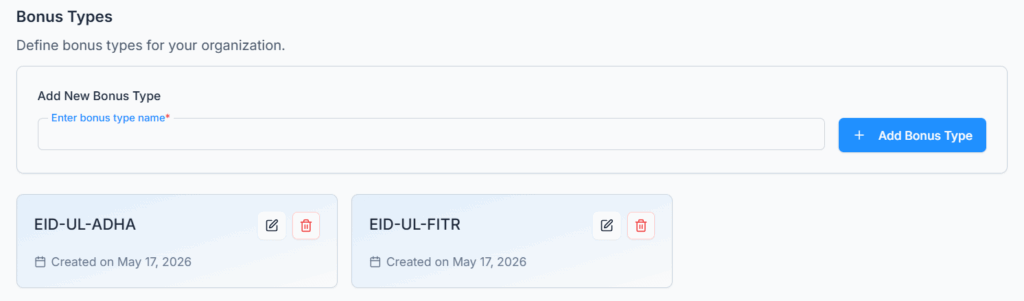
Example:
Bonus Type: Eid Ul Adha
Bonus Amount assigned to employee: BDT 20,000
Once a bonus amount is assigned to an employee, the system automatically adds it to the employee’s annual taxable income and calculates tax accordingly.