
The Assign Work Days feature allows authorized users to assign a special work schedule to one or more employees for a specific date. This is useful when employees need to work outside their regular schedule, follow a temporary schedule, or be assigned to a specific working day by an admin or manager.
Each work day assignment includes:
- Employee or team selection
- Assignment date
- Start time
- End time
- Break hours
- Optional reason
- Assigned by information
After a work day is assigned, it appears in:
- The Assign Work Days list
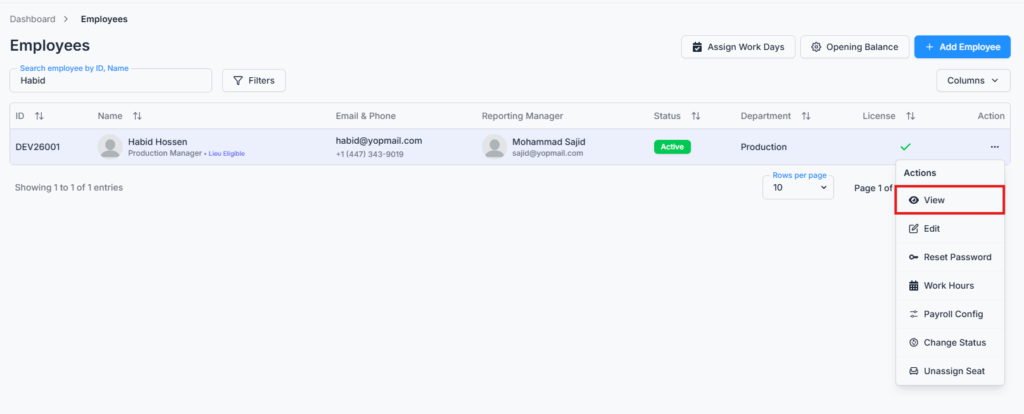
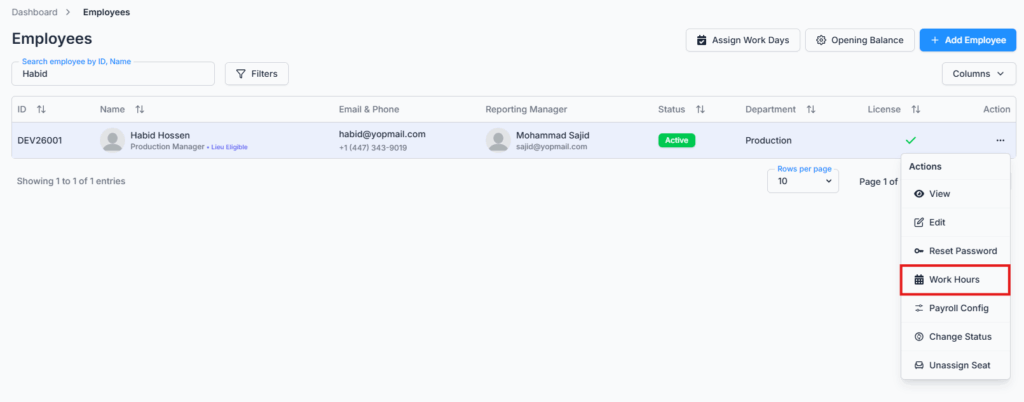
- Employee View Details → Work Hours tab
- That employee’s Att. Overview tab, where it adds to their Expected Working Hours/Days for the period
Good to know: assigning a work day on what would otherwise be a weekend or holiday genuinely changes how that day is treated for payroll — it’s counted as a regular scheduled working day instead of being skipped as a rest day (or paid out as rest-day/holiday overtime), unless the employee already has approved overtime for that same day, in which case Office-X avoids double-counting it.
Who Can Use This Feature? #
Access depends on user role and permission.
Subscriber Admin
Subscriber Admin can access and manage all Assign Work Days records without any specific permission.
They can:
- View all work assignments
- Create assignments for any active employee
- Select any employee or team
- Edit assignments before the assignment date and start time
- Delete assignments before the assignment date and start time
- View assignment details
Employees With Permission
Employees can use the Assign Work Days feature only when permission is assigned from:
Admin → Permission → Employee
Available permission groups:
- Assign Work Days (For All)
- Assign Work Days (For Subordinate)
Each permission group has four independent action permissions — View, Create, Update, and Delete — so, for example, someone could be given View and Create without Update or Delete.
Assign Work Days (For All)
When an employee is given Assign Work Days (For All) permission, they can manage work day assignments for all eligible employees under the tenant, based on the action permissions they’ve been given:
- View — intended to show all work day assignments across the tenant.
- Create — assign work days to any active employee under the tenant.
- Update — edit any work day assignment, as long as its date and start time haven’t passed yet.
- Delete — delete any work day assignment, under the same before-it-starts condition.
The employee list in the Assign Work Days modal shows all eligible active employees, and the team list shows all available teams.
Good to know: tenant-wide View currently only reliably works for the Subscriber Admin. An employee who’s been granted the Assign Work Days (For All) permission (without being the Subscriber Admin) can still create assignments for anyone, but on the Assign Work Days table itself they’ll currently only see assignments they created themselves, plus ones involving their own reporting chain — not the full tenant-wide list this permission is meant to unlock. If you’re relying on a delegated employee to have full visibility here, double-check what they can actually see.
Assign Work Days (For Subordinate)
When an employee is given Assign Work Days (For Subordinate) permission, “subordinate” means something slightly different depending on whether you’re creating a new assignment or just looking at the existing list — worth knowing so the numbers don’t surprise you:
- Who you can assign work to — only your direct reports: employees where you’re set as their Reporting Manager. This does not extend further down — someone who reports to one of your direct reports isn’t assignable by you.
- Which existing assignments you can see in the table — your full reporting chain: direct reports, and through them, indirect reports as well. So you may see an assignment in the list (created by someone else) for an employee two or more levels below you, even though you couldn’t have created that same assignment yourself.
With the View/Create/Update/Delete actions applied on top of that scope:
- View — see assignments you created yourself, plus assignments anywhere in your reporting chain (direct and indirect).
- Create — assign work days only to your direct reports.
- Update / Delete — only on assignments you’re authorized to see, and only before the assignment’s date and start time have passed.
The employee list in the Assign Work Days modal shows your direct reports, plus yourself — so you can also assign a work day to your own schedule, not only your reports’. The team list shows only teams that include at least one direct report of yours — and if a team has a mix of your direct reports and other people, only your direct reports within that team actually get the assignment when you pick that team.
Access Assign Work Days Page #
To open the Assign Work Days page:
- Log in to Office-X.
- Go to Dashboard → Employees.
- Click the Assign Work Days button.
- The system opens the Assign Work Days page — a table of existing assignments.

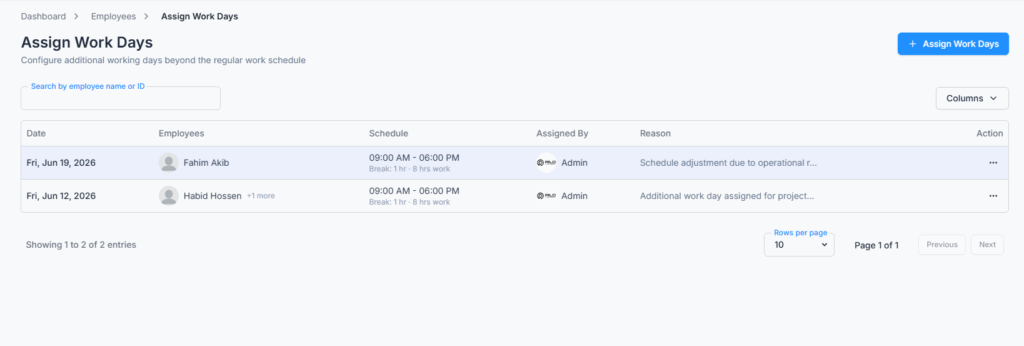
If you don’t have permission, Office-X shows Access Denied, or simply hides the related button.
Create a Work Day Assignment #
To create a new work day assignment:
- Go to Dashboard → Employees → Assign Work Days.
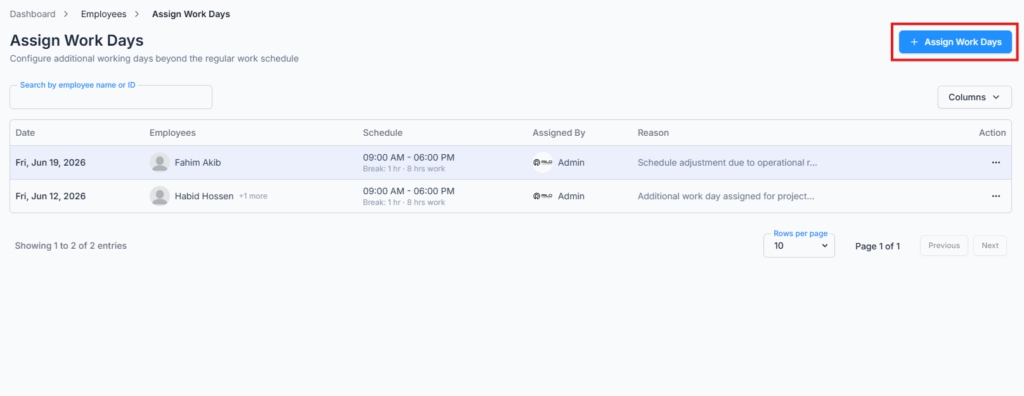
- Click the Assign Work Days button — this opens a modal, not a separate page.
- Choose recipient type: Employees or Team.
- Select one or more employees or teams.
- Select the assignment date.
- Select the start time.
- Select the end time.
- Enter break hours.
- Add a reason, if needed.
- Click Assign.
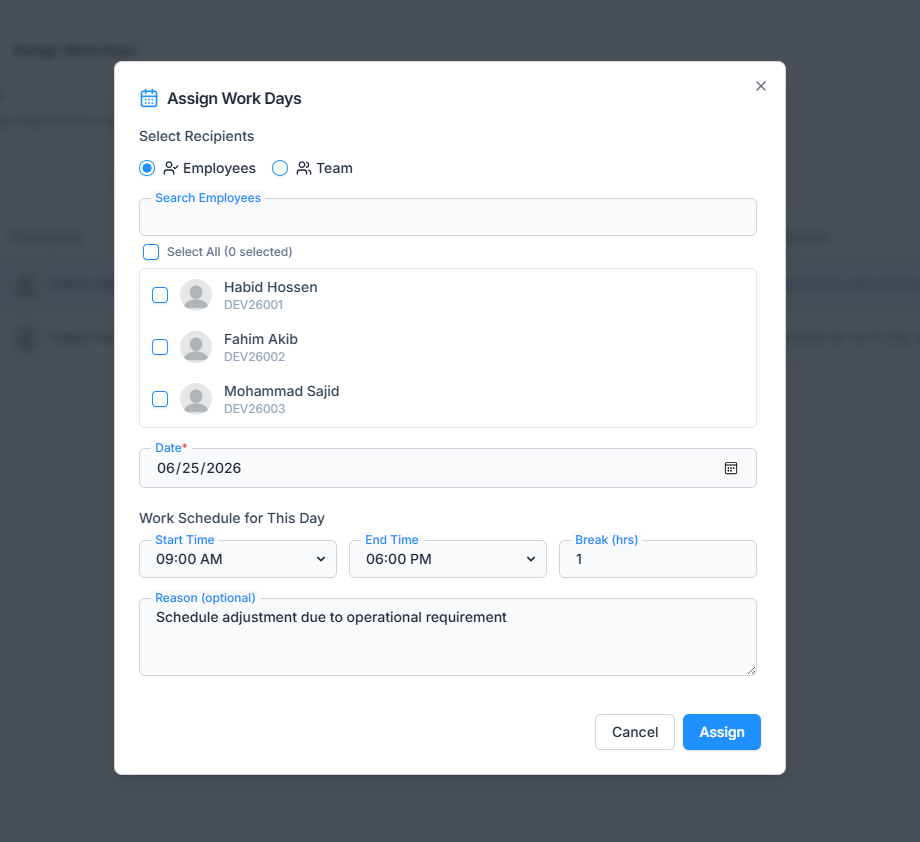
After successful creation, you’ll see: “Work assignment created successfully.”
The assigned employees receive an in-app notification titled “Work Day Assigned,” telling them the date, start and end time, and the reason if one was given.
Good to know: Office-X won’t let you assign the same employee twice on the same date — if you try, you’ll see “One or more selected employees already have a work assignment on this date.” This check applies across the whole company, not just your own assignments — so it also blocks a conflict with a work day someone else assigned to that employee.
Create Assignment by Employee Selection #
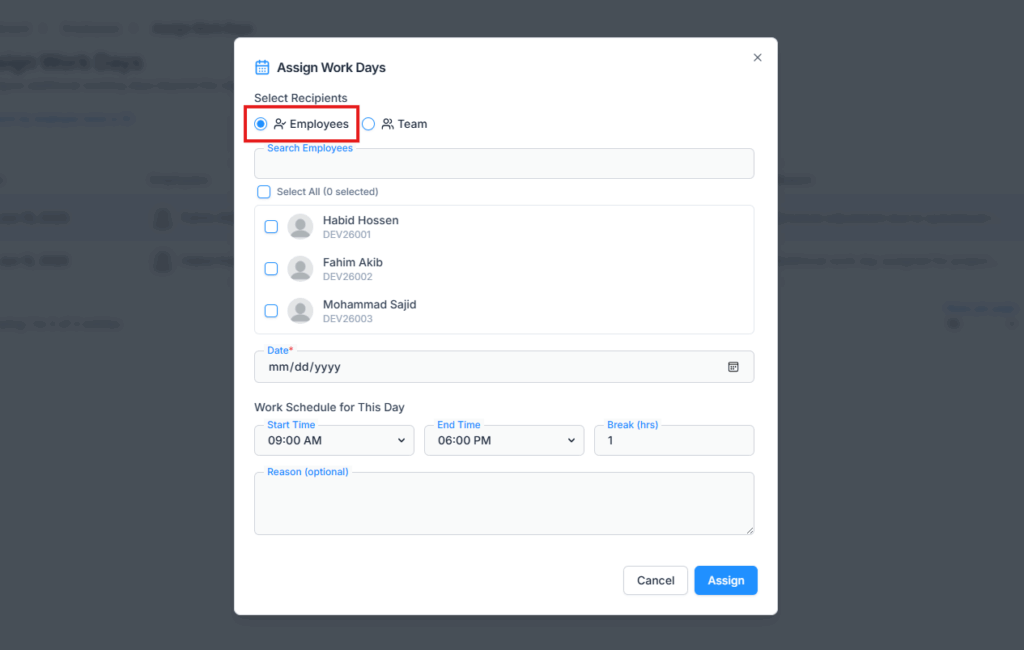
When Employees is selected:
- You can search employees.
- You can select one or more employees.
- You can use Select All where available.
- Shift workers may show a visual badge or indicator.
For Assign Work Days (For All) permission, all active employees are shown, loaded through search.
For Assign Work Days (For Subordinate) permission, only your direct reports are shown, loaded all at once.
Good to know: if you hold “For All” permission, Select All only selects the employees currently showing on screen for your search — not literally every employee in the company. If you have more employees than fit on screen, narrow your search first, or repeat Select All after each new search, so you don’t accidentally miss anyone. This doesn’t apply to the subordinate picker, since your whole list of direct reports loads at once.
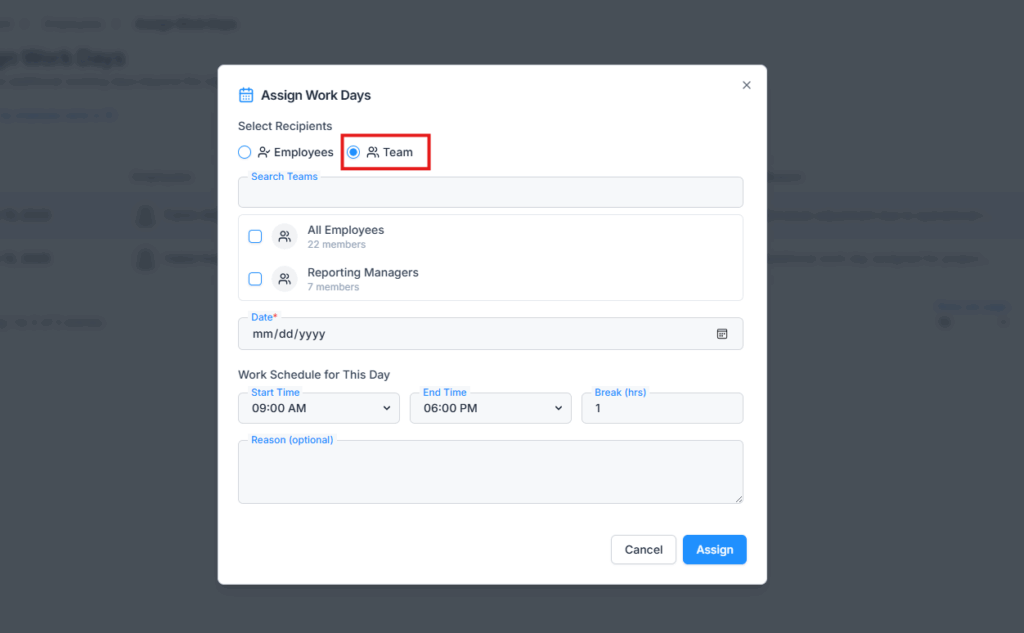
Create Assignment by Team Selection #
When Team is selected:
- You can search teams.
- You can select one or more teams.
- Team name and member count are shown.
For Assign Work Days (For All) permission, all tenant teams are shown.
For Assign Work Days (For Subordinate) permission, only teams that include at least one of your direct reports are shown. If a team contains both your direct reports and other people, only your direct reports in that team actually receive the assignment.
View Work Assignment Details #
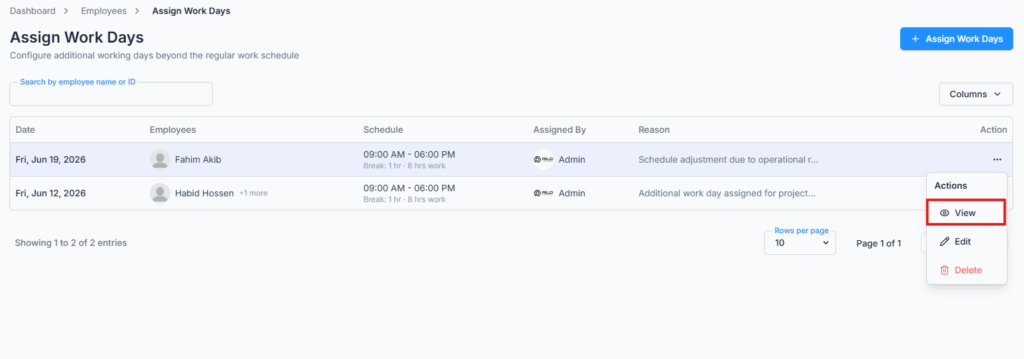
To view a work assignment:
- Open the Assign Work Days page.
- Find the assignment in the table.
- Open the action menu.
- Click View.
- The Work Assignment Details modal opens.
It shows: Date, Work Schedule (start–end time and hours), Break, Assigned Employees (with a count), Assigned By, and Reason (if one was given).
This modal is read-only — there’s no edit or delete option inside it.
Edit a Work Day Assignment #
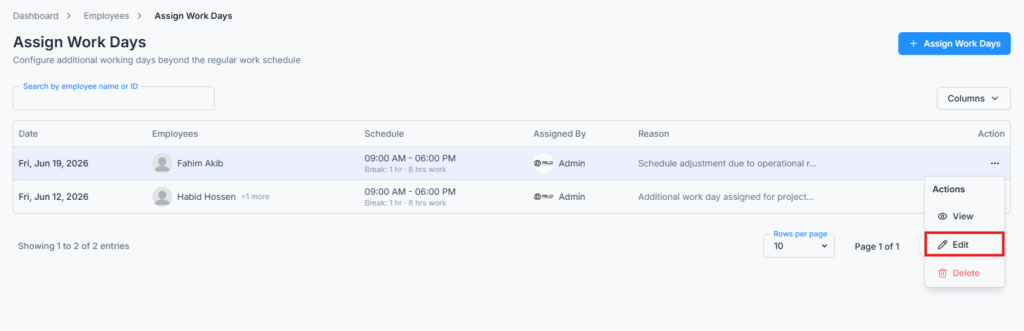
To edit an assignment:
- Open the Assign Work Days page.
- Find the assignment in the table.
- Open the action menu.
- Click Edit.
- The Assign Work Days modal opens with the existing details filled in.
- Update the details you need to change.
- Click Update.
After a successful update, you’ll see: “Work assignment updated successfully.” The change is reflected in the Assign Work Days table, the employee’s profile Work Hours tab, and their Att. Overview totals. Assigned employees also get an in-app notification titled “Work Assignment Updated” with the new date, times, and reason.
Edit and Delete Deadline Rule #
Edit and Delete are only available before the assignment’s date and start time. Once that moment has passed:
- The Edit and Delete options disappear from that assignment’s action menu.
- The assignment remains viewable.
This applies to the Subscriber Admin and both Assign Work Days permission groups alike — no one can edit or delete a work day that’s already started.
Delete a Work Day Assignment #
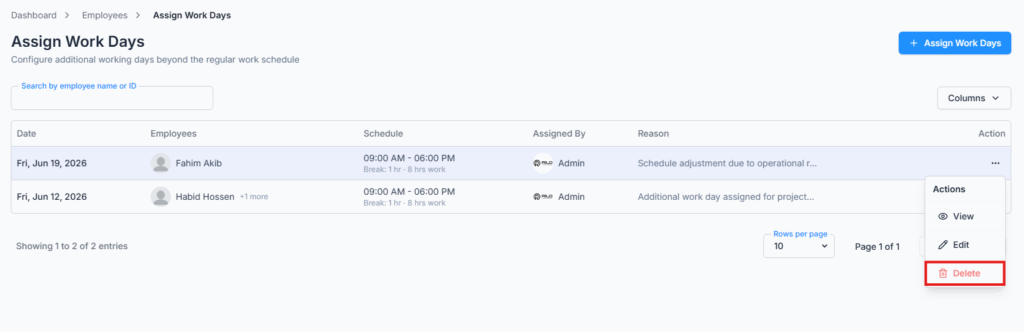
To delete an assignment:
- Open the Assign Work Days page.
- Find the assignment in the table.
- Open the action menu.
- Click Delete.
- Confirm the deletion.
After successful deletion, you’ll see: “Work assignment deleted successfully.” The assignment disappears from the Assign Work Days table, the employee’s profile Work Hours tab, and their Att. Overview totals.
Good to know: unlike creating or editing an assignment, deleting one does not send the affected employees any notification.
Employee Work Hours Visibility #
After a work day assignment is created or updated, it also appears in the employee’s work hours information — on their profile’s Work Hours tab, and reflected in the Expected Working Hours/Days on their Att. Overview tab. If an assignment is deleted, it disappears from both.
Summary #
Assign Work Days lets the Subscriber Admin, or anyone holding Assign Work Days (For All) or (For Subordinate), schedule one-off working days for employees or whole teams, with the assignment genuinely counting toward that day’s scheduled hours in both the employee’s profile and payroll. Duplicate assignments on the same date are blocked, edits and deletes are only possible before the day starts, and the “subordinate” scope means direct reports only for creating an assignment, but your whole reporting chain for seeing what’s already been assigned.