Skip to content
Office-X
Partners Pricing Add-ons FAQ Help Center
Sign in Start free trial →
Features & Solutions

Everything You Need to
Make Your Workplace Smarter

Office-X brings your people, payroll, clients, and daily operations together in one secure workspace.

Employee Management
Onboarding & Performance Manage and track growth
Attendance & OT IP-locked check in + overtime
Time off / Leave Requests, balances & approvals
Internal Support Tickets & helpdesk
Payroll Paystubs & Tax statements
Work Shifts Schedule Create and manage rosters
Business Management
CRM Manage leads, clients & sales
Estimate & Agreements Quotation + e-sign docs.
Web & AI Phone Bookings Automated scheduling
Activity Log Who did what, when & where
Permissions & Approvals Multi-level approval flows
Business Management
Task Management Assign & track work
Asset & Incident Tracking Track assets & report incidents
Bill, Travel & Purchase Approve & manage expenses
Holiday Calendar Company-wide holidays
Email Templates & SMTP Branded emails & delivery
Employee Management
Onboarding & Performance Attendance & OT Time off / Leave Internal Support Payroll Work Shifts Schedule
Business Management
CRM Estimate & Agreements Web & AI Phone Bookings Activity Log Permissions & Approval Flow Task Management Asset & Incident Tracking Bill, Travel & Purchase Holiday Calendar Email Templates & SMTP
Partners Pricing Add-ons FAQ Help Center
Sign in Start free trial

Getting Started

1
  • Getting Started with Office-X

Subscription & Billing

1
  • How Seats Work in Office-X

Features & Modules

80
  • Overview
  • Business Management
    • Company
    • Billing & Payment
    • Payroll Configuration
    • Business Support
  • Employees Module
    • Employee List
    • Adding a New Employee
    • View Employee Details
    • Edit an Employee
    • Reset Password
    • Work Hours/Shift Hours
    • Change Status
    • Assign/Unassign Seat
    • Opening Balance
    • Assign Work Days
    • Visual Guide
  • Privacy & Security
    • Security
  • Performance Management
    • Performance Management
  • Work Shifts
    • Work Shifts
  • Tasks
    • Schedule
    • History
    • Customers
  • Holidays Calendar
    • Calendar
  • Attendance Management
    • Attendance Records
    • Individual Attendance Summary
    • Overall Attendance Summary
    • Visual Guide
  • Leave Management
    • Create Leave
    • Approve & Reject Leave
    • Cancel Approved Leave
    • View All Leaves
    • Visual Guide
  • Bill Management
    • Create Bill
    • Approve & Reject Bill
    • View All Bills
    • Visual Guide
  • Travel Requests
    • Create Travel Request
    • Approve & Reject Travel Request
    • View All Travel Requests
    • Visual Guide
  • Purchase Requests
    • Create Purchase Request
    • Approve & Reject Purchase Requests
    • View All Purchase Requests
    • Visual Guide
  • Payroll (Bangladesh)
    • Business → Payroll Configuration
    • Payroll Management
    • Income and Tax Statement
    • Visual Guide
  • Incident Report
    • Incident Report
  • Asset Tracking
    • Asset Tracking
  • Admin Module
    • Department
    • Designation
    • Pay Type
    • Employment Status
    • Leave Types
    • Benefits
    • Expense Category
    • Teams
    • Forms
    • Events & Announcements
    • Incident Configuration
    • IP Configuration
    • Currency
    • Support Categories
    • Integrations
  • CRM
    • Clients
    • Items
    • Estimates
    • Docs
    • Agreements
    • Bookings
  • Support
    • Create Support Request
    • Resolve Support Requests
    • View All Support
    • Visual Guide
  • Activity Logs
    • Activity Logs
  • Permissions & Approval Flows
    • Permissions Management
    • Approval Flows
  • SMTP & Email Templates
    • SMTP Config
    • Email Templates
View Categories
  • Home
  • Docs
  • Features & Modules
  • Payroll (Bangladesh)
  • Income and Tax Statement

Income and Tax Statement

The Income and Tax Statement provides a yearly summary of an employee’s income, deductions, and tax information, based on their submitted payroll records. It helps with reporting, compliance, and personal financial review.

The statement is generated for a selected income tax year (July to June) and shown in a clear, read-only format. You can also download it as a PDF.

Access Control #

Subscriber Admin

  • Can generate and view statements for any employee.

Employee with View Payroll or Run Payroll Permission

  • Can generate, view, and download statements for any employee.

Employee (No Payroll Permission)

  • Can generate, view, and download only their own statement.
  • No additional permission is required to access their own statement.
  • Trying to open another employee’s statement without permission shows: “You are not authorized to view this tax statement.”

How to Generate a Statement #

Subscriber Admin or Employee with Payroll Permission

  1. Navigate to Payroll → BD.
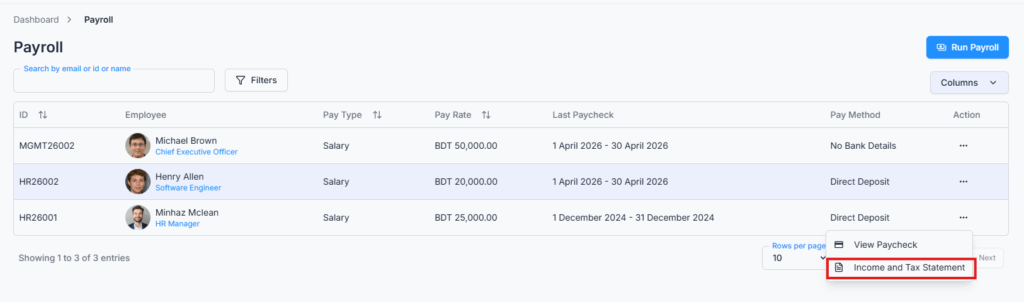
  2. Click the Action menu for an employee.
  3. Select Income and Tax Statement.
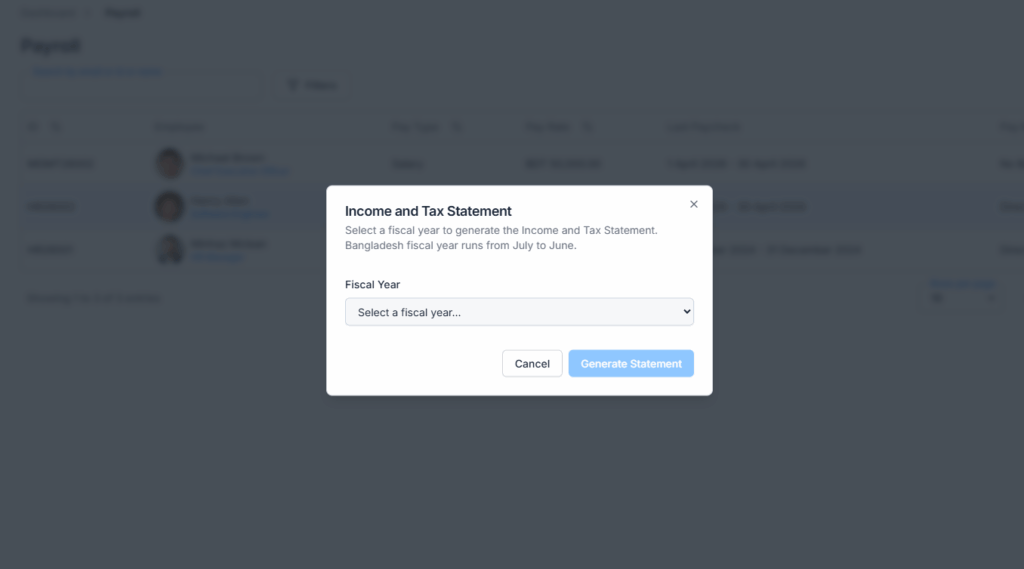
  4. Choose an income tax year from the dropdown.
  5. Click Generate Statement.

Employee (No Payroll Permission — Own Statement Only)

  1. Navigate to the Payroll module.
  2. Click Income and Tax Statement from the Action column on your own row.
  3. Choose an income tax year from the dropdown.
  4. Click Generate Statement.

Income Tax Year Rules #

  • The system follows the Bangladesh income tax year (July to June).
  • The currently running income tax year is selectable — you don’t have to wait for it to finish. A statement can be generated mid-year, as long as at least one payroll has already been run for that employee within it.
  • The earliest year available in the dropdown is based on the employee’s joining date — employees who joined recently will simply see fewer years to choose from.
  • If no years are available at all, the dropdown shows “No income tax years available” and there’s no Generate button to click — just Cancel.
  • The dropdown is labelled “Assessment Year (Income Tax Year)” and each option looks like “2027–2028 (July 1, 2026 – June 30, 2027)”.

How to read a year label

In “2027–2028 (July 1, 2026 – June 30, 2027)”: 2027–2028 is the Assessment Year, and (July 1, 2026 – June 30, 2027) is the Income Tax Year it covers. Following Bangladesh tax convention, the Assessment Year is always exactly one year ahead of the Income Tax Year.

So always pick the option whose bracketed dates cover the payroll months you want on the statement. The dialog also has a short “Assessment Year vs Income Tax Year?” explainer you can open on screen if you need a reminder.

What the Statement Contains #

The generated statement is structured into the following sections:

SectionContents
Employer InformationCompany name, address, TIN, and contact details.
Employee InformationEmployee name, ID, TIN, department, designation, address, contact, joining date, and gender (shown where applicable).
Tax QuestionnairesThe employee’s tax-status answers — Disabled Person, Freedom Fighter, July Fighter, Guardian of Disabled Children (with count), Spouse Claiming Disabled Children (with count), New Taxpayer, any Investment/Retirement Contribution, and the work location. Which of these appear depends on the Tax Rate Calendar the year’s payroll ran under, so an older year may show fewer rows than a newer one. Only shown if a Payroll Config was saved.
Income BreakdownYearly Basic Salary total; Additions (Yearly) with a full itemised list of every addition type actually paid across the year (benefits, overtime/premium categories, bonuses, adjustments); Deductions (Yearly) with a full itemised list, including an “Income Tax” line.
Annual SummaryTotal Gross Salary, Total Deductions, and Total Net Pay for the income tax year.

Good to know — the statement shows historical payroll data: The tax amount is simply the total tax actually withheld each month, added directly from that year’s submitted payroll records. It is not recalculated when the statement is generated.

For the detailed tax calculation such as exemptions and tax rates for each portion, check the employee’s individual monthly paystub.

  • Income Breakdown and Annual Summary use the amounts saved in each month’s submitted payroll.
  • Employee Information and Tax Questionnaires use the information saved with the last payroll of that year.
  • Changes you make later to an employee’s designation, TIN, or tax answers will not change an existing statement. The updated information appears only after a new payroll is run with those changes.
  • If there is no saved employee information for that year, the statement uses the employee’s current Payroll Config instead.

Data Requirements #

  • At least one payroll record must exist for the selected income tax year.
  • If none exist, clicking Generate Statement shows: “No payroll records found for the selected income tax year. Run at least one payroll to generate this statement.”

Partial Data Handling #

  • If some months in the selected income tax year don’t have payroll data, the statement is still generated using whatever records do exist.
  • A banner appears at the top reading: “This statement is based on partial payroll data. Data is available for the following months only,” followed by the list of months that are covered (not the missing ones) — so you know exactly which months the totals include.

Download Statement #

  • The statement can be downloaded as a PDF using the Download PDF button on the statement page.
  • The PDF contains all displayed sections: Employer Information, Employee Information, Tax Questionnaires, Income Breakdown, and Annual Summary.
  • The downloaded file is named in the following format:
    Income_Tax_Statement_{Employee Name}_FY{start}-{end}_{timestamp}.pdf
    Example: Income_Tax_Statement_Abdur_Rahim_FY2026-2027_2026-08-04T10-15-30.pdf

Summary #

The Income and Tax Statement gives a complete yearly overview of an employee’s income, deductions, and tax details, built from their submitted payroll records — so once a payroll has run, its contribution to the statement is locked in and won’t shift if settings change later. It follows the same access rules as the rest of Payroll, supports mid-year generation, and can be exported as a PDF for official or personal use.

Updated on August 23, 2026
Payroll ManagementVisual Guide
Table of Contents
  • Access Control
  • How to Generate a Statement
  • Income Tax Year Rules
  • What the Statement Contains
  • Data Requirements
  • Partial Data Handling
  • Download Statement
  • Summary

Office-X brings your people, payroll, clients, and daily operations together in one secure workspace.

Facebook Linkedin Youtube

Company

  • Partner Programme
  • Pricing
  • Trust & Security
  • Free Migration

EMPLOYEE MANAGEMENT

  • Onboarding & Performance
  • Attendance & OT
  • Time off / Leave
  • Work Shifts Schedule
  • Payroll
  • Internal Support

BUSINESS MANAGEMENT

  • CRM, Estimate & Agreement
  • Tasks Management
  • Web & AI Phone Bookings
  • Activity log
  • Permissions & Approval Flow
  • Asset & Incident Tracking

Resources

  • Help Center
  • See how it works
  • FAQs
© Office-X. All rights reserved.
  • Terms of Service
  • Cookie Policy
  • Privacy Policy