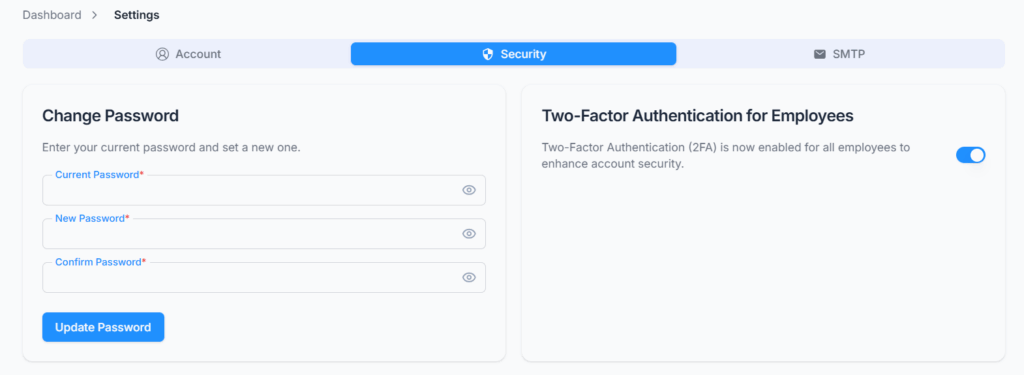
On Settings → Security, manage account protection features including password updates and two-factor authentication requirements for employees.
The Security section allows you to update your account password and enables administrators to enforce Two-Factor Authentication (2FA) for employee logins. These features help ensure that only authorized users can access the system and that accounts remain protected.
Who Can Use This Feature #
Subscriber Admin can always access the Security tab and use both cards on it.
Employees can access the Security tab only if they hold the permission below — without it, the entire Security tab (both the Change Password and Two-Factor Authentication cards) doesn’t appear in their Settings at all.
Permission Behavior
- Employee Forgot & Change Password (For Own) — View
Lets you see the Security tab in your own Settings. - Employee Forgot & Change Password (For Own) — Update
Lets you change your own password and turn your personal Two-Factor Authentication on or off.
Good to know: despite its name, this one permission covers your whole personal Security tab — there’s no separate permission for the 2FA toggle; it’s controlled by the same one as Change Password.
This permission can be assigned directly to an employee, or to an entire team at once. See the Permissions Management guide for how to assign permissions.
Change Password #
This card works the same way for everyone — Subscriber Admins and employees alike — since it only ever changes your own password.
Provide your current password, enter a new password, and confirm it. The system updates your password only after your current password is verified and the new password and confirmation match.
Your new password must:
- Be at least 8 characters long.
- Include at least one uppercase letter, one lowercase letter, one number, and one special character (such as
@ $ ! % * ? &).
Once your password is updated successfully, you’ll be signed out immediately and need to log back in using your new password.
Two-Factor Authentication (2FA) #
Unlike Change Password, this card looks and behaves differently depending on who’s logged in — a Subscriber Admin sees a company-wide switch, while an employee sees a personal one.
For Subscriber Admins #
Your card is titled “Two-Factor Authentication for Employees.” Its toggle doesn’t control your own login — it controls whether every employee in your company is required to complete 2FA verification during login.
- When enabled, all employees are required to complete 2FA verification during login, and they no longer see a personal 2FA toggle at all — the whole card disappears from their own Security settings entirely rather than just being greyed out.
- When disabled, employees who have permission to manage their own Security settings can choose to enable or disable 2FA individually. In that case, whether a given employee is asked for an OTP at login depends entirely on their own personal setting.
Good to know: your own Subscriber Admin account always requires OTP verification at every login, regardless of this toggle — this setting only controls whether the same requirement also applies to your employees.
For Employees #
Your card is simply titled “Two-Factor Authentication” and only ever controls your own account — not anyone else’s.
- If your company admin has enforced 2FA for all employees, you won’t see this card at all — 2FA is already required for you at every login, and there’s nothing to configure.
- If your admin hasn’t enforced it, and you have permission to manage your own Security settings, you’ll see this card and can turn 2FA on or off for your own account whenever you like.
How Turning 2FA On or Off Works #
This part works the same for both audiences. Flipping the toggle — whether you’re a Subscriber Admin turning it on for the whole company, or an employee turning it on/off for yourself — doesn’t apply immediately. It first needs to be verified:
- Flip the switch. A one-time password (OTP) is emailed to you.
- Enter the 6-digit OTP in the popup within 3 minutes before it expires. You get 3 attempts to enter it correctly — if you run out, request a new code with Resend rather than continuing to retry the old one.
- If it expires or you need another one, you can resend the OTP up to 3 times; after that, you’ll need to wait 10 minutes before requesting more.
- Once verified, the 2FA setting is updated and you’ll see a confirmation.
This verification step exists so that no one can silently turn 2FA off on an account (yours or, for admins, the whole company’s) without proving access to that inbox first.
What Happens at Login #
This part also works the same for both audiences. When 2FA is required for an account — always for Subscriber Admins, and for employees only when it applies per the rules above — every login sends a fresh 6-digit OTP to that person’s email, valid for 3 minutes, which must be entered before access is granted. The same resend rules apply — up to 3 resends, then a 10-minute wait.
Summary #
The Security tab covers two things: changing your own password, and controlling Two-Factor Authentication. Subscriber Admin always has full access; an employee needs the Employee Forgot & Change Password (For Own) permission just to see the tab at all. The 2FA card adapts to who’s looking at it — a company-wide switch for the Subscriber Admin, a personal one for everyone else — and any change to a 2FA setting has to be confirmed with an emailed OTP first, the same verification used at login whenever 2FA is required.