The Business Support section allows company admins (subscribers) to create and track support tickets directed to Office-X platform admins. These tickets can relate to company management, subscription or billing issues, or other system-related queries.
Once a ticket is submitted, it goes directly to the Office-X platform admin team, who review it, work on it, and take the appropriate action to resolve it. You can follow the progress, add comments, and manage your own request right from this page for as long as the ticket isn’t already Resolved or Closed.
This keeps all communication with Office-X organised, transparent, and easy to track in one place.
Navigate to: Business → Support in the sidebar.
From this page, you can create new support requests and manage your company’s existing ones.
Who Can Use This Feature #
Subscriber Admin can always access this page and manage every request, without needing any specific permission.
Employees can access it only if they hold at least one of the permission actions below.
Permission Behavior
- Business Support
A single permission with three independently-grantable actions: Create (submit new requests using the Add New Request button), View (open this page and see the company’s support request list), and Update (edit, resolve, close).
These three actions are granted independently. For example, an employee could be given View only, letting them see the request list without being able to create, edit, or act on anything.
Good to know: Business Support is a company-wide channel to Office-X, not a personal one. Requests aren’t tied to the individual who created them the way internal support tickets are, anyone with the relevant permission is acting on behalf of the whole company and can see and manage every request in the list, not just ones they personally submitted.
This permission can be assigned directly to an employee, or to an entire team at once. See the Permissions Management guide for how to assign permissions.
Overview #
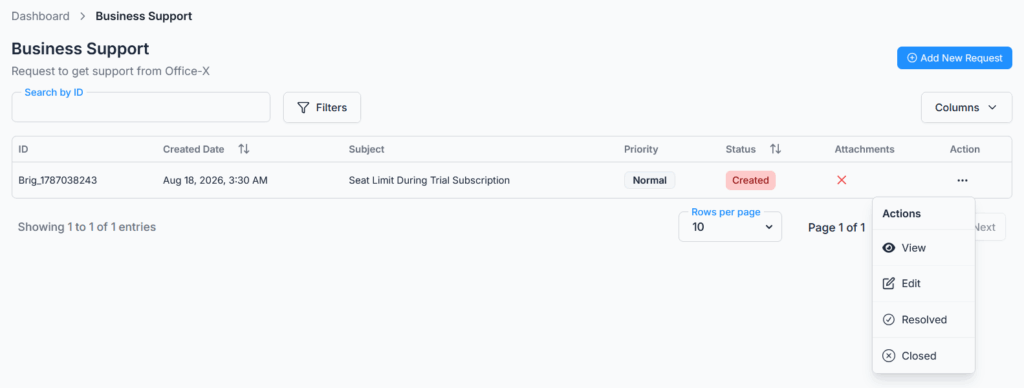
The page is titled Business Support, with the subtitle “Request to get support from Office-X”, and shows a table of all the support tickets your company has submitted.
The page includes:
- Breadcrumb: Dashboard → Business Support
- Add New Request button
- Columns button, to show or hide table columns
- The support request table: ID, Created Date, Subject, Priority, Status, Attachments, and Action
- Search, date range, status, and priority filters
- Rows-per-page selector and pagination controls
Add New Support Request #
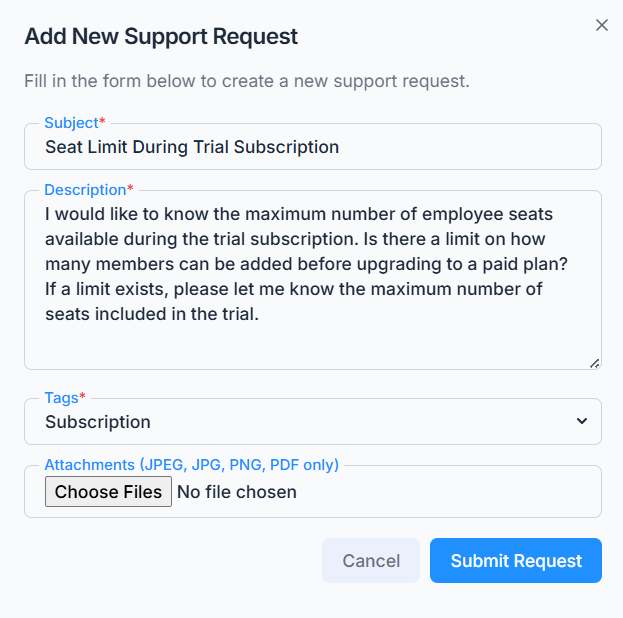
To create a new support request:
- Click Add New Request.
- Enter a Subject and a Description of the issue.
- Choose a Tag for the request: Business, Company, Payment, Subscription, or Other.
- Add attachments if needed (JPEG, JPG, PNG, or PDF files only, up to 5 files).
- Submit the request.
After submission, the request appears in your Business Support list, ready to be tracked, and is sent to the Office-X platform admin team for review.
Notifications and Emails #
Office-X keeps both sides informed automatically at every step:
- When you submit a request — you get a confirmation email (“Support Request Submitted”), and the entire Office-X platform admin team is notified by email and an in-app notification, so your ticket doesn’t sit unseen.
- When the status changes — whether the Office-X team updates it or you update it yourself (e.g. marking it Resolved or Closed) — you receive an email (“Support Request Updated”) and an in-app notification (“Support Request Update”) confirming the new status.
- When a comment is added — the other side gets an in-app notification, so they know to check the conversation.
Comments stay open for as long as the request is active, you can keep the conversation going right up until the moment it’s marked Resolved or Closed (by either side). Once it’s Resolved or Closed, the comment box locks immediately.
Attachments #
You can upload attachments — JPEG, JPG, PNG, or PDF files, up to 5 per request to provide supporting information when you create a request, such as screenshots or documents that help the Office-X team understand and resolve the issue more efficiently.
You can also attach files to individual comments while the conversation is ongoing (up to 5 files per comment).
Managing Your Request #
The Action column on each row lets you manage that request where you can:
- View — open the full ticket details.
- Edit — update the subject, description, tag, or attachments, as long as the request isn’t already Resolved or Closed.
- Resolved — mark the request as resolved yourself, for example if the issue is already sorted out, as long as it isn’t already Resolved or Closed.
- Close — close the request.
Once a request is marked Resolved or Closed — by you or by the Office-X team — it can no longer be edited, and no further comments can be added to it.
Viewing Details and Comments #
Clicking View on a request opens its full details, organised into four tabs:
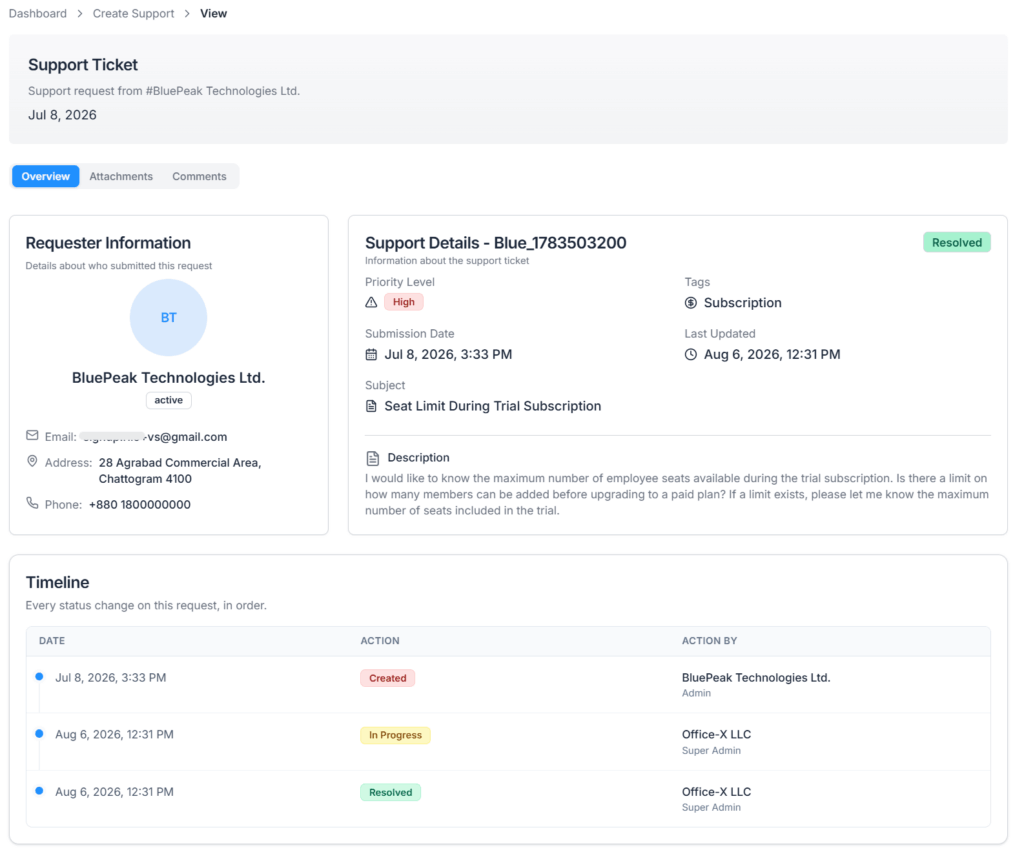
- Overview — requester information, priority, tag, submission and last-updated dates, and the description.
- Attachments — all files uploaded with the request.
- Comments — the full conversation thread with the Office-X team.
- Timeline — a record of who created the request and who moved it to In Progress, Resolved, or Closed, and when.
Comments are a two-way conversation — both you and the Office-X admin team can post comments (with attachments) to:
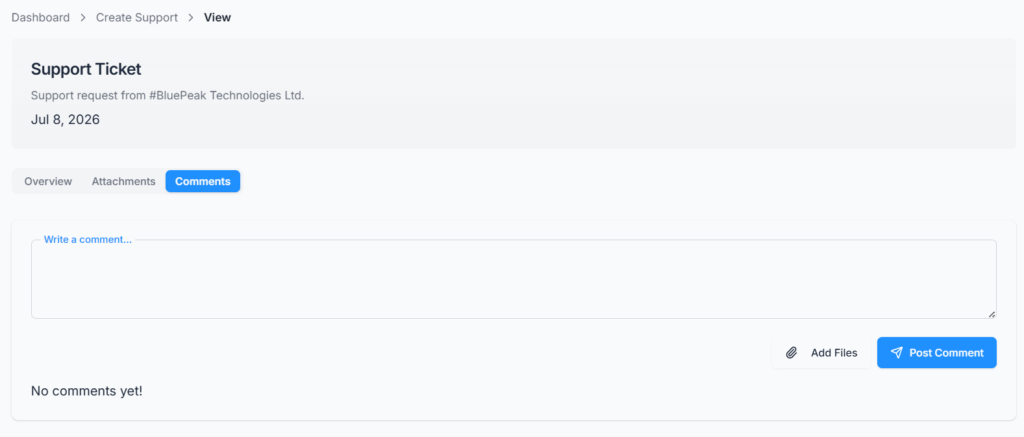
- Ask for or provide clarification
- Share updates
- Give instructions
- Track the issue through to resolution
All communication stays attached to the ticket, so the full history is always visible in one place. Once the ticket is marked Resolved or Closed, the comment box is locked and no further replies can be added.
Priority and Status #
Your support request priority will be determined by the Office-X support team:
- Priority — High, Medium, or Normal.
- Status — Created, In Progress, Resolved, or Closed.
A new request always starts as Created, with its priority automatically set to Normal, there’s no priority field on the creation form, so you can’t set it yourself when submitting. After that, priority can be raised or lowered from the request’s Action menu, by the Office-X team. The Office-X team typically moves the request to In Progress while working on it, and to Resolved once the issue is fixed, you can also mark your own request as Resolved or Closed at any time before that happens.
Summary #
The Business Support page gives you a centralised way to contact the Office-X platform admin team, report issues, ask questions, and track request progress. From Business → Support, you can:
- Create new support requests with a subject, description, tag, and attachments.
- Track every request’s priority and status in one table.
- Edit, resolve, or close your own requests at any time before they’re already resolved or closed.
- Have a full two-way conversation with the Office-X team through comments, with attachments.
This keeps support communication with Office-X organised, transparent, and easy to follow from start to resolution.