Measure, track, and improve employee performance effectively
The Performance module in Office-X allows managers to assess employee performance across different periods and criteria, ensuring transparent and structured feedback.
The module has two main areas: Performance Criteria (the setup side — periods and scoring criteria) and Performance Management (the assessments themselves).
Who Can Use This Feature #
Subscriber Admin can set up assessment periods and criteria and can take, view, edit, finalize, or delete assessments for any employee in the company, without needing any specific permission.
Employees, usually reporting managers, can manage assessments for employees in their reporting hierarchy if they have the required permission. They can take, edit, finalize, or delete assessments based on their permissions. Employees can always complete their own self-assessment when invited, without needing any extra permission.
Permission Behavior
- Performance Period & Criteria Setup
Required actions: View, Create, Update, Delete
Full access to the Performance Criteria page creating, editing, and deleting Assessment Periods and Assessment Criteria. - Take Assessment (For Subordinate)
Required action: Create
Lets you start a new assessment (Manager-Only or With Self-Evaluation) for anyone in your reporting tree. - Edit & Mark as Completed Assessment (For Subordinate)
Required action: Update
Let’s you edit an assessment and for a self-assessment review and finalize it, for anyone in your reporting tree. - Delete Assessment (For Subordinate)
Required action: Delete
Let’s you delete an assessment for anyone in your reporting tree. - View Assessment Detail (For All)
Required action: View
Let’s you open an assessment’s details. - View All Assessments
Required action: View
Let’s you see every assessment in the company on the Assessments list, the same full list the Subscriber Admin sees, instead of just your own subordinates’ assessments.
These permissions can be assigned directly to an employee, or to an entire team at once. See the Permissions Management guide for how to assign permissions.
How “Subordinate” Access Works #
Whenever this guide says a permission applies “for subordinates,” it means your entire reporting tree — not just the people who report to you directly, but everyone under them as well, however many levels deep that goes.
Office-X works this out by following the Reporting Manager field one level at a time: first it finds everyone who reports directly to you, then everyone who reports to them, then everyone who reports to that next group, and so on — until it reaches a level where nobody reports to anyone in it. Everyone found along the way counts as your subordinate, no matter how many levels down they are. You are never counted as your own subordinate.
Example:
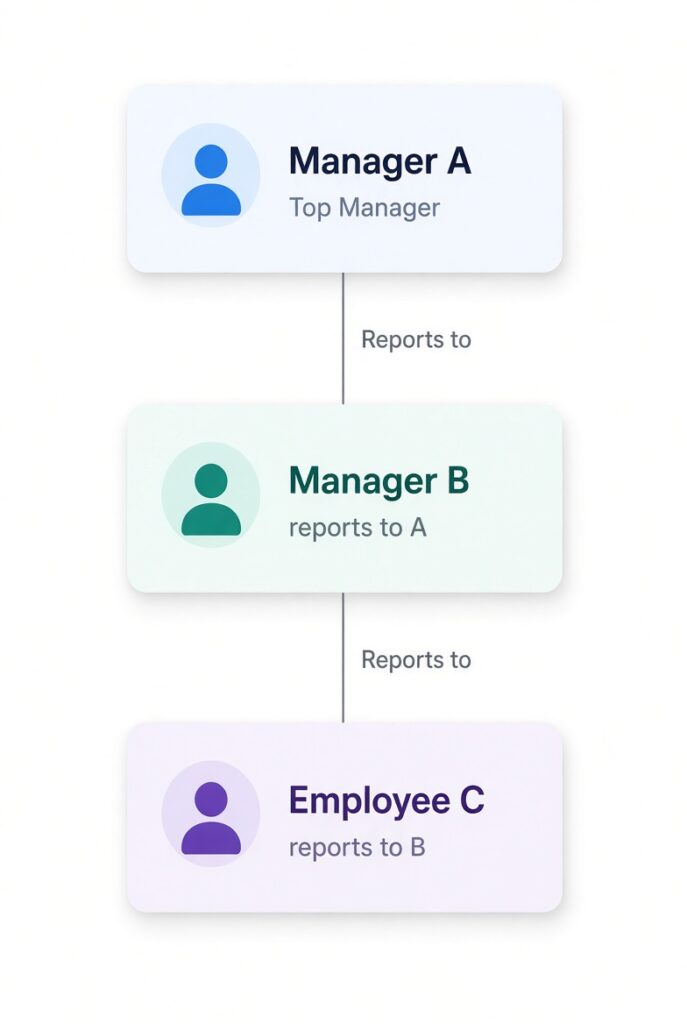
If Manager A is logged in and holds Take Assessment (For Subordinate), they can take an assessment for both Manager B and Employee C even though Employee C doesn’t report to A directly, only to B. The same reporting-tree rule applies to editing, finalizing, and deleting assessments, and to sending Self-Evaluation invitations.
Good to know: the Assessments list, and the Edit / Mark as Completed / Delete buttons on each row, both follow this same full reporting-tree rule. So, Manager A would see Employee C’s assessment row and the action buttons on it, even though C only reports to A indirectly (through B).
Subscriber Admin vs. Manager: What Each Can Do #
The Subscriber Admin can always act company-wide. A Manager’s reach is usually limited to their reporting tree — but there are two notable exceptions where a Manager’s access can match the Subscriber Admin’s exactly, and one rule that restricts even the Subscriber Admin. Here’s the full picture:
| Action | Subscriber Admin | Manager (holding the matching permission) |
|---|---|---|
| Set up Assessment Periods & Criteria | Full access, company-wide | Also full access, company-wide — this permission isn’t limited to your reporting tree at all. Anyone holding it can create, edit, or delete periods/criteria used by the whole company. |
| Take a Manager-Only assessment | For any employee in the company | Only for employees in your reporting tree |
| Send a Self-Evaluation invitation | To any employee (or team) in the company | Only to employees in your reporting tree |
| Edit an assessment | Any assessment in the company | Only assessments for your reporting tree |
| Finalize (mark Completed) an assessment | Any assessment in the company | Only assessments for your reporting tree |
| Delete an assessment | Any assessment in the company — except a Completed one, or a self-assessment the employee already submitted but that hasn’t been finalized yet. Nobody can delete either of those, not even the Subscriber Admin. | Same restriction, plus limited to your reporting tree |
| View an assessment’s details outside your relationship to it | Any assessment | Only if you hold View Assessment Detail (For All) — otherwise limited to assessments where you’re the employee, the assessor, or the inviter (being that employee’s current manager isn’t by itself enough) |
| View the full company-wide Assessments list | Always sees everything | Only if you hold View All Assessments — then you see exactly what the Subscriber Admin sees, every assessment in the company, not just your own subordinates’ |
Setup: Assessment Periods and Criteria #
Route: Dashboard → Performance → Setup (page title: Performance Criteria). This is where admins and anyone holding Performance Period & Criteria Setup configure what assessments are built from — and as the table above shows, this access is company-wide, not limited to a reporting tree.
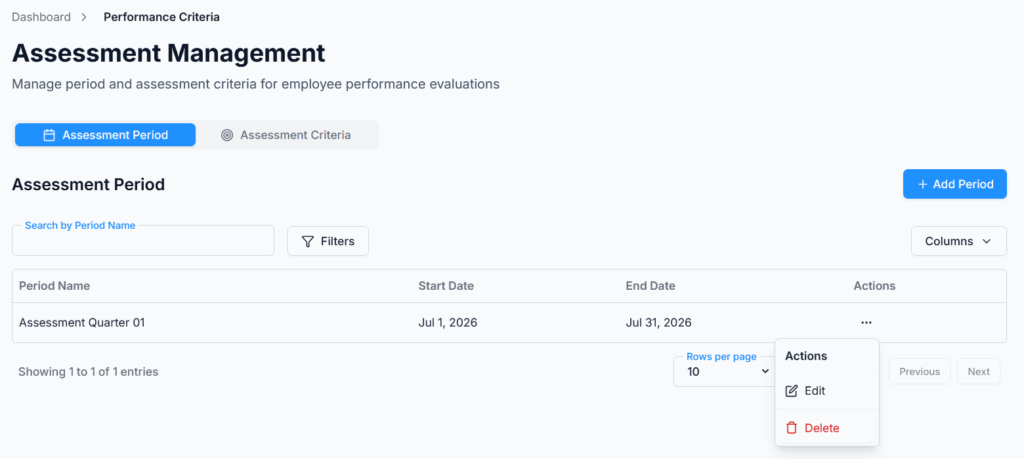
Assessment Period #
- Create new performance periods (quarterly, yearly, or custom — the period is just a name and a date range, so it can represent whatever cadence your company uses).
- Each period includes:
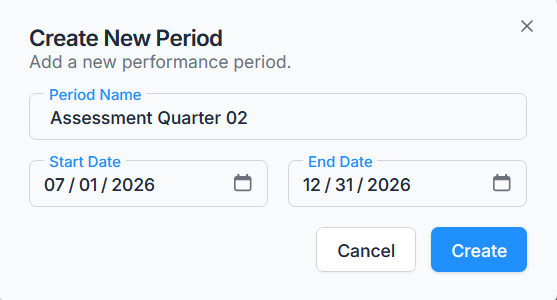
| Field | Example | Notes |
|---|---|---|
| Period Name | Q1 2025 | Name for the assessment period, up to 100 characters |
| Start Date | 01/01/2025 | Beginning of the period |
| End Date | 06/30/2025 | End of the period — must be on or after the Start Date |
- Manage Periods: Edit or delete existing periods as needed. A period can’t be deleted once any assessment has used it — you’ll need to remove or reassign those assessments first. Only Active periods can be selected when starting a new assessment.
Good to know: Unlike deleting, editing a period isn’t blocked even if assessments already use it, so changing a period’s dates after assessments exist against it won’t be stopped by the system.
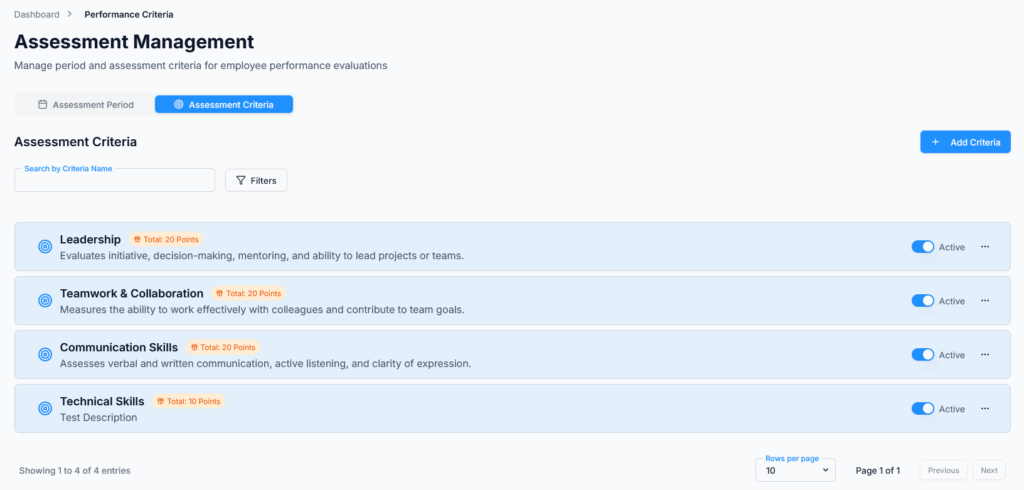
Assessment Criteria #
- Define the criteria employees will be assessed on — name (up to 100 characters), an optional description (up to 500 characters), and a maximum point value from 1 to 1000.
- Examples:
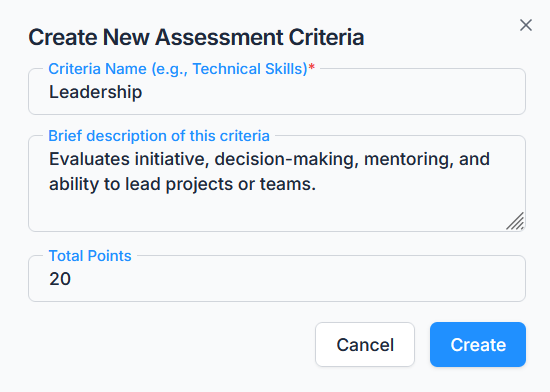
- Managers can use these criteria when evaluating employee performance — only Active criteria show up as selectable when building an assessment.
- A criterion can’t be deleted once it’s been used in an assessment, but — like periods — editing an already-used criterion isn’t blocked.
Good to know: Your criteria don’t have to add up to 100 (or any other fixed total). The total score for an assessment is simply the sum of the points for the criteria you include, so different assessments can have different maximum scores.
Assessments #
Route: Dashboard → Performance → Assessments (page title: Performance Management). This is where reporting managers conduct and review employee assessments, and where managers can invite employees to complete their own self-assessments.
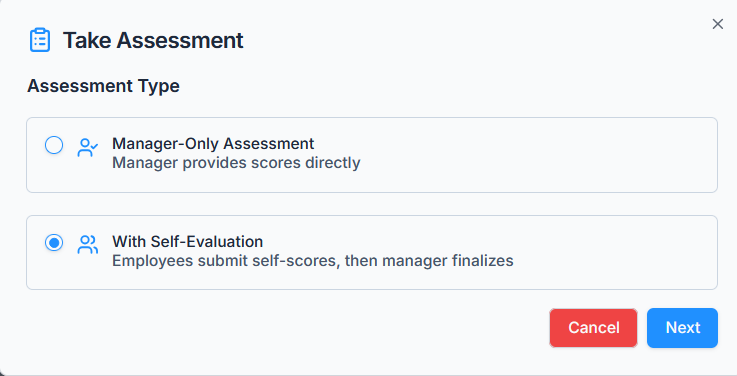
Two types of assessments are available:
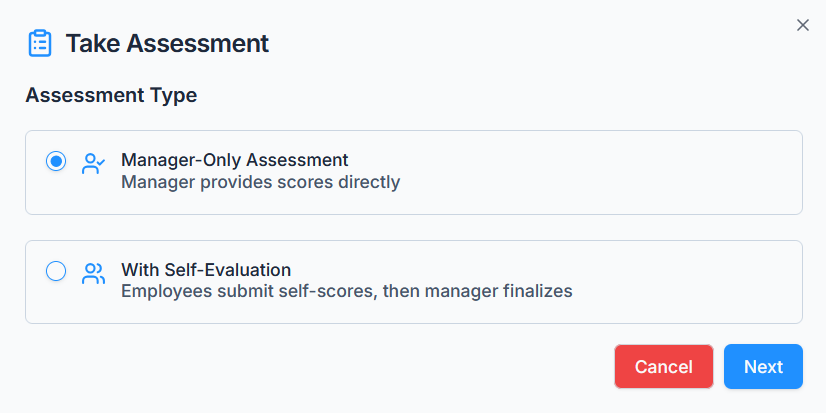
- Manager-Only Assessment: The manager completes the full evaluation directly — no employee involvement.
- With Self-Evaluation: The employee submits a self-assessment first, then the manager reviews and finalizes it.
Good to know: you can’t take an assessment for yourself. Since assessments can only be taken for people in your reporting tree, and you’re never counted as your own subordinate.
Take Assessment (Manager-Only) #
On Assessment Type → Manager-Only Assessment. The manager provides scores directly.
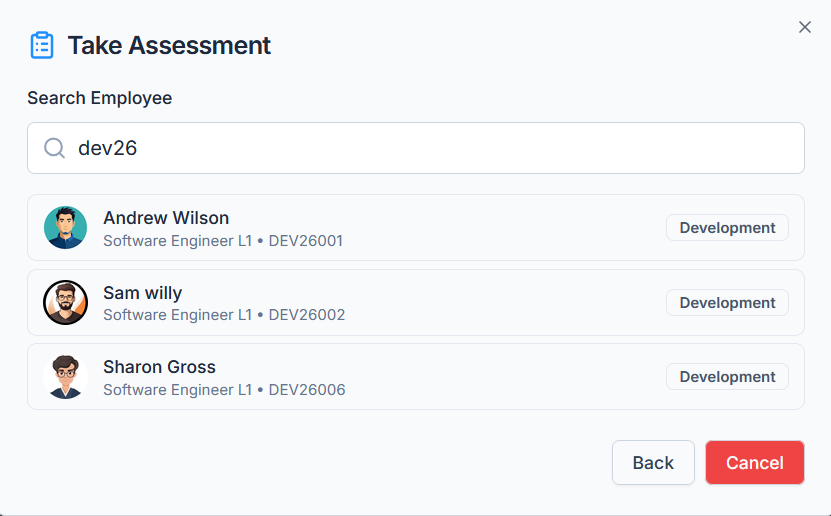
- Search Employee: Select an employee by Name or Employee ID, from anyone in your reporting tree.
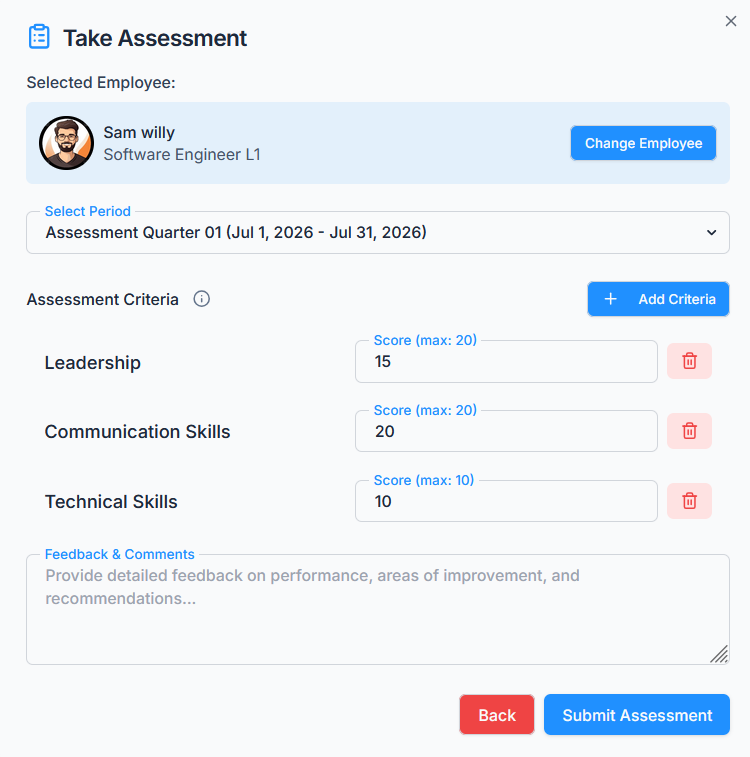
- Select Assessment Period: Choose from the currently Active periods (e.g., Q1 2025).
- Assign Scores: Score the employee against whichever Active Assessment Criteria you add, each capped at that criterion’s maximum points.
- Provide Feedback: Optional written feedback, up to 1000 characters.
- Submit Assessment: Saves the evaluation with a status of Pending — submitting doesn’t complete it right away.
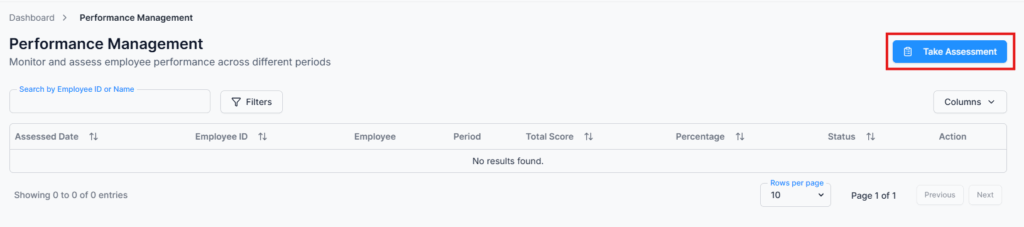
A Manager-Only assessment has its own separate finishing step: from the Assessments list, use Mark as Completed on that row (covered by the same Edit & Mark as Completed Assessment permission used for editing) to move it from Pending to Completed. Until you do, the assessment stays editable and doesn’t count as finished.
Take Assessment (Self-Evaluation) #
On Assessment Type → With Self-Evaluation. Employees submit their own scores first, then the manager reviews and finalizes.
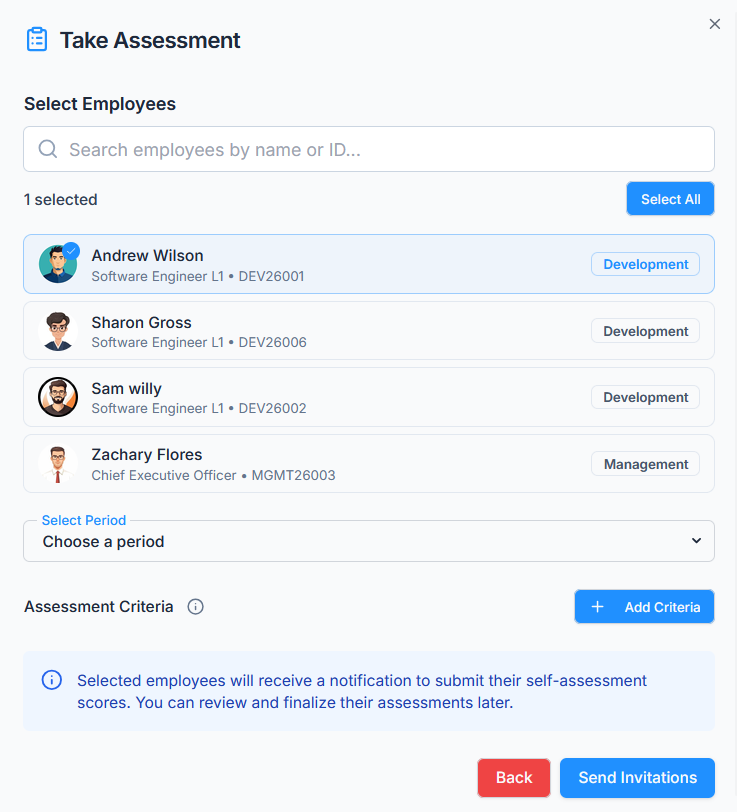
- Select Recipients: Choose one or more employees individually, from anyone in your reporting tree. Recipients are picked one at a time from a searchable list, not by selecting a whole team at once.
- Search Employee: Find each recipient by Name or Employee ID and add them to the list.
- Select Assessment Period: Choose from the currently Active periods (e.g., Q1 2025).
- Select Criteria: Choose which Active Assessment Criteria this invitation will cover — these are what the employee will score themselves against.
- Send Invitation: Sends the invitation to each selected employee, who can then access and complete their own self-assessment.
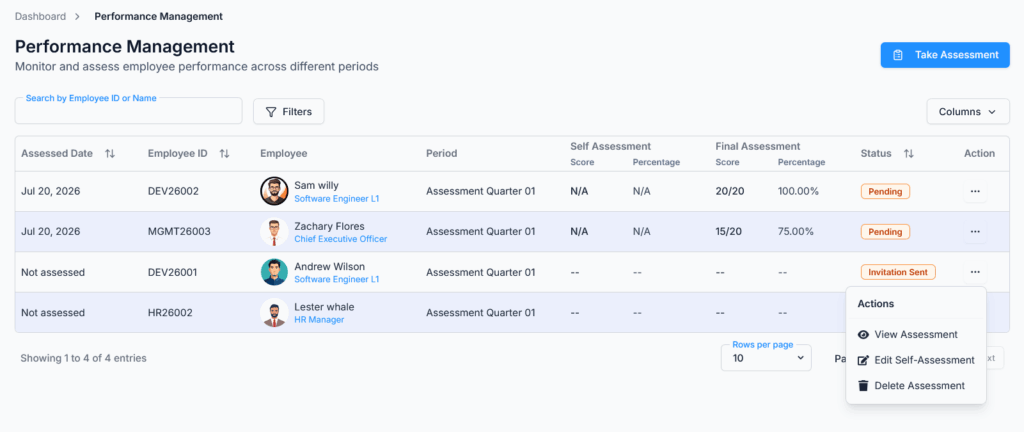
After an invitation is sent, the employee receives a notification (and an email, if your company’s email templates are set up for it — see Notifications and Emails, In Detail below). They can then complete their self-assessment by navigating to Performance → Assessments.
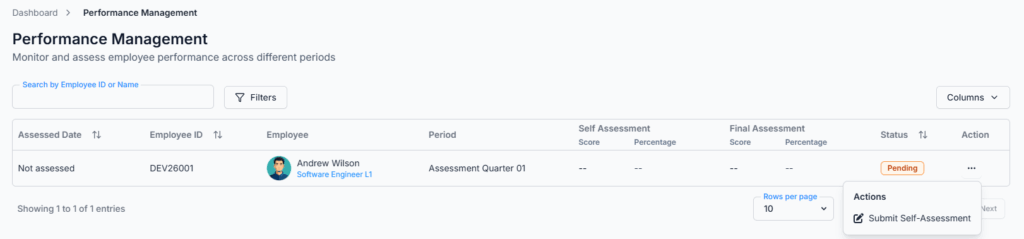
Employee Submits Self-Assessment
- Assessment Criteria: Add a self-score for each criterion in the invitation.
- Feedback & Comments (Optional): The employee can add their own comments here.
- Submit Assessment
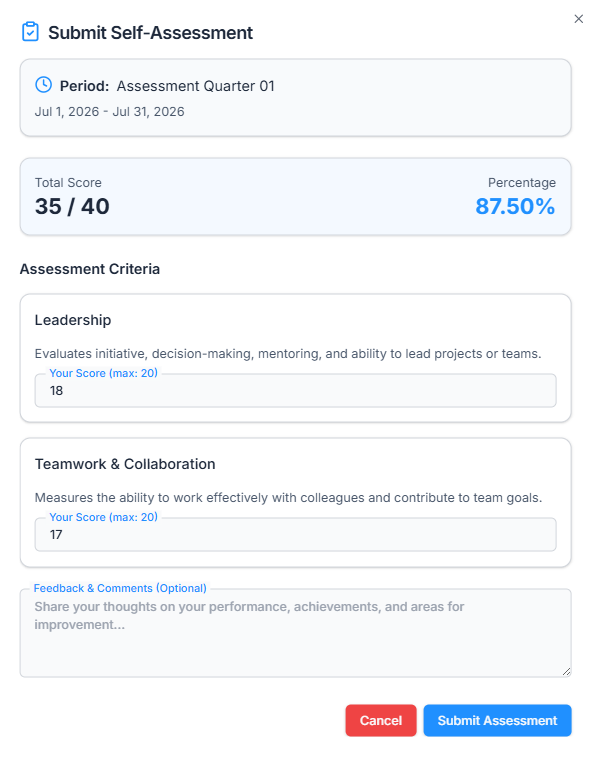
Once submitted, the employee’s self-assessment is locked — they can’t go back and change their scores or comments afterward.

The person who sent the invitation is notified and can then review and finalize the assessment.
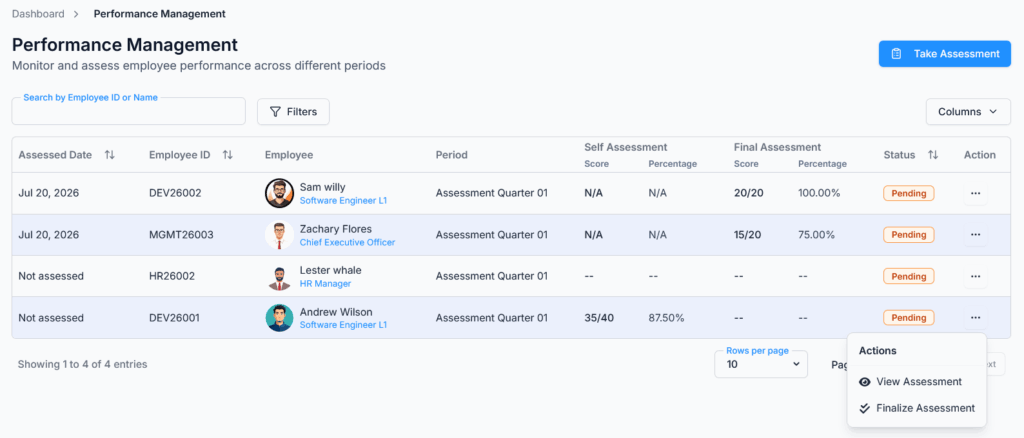
Finalize Assessment
- Review and Adjust Scores: Add the final score for each criterion — this doesn’t have to match what the employee scored themselves.
- Feedback & Comments (Optional): The manager can add their own feedback here, alongside the employee’s.
- Finalize Assessment
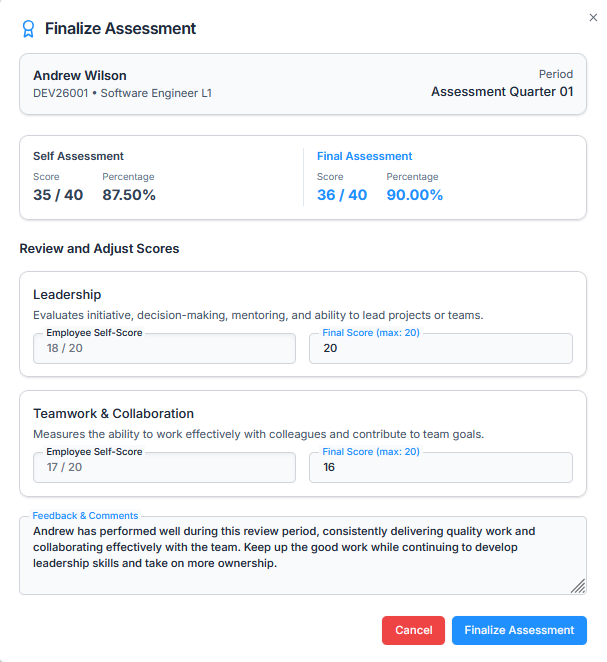
Good to know: a manager can only finalize a self-assessment after the employee has actually submitted their portion — there’s no way to skip ahead and finalize while it’s still waiting on the employee.
Once the manager finalizes it, the assessment’s status becomes Completed, and the employee can download the assessment report from Performance → Assessments on their own end.
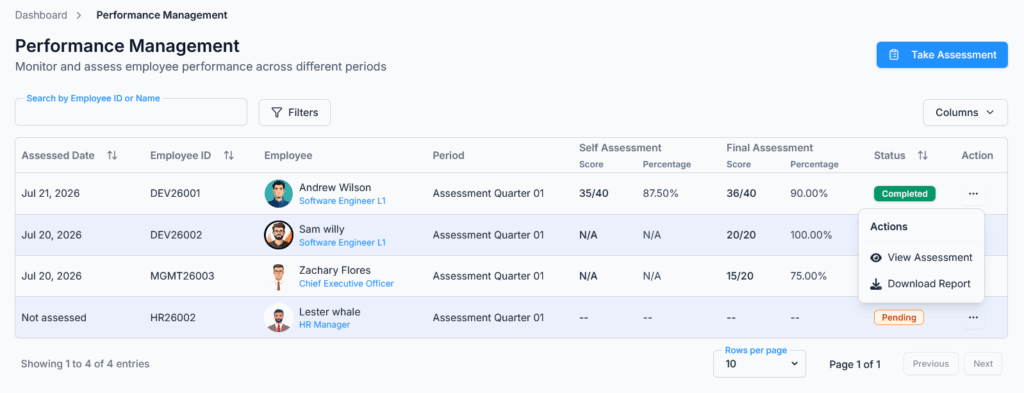
Good to know: once an assessment is Completed, it’s locked from further changes in the interface, there’s no Edit option shown for it anymore, whether it was a Manager-Only assessment or a finalized self-assessment. A Completed assessment also can’t be deleted; the same protection applies to a self-assessment the employee has already submitted but the manager hasn’t finalized yet — that can’t be deleted either, only finalized or left as-is.
Downloading the Assessment Report
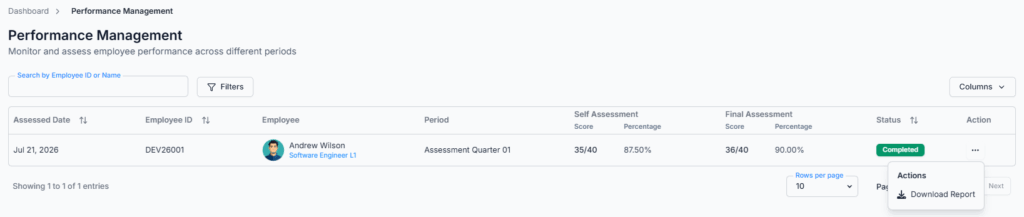
Once an assessment is Completed, a Download Report option generates a PDF of the full assessment — scores, feedback, and the performance level. This is only available for the assessed employee themselves, the Subscriber Admin, or whoever conducted the assessment.
Notifications and Emails #
Four separate events trigger a notification. Each one always creates an in-app notification, and separately attempts to send an email — but the email only actually goes out if your company has an active email template set up for that event and a working email (SMTP) configuration. Keep that in mind if someone says “I never got an email” — the in-app notification (bell icon) is the one guaranteed channel; email is a bonus on top of it.
1. Self-Assessment Invitation Sent
- Who gets it: every employee who was just invited.
- In-app notification: titled “Self-Assessment Request,” reading “You have been invited to complete a self-assessment. Please submit your scores at your earliest convenience.” — it links to the general Performance Management page rather than one specific assessment, since one invitation round can go out to several people at once.
- Email (template name: “Self-Assessment Invitation,” subject includes your company name): sent individually to each invited employee who has an email address on file. It includes their name, your company name, the assessment period’s name, the list of criteria they’ll be scored on, and the name of whoever sent the invitation — plus a link straight to the Performance Management page.
2. Employee Submits Their Self-Assessment
- Who gets it: whoever originally sent the invitation — not necessarily the employee’s current reporting manager, if that’s since changed, but specifically the person (or the Subscriber Admin) who invited them.
- In-app notification: titled “Self-Assessment Submitted,” reading “[Employee’s name] has submitted their self-assessment. It is now awaiting your review and finalization.” — this one links directly to that specific assessment.
- Email (template name: “Assessment Update,” subject “Assessment Submitted – [Employee Name]”): sent only if the inviter has an email on file. It includes the employee’s name, the assessment period, their self-assessed score and percentage, a breakdown table of their score per criterion, their self-feedback (or a dash if they left it blank), and a “Review & Finalize” link to the assessment.
3. Manager Finalizes a Self-Assessment
- Who gets it: the employee who was assessed.
- In-app notification: titled “Assessment Finalized,” reading “Your self-assessment has been reviewed and finalized by [Finalizer’s name].” (or your company name, if the Subscriber Admin finalized it) — links to the assessment.
- Email (template name: “Assessment Update,” subject “Assessment Finalized – [Period Name]”): sent only if the employee has an email on file. It includes the employee’s name, the period, their final score and percentage, a breakdown table of the final scores per criterion, the manager’s feedback (or a dash if none was given), and a “View Assessment” link.
4. Manager-Only Assessment Marked Completed
- Who gets it: the employee who was assessed.
- In-app notification: titled “Assessment Completed,” reading “Your performance assessment has been completed by [Assessor’s name].” (or your company name, if the Subscriber Admin completed it) — links to the assessment.
- Email (template name: “Assessment Update,” subject “Assessment Completed – [Period Name]”): sent only if the employee has an email on file. Same content shape as the finalization email above — score, percentage, per-criterion breakdown, feedback (or a dash), and a “View Assessment” link.
View Assessment Results
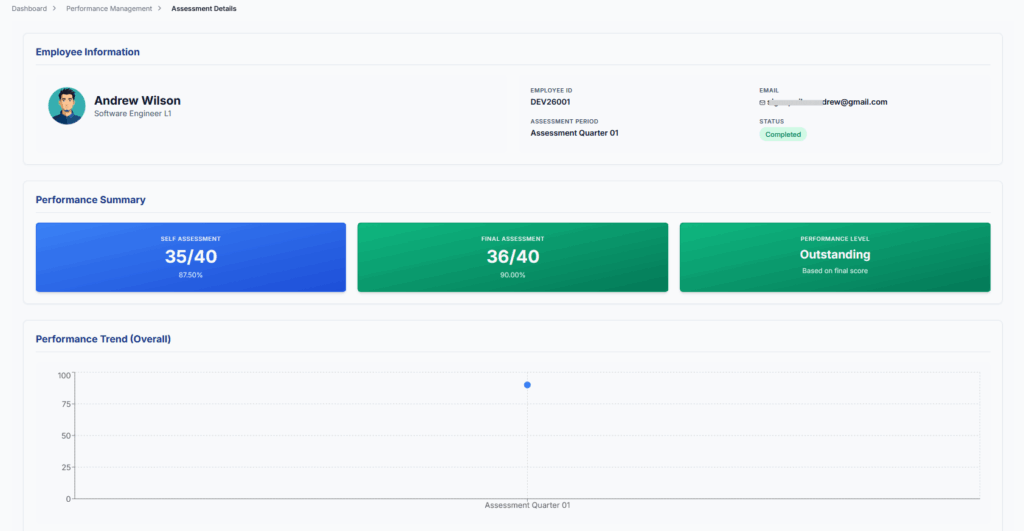
- After assessments are completed, managers can view detailed performance reports:
- Employee Information
- Performance Summary
- Performance Level (see the Assessment Scoring Guide below)
- Detailed Criteria Assessment
- Assessment Breakdown by criteria
- Feedback & Comments
Assessment Scoring Guide:
| Rating | Score |
|---|---|
| Outstanding | 90–100 |
| Excellent | 80–89 |
| Good | 70–79 |
| Satisfactory | 60–69 |
| Needs Improvement | 50–59 |
| Unsatisfactory | 0–49 |
The score behind this rating is a straight percentage — total points scored across all included criteria, divided by the total possible points for those criteria. There’s no weighting between criteria; every point counts the same regardless of which criterion it came from.
Summary #
The Performance Module in Office-X makes employee evaluations simple and organized. It covers everything from setting up assessment periods and criteria to scoring, feedback, and finalizing assessments.
Managers can assess employees anywhere in their reporting hierarchy, not just direct reports. They can either complete the assessment themselves or ask the employee to complete a self-assessment first. Subscriber Admins can manage assessments across the whole company.
Notifications keep everyone updated, and once an assessment is completed, it cannot be changed again. Completed assessments can also be downloaded as a PDF report.