On Admin → IP Config, strengthen attendance security by setting allowed IP addresses.
Only employees connected to these registered IPs (typically your workplace network) can mark attendance — preventing remote or fraudulent check-ins.
⚠️ Important: this isn’t optional hardening — it’s a requirement for attendance to work at all. Every check-in and check-out is checked against this list, with no exceptions. If your company has zero active IP addresses registered here, no employee can check in or check out until you add one. A new company starts with this list empty, so add your office’s IP here before anyone tries to use attendance.
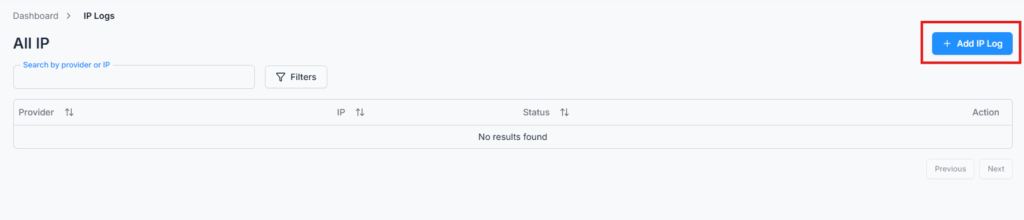
Add IP Log #
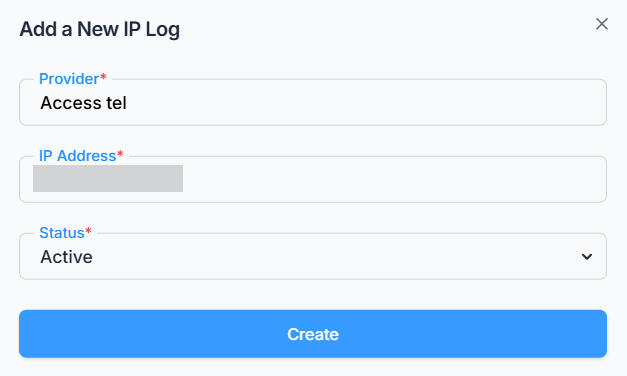
Click Add IP Log and fill in:
- Provider — a label for this entry (up to 30 characters, unique within your company) — for example, “Head Office” or “Branch A”, so you can tell entries apart if you register more than one location.
- IP Address — a single IPv4 address (e.g.
203.0.113.42), unique within your company. This must be your office’s public IP address — the one your network shows to the internet — not an internal/local address like192.168.x.x,10.x.x.x, or172.16–31.x.x. To find the right value, search “what is my IP” from a computer connected to your office network and use the public address it shows you. - Status — Active or Inactive. Only Active entries are enforced; an Inactive one is kept on record but ignored, so you can temporarily disable an old location’s IP without deleting it.
You can add more than one IP address — for example, one per office branch. An employee checking in or out is allowed as long as their current IP matches any of your Active entries.
Edit & Delete IP Log #
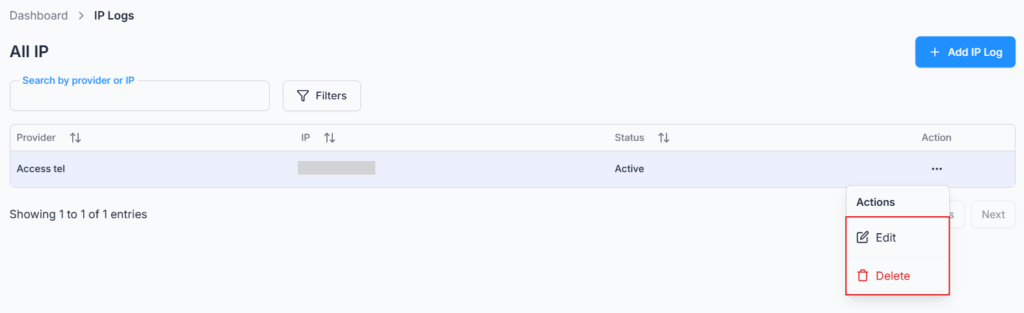
Use the Action menu to edit an entry’s Provider, IP Address, or Status, or delete it entirely. There’s no “in use” restriction on deleting an IP Log — but be careful: if you delete or deactivate your only Active entry, every employee will be immediately blocked from checking in or out (with the message “Access denied: IP address does not match the allowed IP.” on check-in, or “Access denied: IP not registered.” on check-out) until a valid Active IP is added back.