
On Admin → Incident Config, manage and define incident-related settings used in your Incident Reporting System. The page is organised into three tabs — Status, Severity, and Type — each its own simple list you build from scratch (none of the three come with any default entries).
All three tabs share the same Incident Config permission — anyone who can create, edit, or delete in one tab can do so in all three.
Where This Is Used #
These three lists feed directly into the Incident Report feature (Report → Incident). When anyone clicks New Incident Report, the form has three required dropdowns — Severity, Status, and Incident type — and each one is populated with exactly the entries you’ve set up here. If a tab is empty, that dropdown on the report form will be empty too, so it’s worth setting up at least a few values in each of the three tabs before anyone needs to file a report.
The same three values also show up afterwards — on the incident report list/table and on each report’s detail view — so whatever you name them here is exactly what shows on every report using them (there’s no separate “display label”; the exact text you type is what appears everywhere).
You can create and configure:
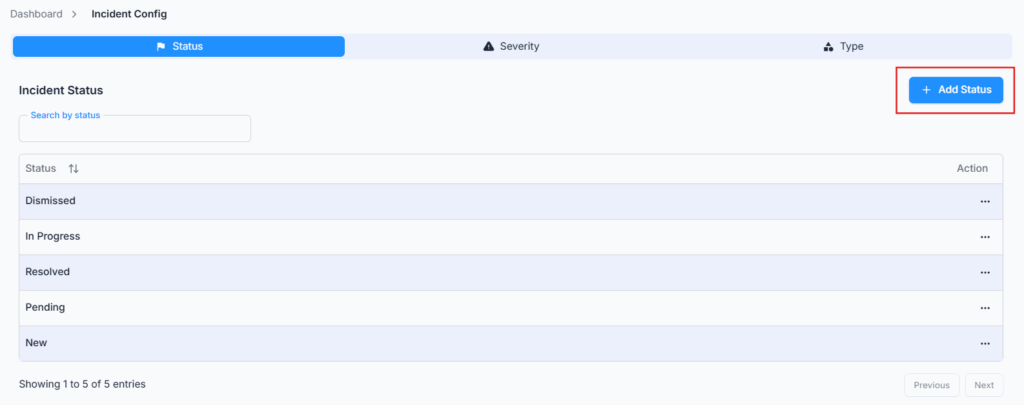
Incident Status #
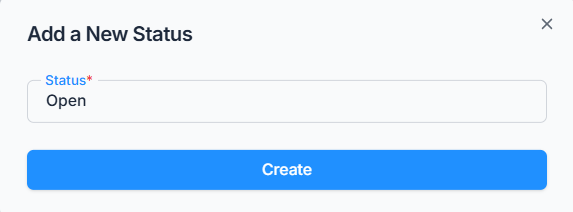
Add a status name (up to 30 characters, unique within your company). This is the day-to-day progress state of a report — for example:
- Open
- Under Investigation
- Resolved
- Closed
Incident Severity #
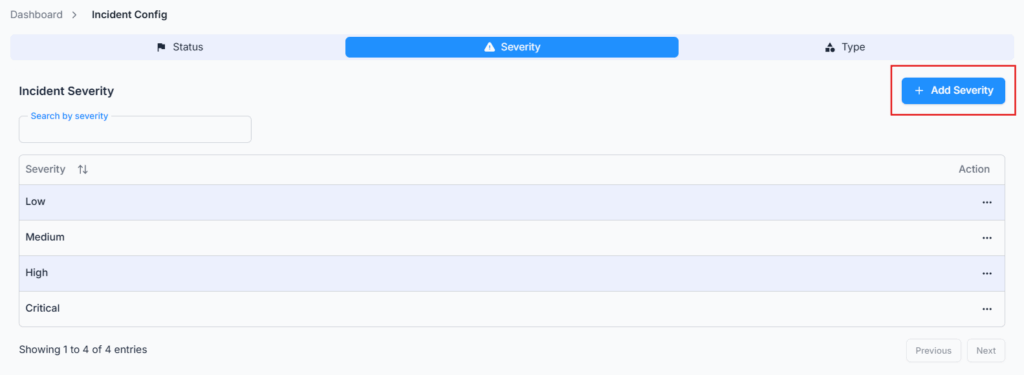
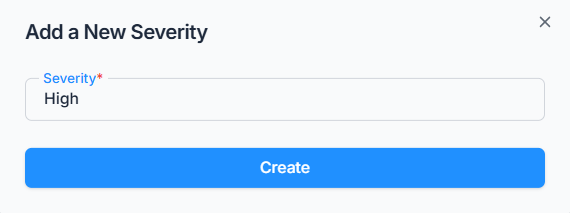
Add a severity level (up to 30 characters, unique within your company). This describes how serious the incident is — for example:
- Low
- Medium
- High
- Critical
Incident Type #
Add a type name (up to 30 characters, unique within your company). This categorizes what kind of incident it is — for example:
- Safety
- IT
- Equipment Damage
- Harassment
Unlike Status and Severity, an Incident Type also has an optional Incident Managers field, where you can pick one or more employees to attach to that type.
Good to know: assigning someone as an Incident Manager here isn’t just informational — the moment you save them as a manager on a type, Office-X automatically grants that employee two permissions company-wide: Create Incident Report (For All) and Edit & Discard Incident Report (For All) (if they don’t already have them). This applies for any type you add them to, and the access it grants is company-wide, not limited to incidents of that one type. It also lets them see any incident report using that specific type, even ones they didn’t file themselves. If you later remove them as a manager, those two permissions are not automatically taken back — remove them yourself from Admin → Permission if that’s not what you want. See the Incident Report guide for the full picture of who can see and act on a given report.
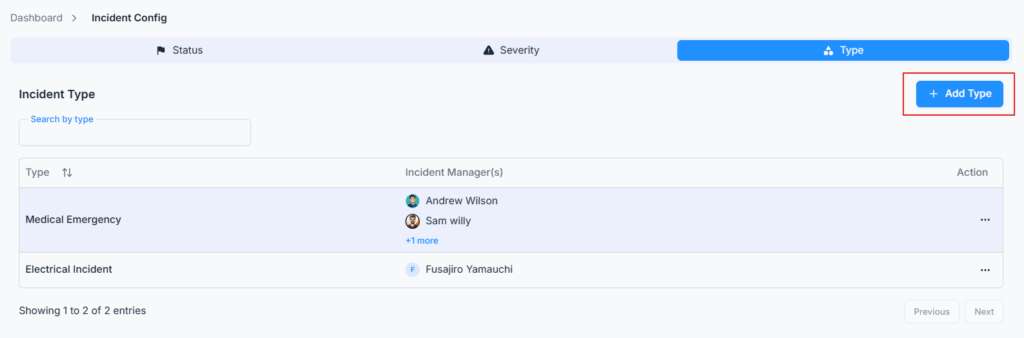
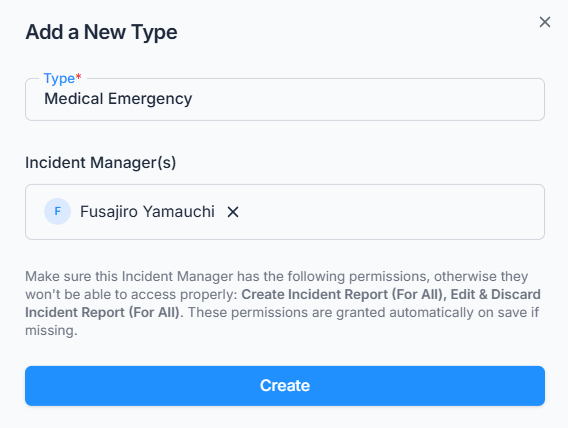
These configurations appear during the creation of any incident report — whether it’s created for yourself or, with the right permission, for someone else — for consistent categorization across the whole company.
Note: None of the three — Status, Severity, or Type — can be deleted while still in use. If any existing incident report uses it, deletion is blocked with a message telling you it’s in use.