
On Admin → Teams, create teams within your organization — such as Development Team, Design Team, Support Team, etc. When you create a team, you also pick its members right away by searching and selecting employees — a team isn’t just a name, it’s a name plus a member list.
The team table shows each team’s name and its members (avatars and names, with a “+N more” link to see the full list), and you can search for a team by name.
- Later, you can assign team-wise permissions from: Admin → Permissions → Team Permissions.
Simply search for the team you created here and manage access rights in one place — the permission applies to everyone currently on that team’s member list.

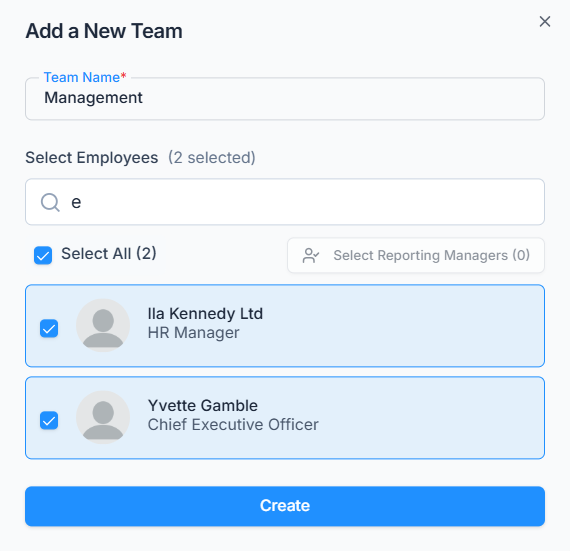
Use the Action menu on any team to Edit its name or member list, or Delete it.
What Happens When You Add or Remove a Team Member #
Permission checks are always evaluated live: whenever the system checks what an employee can do, it looks at
(1) that employee’s own individually assigned permissions, and — only if the action isn’t granted there.
(2) the permissions of every team they’re currently a member of. There’s no one-time copy or sync step, so:
- Adding someone to a team that already has permissions assigned gives them every one of those permissions, on top of anything they already have individually or through another team.
- Removing someone from a team takes away the permissions they only had through that team. They keep anything granted directly to them, or through any other team they’re still on.
Note: A team can’t be deleted while it still has a Team Permission assigned to it. If it does, deletion is blocked with a message telling you why — remove that permission assignment first, from Admin → Permissions → Team Permissions.