The Billing & Payment module in Office-X allows administrators and permitted users to manage subscriptions, invoices, payment methods, and seat allocations efficiently. This section ensures transparency and control over your company’s billing information.
Who Can Use This Feature #
Subscriber Admin always has full access to Billing & Payment, without needing any specific permission.
Employees need the permission below to open this page at all. Without it, the page is completely hidden from them. There is no “view-only” version of this page.
Permission Behavior
- Manage Billing & Payment
Required action: Update
Grants access to the Billing & Payment page: viewing the plan, upgrading/downgrading plans, managing seats, and reactivating a Past Due or Cancelled subscription. There’s no separate “view only” billing permission; this single permission is the only way in for anyone besides the Subscriber Admin.
Good to know: one part of this page is Subscriber Admin only, even with this permission granted, anything that opens Stripe’s secure billing portal (the Manage Plan button, and the Pay Outstanding Dues / Pay Dues buttons shown during Past Due or Cancelled states) is hard-restricted to the Subscriber Admin’s own role. An employee holding Manage Billing & Payment simply won’t see those buttons at all, since directly cancelling the subscription or changing the payment card on file is considered too sensitive to delegate. Everything else on the page: Manage Seats, upgrading/downgrading the plan, and Activate Your Subscription is fully available to a permission holder, the same as the Subscriber Admin.
This permission can be assigned directly to an employee, or to an entire team at once. See the Permissions Management guide for how to assign permissions.
Current Plan & Upcoming Invoice #
The top of the page gives you a snapshot of what you’re on and what’s coming up next.
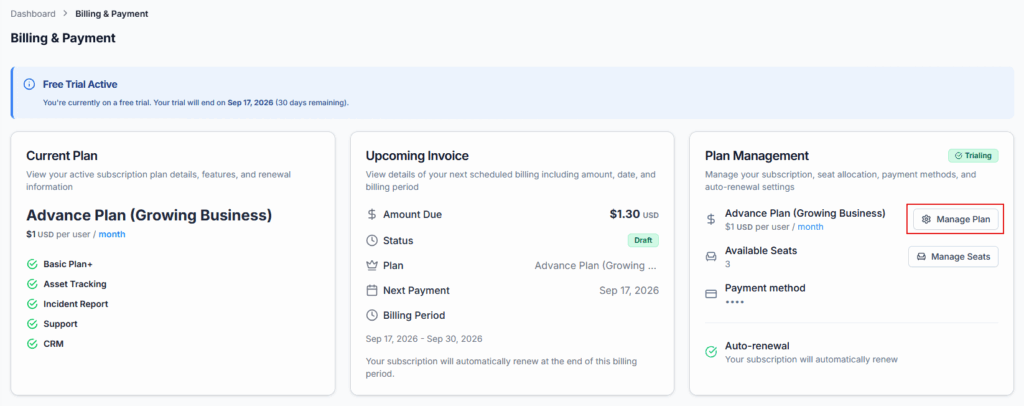
Current Plan shows your active plan’s name, its price per user, and the list of features included.
Upcoming Invoice shows the details of your next scheduled bill:
- Amount Due – The total payment due for the next billing cycle.
- Status – Current invoice status (e.g., Draft, Open, Paid, Void).
- Plan – Name and billing cycle of your active plan (e.g., Basic Plan, Yearly).
- Next Payment – Scheduled date of the next payment attempt.
- Billing Period – The start and end dates covered by this invoice.
If your subscription was cancelled with unpaid invoices, this card switches to Outstanding Invoices and lists every unpaid invoice’s amount and billing period so you know exactly what needs to be settled.
Plan Management #
The Plan Management card on the Billing & Payment page is where you manage your subscription day-to-day:
- Manage Plan – Opens Stripe’s secure billing portal, where you can cancel your subscription or update your payment method (billing card) for future invoices. Subscriber Admin only — this button doesn’t appear for an employee with the Manage Billing & Payment permission.
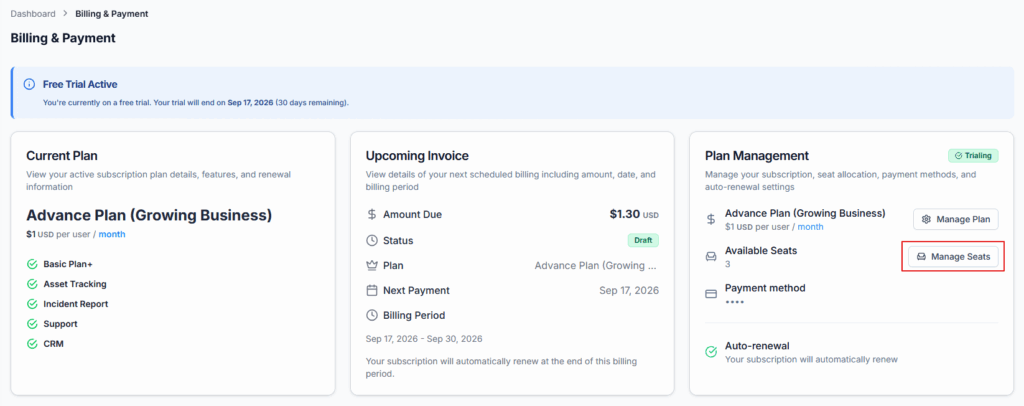
- Manage Seats – Opens a dialog to adjust how many seats your company has (see below).
- Payment Method – Shows the card currently on file (brand and last 4 digits).
- Auto-renewal – Shows whether your subscription will automatically renew or expire at the end of the current billing date.
Manage Seats
Click Manage Seats inside the Plan Management card to adjust the number of active seats to align with your team size:
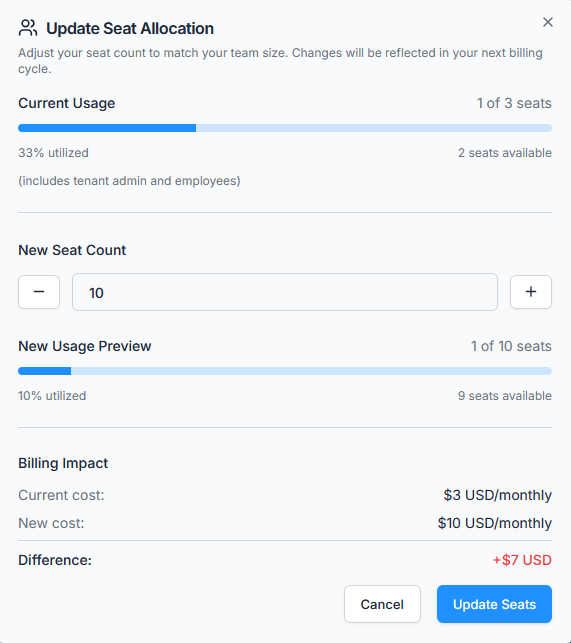
- Current Usage – Shows how many seats are currently in use versus how many you’ve purchased (includes the Subscriber Admin and all employees).
- New Seat Count – Use the + / − buttons or type a number to set the desired seat count.
- New Usage Preview – Shows what your usage percentage would look like at the new seat count.
- Billing Impact – Shows your Current Cost, New Cost, and the Difference between them, so you know exactly what changes before you confirm.
If you try to reduce the seat count below the number of seats currently in use, you’ll see a warning that some users may lose access — the Update Seats button stays disabled until you pick a valid number.
You can increase or reduce seats here. Any changes will be applied — and billed — starting from your upcoming billing cycle.
Billing History #
View and download all past invoices in one place for reference or accounting purposes. The billing history table shows:
- Invoice
- Date
- Billing Period
- Plan
- Billing Cycle
- Payment Method
- Amount
- Status (Paid or Pending)
Click the download icon on any row to download that invoice as a PDF.

Upgrade/Downgrade Plan #
Switch your subscription plan directly from this section to match business needs. Plan changes are automatically reflected in the next billing cycle.
When you select a new plan and click Update Plan, the system will decide one of three outcomes:
• Apply Immediately (with proration)
• Schedule for Next Billing Cycle
• Block the Change (if not allowed)
Immediate + Prorated Upgrades (Allowed) #
The following transitions apply immediately, with Stripe proration for the remaining billing period:
- Basic (Monthly) → Advance (Monthly)
- Basic (Monthly) → Basic (Yearly)
- Basic (Monthly) → Advance (Yearly)
- Basic (Yearly) → Advance (Yearly)
- Advance (Monthly) → Advance (Yearly)
- Advance (Monthly) → Basic (Yearly)
Not Allowed (Blocked Immediately) #
- Basic (Yearly) → Advance (Monthly)
Switch After Billing Cycle Ends (Deferred Changes) #
The following transitions are scheduled and take effect only after the current billing cycle expires:
- Basic (Yearly) → Basic (Monthly)
- Advance (Monthly) → Basic (Monthly)
- Advance (Yearly) → Advance (Monthly)
- Advance (Yearly) → Basic (Monthly)
- Advance (Yearly) → Basic (Yearly)
Subscription Status Rules #
Your subscription phase also affects plan changes:
Trial Phase
• You can change plans freely
• No charge during trial
• First invoice uses the selected plan
Active Phase
• Plan changes allowed
• Proration applies immediately
• Invoice updates instantly
Past Due Phase
• Plan changes allowed
• Full system access remains
• Stripe handles payment recovery
Cancelled Phase
• Plan changes blocked
• Update button disabled
• Message shown: “No active subscription found.”
Re-Subscription #
Subscriber Admin (and anyone with the Manage Billing & Payment permission) can recover their subscription and continue using Office-X when payment is overdue or cancelled — with one exception, noted below: paying via the Stripe portal is Subscriber Admin only.
Past Due #
When a payment fails, the subscription becomes Past Due:
- A top banner shows “Outstanding Payment Due” with details and a Pay Outstanding Dues button. This button is Subscriber Admin only — an employee with the Manage Billing & Payment permission won’t see it, since it opens the Stripe portal.
- Clicking the button redirects to the Stripe portal to update payment or pay failed invoices.
- Users retain full platform access; no route is locked.
- After successful payment, Office-X syncs status back to Active automatically.
- Retry attempts continue until the defined retry end date.

Cancelled #
If payment remains unpaid after the retry window, the subscription becomes Cancelled. Every route redirects to Billing & Payment — it’s the only page you can reach until the subscription is fixed.
What you see here depends on whether there are unpaid dues:
- If dues are outstanding: Banner shows “Subscription Cancelled” with a Pay Dues button that redirects to the Stripe portal. This button is Subscriber Admin only — an employee with the Manage Billing & Payment permission won’t see it. The Activate Your Subscription button stays disabled until the dues are paid.
- Once all dues are paid: The banner updates to let you know you’re clear, and the Activate Your Subscription button becomes clickable.
- Clicking Activate Your Subscription reactivates your plan using the payment method already on file — you won’t need to re-enter your card. If that card has expired or fails verification, you’ll see a clear error asking you to update your payment method first. Unlike Pay Dues, this button is available to anyone holding the Manage Billing & Payment permission, not just the Subscriber Admin.
- Plan management and seat options are hidden while the subscription is cancelled.
- Any plan change attempts while cancelled are blocked with: “No active subscription found.”

Summary #
The Billing & Payment module provides full visibility and control over your company’s subscription and invoicing:
- Subscriber Admin always has access; other employees need the Manage Billing & Payment permission, granted from Admin → Permissions — with one deliberate exception: anything that opens Stripe’s billing portal (Manage Plan, Pay Outstanding Dues, Pay Dues) stays Subscriber Admin only, since cancelling the subscription or changing the payment card is treated as too sensitive to delegate.
- View your current plan, upcoming invoice, and full billing history with downloadable invoices.
- Manage your plan and payment method through Stripe’s secure portal, and adjust seat counts with a clear cost preview.
- Upgrade or downgrade plans directly, with the system automatically deciding whether the change applies immediately, is scheduled for later, or is blocked.
- Recover a Past Due or Cancelled subscription without losing your data or having to start over.