
The Company module in Office-X allows you to view, manage, and update your company information efficiently. This section also provides an overview of company statistics for quick insights into organizational activity.
Who Can Use This Feature #
Every employee can open the Company Overview page — there’s no permission required just to view it. What you see there differs slightly depending on your role (covered below), but the page itself is never hidden from anyone.
Subscriber Admin can edit the company’s information, without needing any specific permission.
Employees can edit the company’s information only if they hold the permission below.
Permission Behavior
- Edit Company Profile
Required action: Update
Shows the Edit Information button on the Company Overview page, and allows saving changes on the edit page — including changing the company email and timezone, which both route through this same permission.
Without this permission (and without being the Subscriber Admin), the Edit Information button simply doesn’t appear — you only see the overview page.
This permission can be assigned directly to an employee, or to an entire team at once. See the Permissions Management guide for how to assign permissions.
Good to know: the Total Asset Value figure on the overview page (covered below) is shown or hidden based on role, not this permission — only the Subscriber Admin sees it. An employee holding Edit Company Profile can edit the company’s information but still won’t see Total Asset Value unless they’re the Subscriber Admin.
Overview #
Go to Company from the sidebar to open your company’s overview page. This page gives you a clear snapshot of your organization — its basic details, its current activity, and a set of quick shortcuts to common actions.
Company Information #
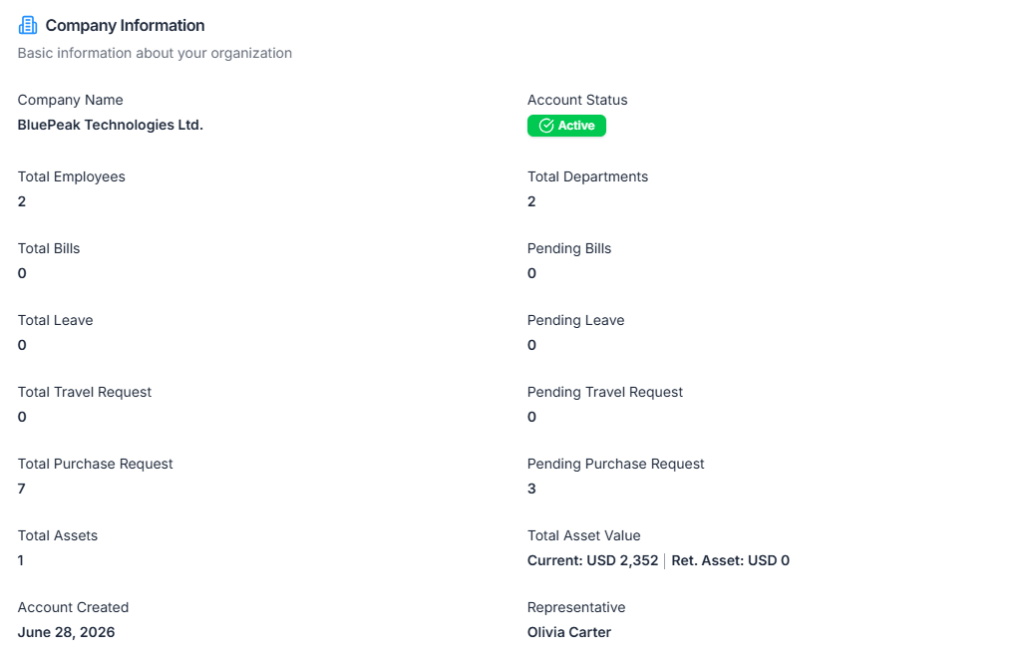
Here shows your company’s core details and a running count of activity across the system:
- Company Name – The registered name of the company.
- Account Status – Whether the company account is Active or Inactive.
- Total Employees – Number of employees added to the company.
- Total Departments – Number of departments created in the company.
- Total Bills and Pending Bills – Bills submitted across the organization, and how many are still awaiting approval.
- Total Leave and Pending Leave – Leave requests submitted by employees, and how many are still awaiting approval.
- Total Travel Request and Pending Travel Request – Travel requests submitted, and how many are still awaiting approval.
- Total Purchase Request and Pending Purchase Request – Purchase requests submitted, and how many are still awaiting approval.
- Total Assets – Total company assets recorded in the system.
- Total Asset Value – Combined current value of all active assets, plus the value of retired assets, shown in your company’s default currency. (Visible only to the Subscriber Admin — see the “Good to know” above.)
- Account Created – The date the company was registered in Office-X.
- Representative – Name of the primary account holder or company representative. This is just a display field recorded on the profile — it doesn’t itself grant any special access to edit the company’s information.
Company Details #
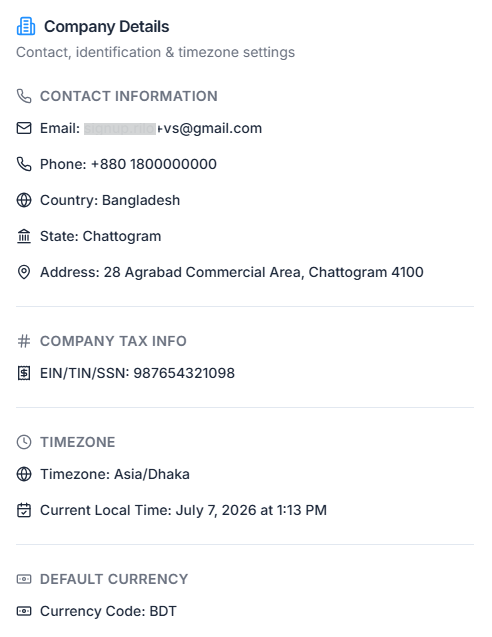
Alongside the stats, here shows your company’s contact, tax, timezone, and currency settings at a glance:
- Contact Information – Email, Phone, Country, State, and Address.
- Company Tax Info – Your EIN / TIN / SSN (tax identification number).
- Timezone – Your company’s timezone and the current local time.
- Default Currency – The currency code used across the company (for example, USD).
Quick Actions #
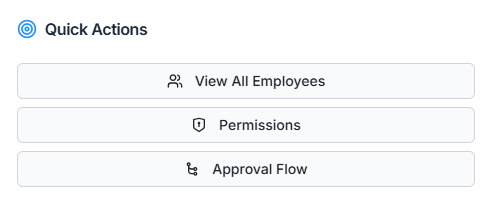
A Quick Actions panel is also available on the overview page, giving you one-click shortcuts to the things you’re most likely to do next:
- Admins see shortcuts to View All Employees, Permissions, and Approval Flow.
- Employees see shortcuts to Attendance, Create Leave, and Create Bill.
Good to know: which set of shortcuts you see is based purely on whether you’re the Subscriber Admin, not on any permission you hold. An employee with several admin-level permissions still sees the employee-style shortcuts (Attendance, Create Leave, Create Bill), never the admin ones — only the Subscriber Admin role switches this panel over.
Edit Company Information #
From the Company Overview page, click Edit Information to update your company’s details.
This button is only visible if you’re the Subscriber Admin or hold Edit Company Profile permission — everyone else only sees the overview page.
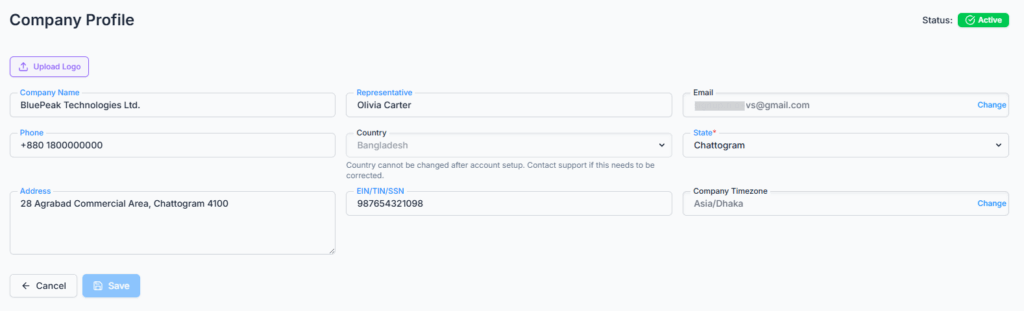
On the edit page, you can update:
- Company Logo – Upload a new logo (JPG, PNG, or WebP, up to 2 MB). You’ll be able to crop it before saving, or remove the existing logo entirely.
- Company Name and Representative name.
- Phone, State, and Address.
- EIN/TIN/SSN – Your tax identification number.
Note: Country cannot be changed once your account is set up. If it needs to be corrected, please contact support.
Your Company Name and Representative name cannot be left empty — the Save button stays disabled until both are filled in and something has actually changed.
Changing Your Email #
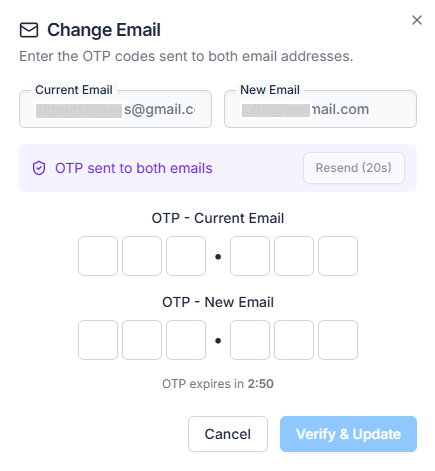
For security, your company email can’t be edited directly on the form. Instead, click Change next to the Email field and follow these steps:
- Enter your new email address and click Send OTP.
- A one-time code is sent to both your current and new email addresses.
- Enter both codes and click Verify & Update. Each code expires after a few minutes — use Resend OTP if you need a new one.
This two-sided verification makes sure only the actual owner of both inboxes can change the company’s email. It’s still gated by the same Edit Company Profile permission (or the Subscriber Admin role) — there’s no separate permission just for changing the email.
Changing Your Timezone #
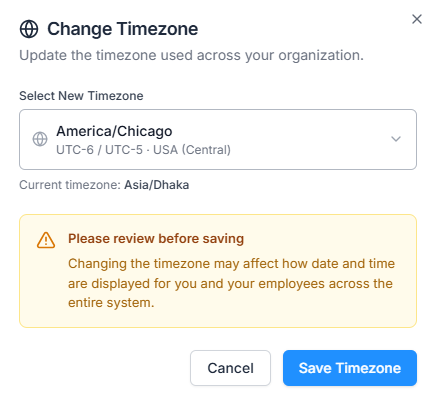
Like Email, the Timezone field is locked on the main form. Click Change next to it to open the timezone picker, choose a new timezone from the list, and click Save Timezone. This also uses the same Edit Company Profile permission as the rest of the edit page.
Important: Changing the timezone affects how dates and times are displayed for everyone in the company, not just you — so double-check before saving.
Changes made on the edit page are reflected immediately and help ensure that company information is accurate and up to date.
Summary #
The Company module provides a centralized place to monitor and manage your organization’s information. Every employee can view the overview page; editing it — including the company email and timezone — requires being the Subscriber Admin or holding the Edit Company Profile permission. It allows:
- Viewing essential company details and statistics at a glance.
- Jumping straight to common actions through Quick Actions.
- Editing company details such as name, representative, logo, contact info, and tax ID.
- Securely changing your company email through a two-sided OTP verification.
- Updating the company-wide timezone with a clear warning before it affects everyone.
- Keeping track of key organizational data, such as employees, departments, bills, leaves, travel requests, purchase requests, and assets.