
Easily manage your company’s email configuration and templates in one place. From setting up SMTP servers to customizing your automated emails, everything is designed to keep your communication consistent, professional, and personalized.
Simple Mail Transfer Protocol (SMTP) Configuration #
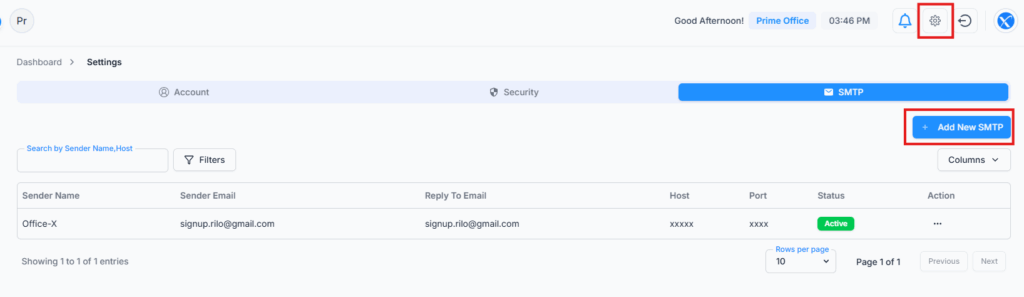
Navigate to Settings → SMTP to view all your configured SMTP accounts.
By default, your system comes with a pre-configured SMTP named “Office-X”, which is active and used for all outgoing emails unless you add a new one.
Note: The default SMTP cannot be edited, deactivated, or deleted.
SMTP List Overview:
| Sender Name | Sender Email | Reply To Email | Host | Port | Status | Action |
|---|---|---|---|---|---|---|
| Office-X | [email protected] | [email protected] | xxxxx | xxxx | Active | Open Menu |
Admins can add, edit, or delete SMTP configurations anytime.
Add New SMTP #
To add a new SMTP configuration, click on “Add New SMTP” and fill in the following fields:
- Sender Name→ The display name that appears when recipients receive your email. (Example: Office-X or HR Department)
- Sender Email→ The email address from which messages will be sent.
- Reply-To Email→ The email where replies will be received.
- Host→ Your mail server address. (Example: smtp.gmail.com for Gmail, smtp.office365.com for Outlook)
- Port→ The port number for your SMTP server (usually 587 for TLS or 465 for SSL).
- Encryption→ Choose TLS or SSL based on your provider’s settings.
- Username→ The username for your SMTP account (often your email address).
- Password→ Your email or App Password (for Gmail, you can generate this from your Google Account → Security → App passwords).
Once completed, you can:
- Send Test Email – to verify that your SMTP is working properly.
- Save – to activate and store the configuration.
This allows you to use your company-branded or personal mail server for all automated emails.
Edit SMTP #
To edit an existing SMTP configuration:
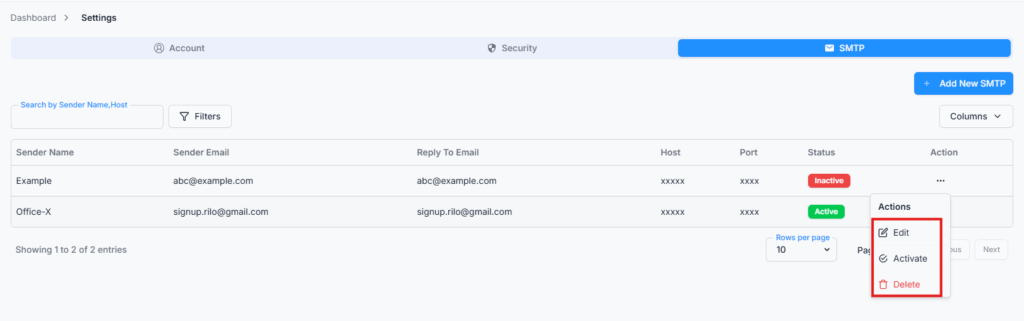
- Click Open Menu → Edit for the SMTP you want to modify.
- Update any of the fields as needed (Sender Name, Email, Host, Port, etc.).
- Save the changes to immediately apply them.
Changes will affect all future automated emails sent via this SMTP.
Activate / Inactivate SMTP #
You can control which SMTP is used for sending emails:
- Click Open Menu → Activate/Inactivate on any SMTP.
- Inactivating a SMTP keeps its configuration saved but prevents it from sending emails.
- Inactive smtp do not show in create template.
This is useful when switching mail servers or testing new configurations without deleting old ones.