
Measure, track, and improve employee performance effectively
The Performance module in Office-X allows managers to assess employee performance across different periods and criteria, ensuring transparent and structured feedback.
The module has two main routes: Setup and Assessments.
Setup #
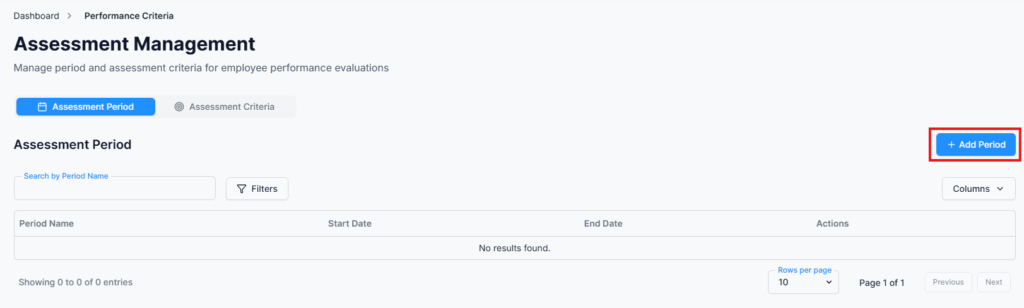
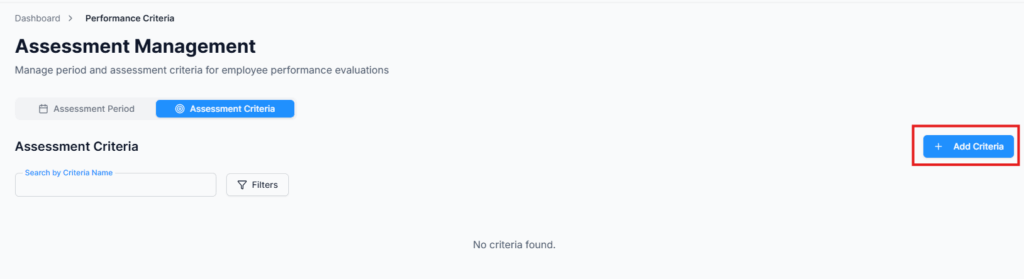
The Setup section allows admins and HR managers to configure Assessment Periods and Assessment Criteria.
Assessment Period #
- Create new performance periods (quarterly, yearly, or custom).
- Each period includes:
| Field | Example | Notes |
|---|---|---|
| Period Name | Q1 2025 | Name for the assessment period |
| Start Date | 01/01/2025 | Beginning of the period |
| End Date | 06/30/2025 | End of the period |
- Manage Periods: Edit or delete existing periods as needed.
Assessment Criteria #
- Define criteria on which employees will be assessed.
- Assign maximum points for each criterion.
- Examples:
| Criteria | Total Points | Status |
|---|---|---|
| Communication | 50 | Active |
| Technical Skills | 50 | Active |
- Managers can use these criteria when evaluating employee performance.
Assessments #
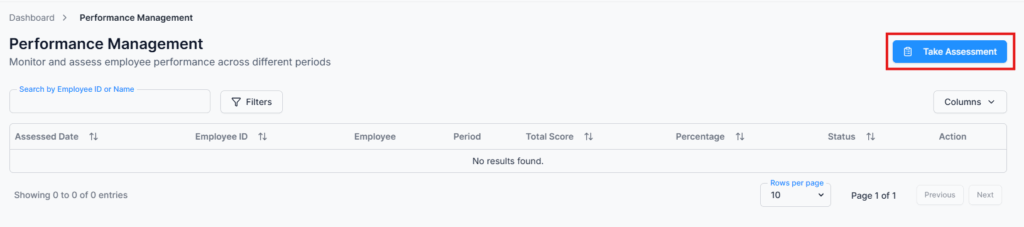
The Assessments section enables reporting managers to conduct and review employee assessments. It also allows managers to grant employees access to complete their own self-assessments.
Take Assessment #
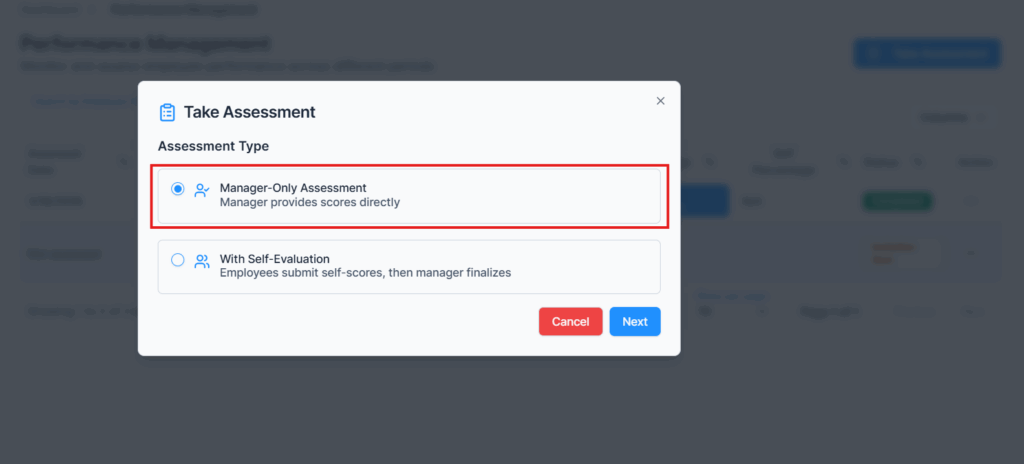
On Assessment Type → Manager only assessment. Manager provides scores directly
- Search Employee: Select an employee by Name or Employee ID.
- Select Assessment Period: Choose the relevant period (e.g., Q1 2025).
- Assign Scores: Score the employee against predefined Assessment Criteria.
- Provide Feedback: Include detailed feedback and recommendations for improvement.
- Submit Assessment: Save the evaluation for record and reporting.
Example:
| Criteria | Score (Max) | Feedback |
|---|---|---|
| Communication | 45 / 50 | Need to improve communication skills |
| Technical Skills | 45 / 50 | Strong technical competency |
On Assessment Type → With Self-Evaluation. Employees submit self-scores, then manager finalizes. Manager can send invitation to get self-assessment individual or Team wise (Team create from admin).
- Select Recipients: Choose multiple employees individually or Send to all members of a team.
- Search Employee: Select an employee by Name or Employee ID. If selected recipient is select employee. Can choose multiple employees.
- Select Team: Choose a team.
- Select Assessment Period: Choose the relevant period (e.g., Q1 2025).
- Assign Scores: Score the employee against predefined Assessment Criteria.
- Send invitation: Send invitation to the employees. then employees can access this self-assessment.
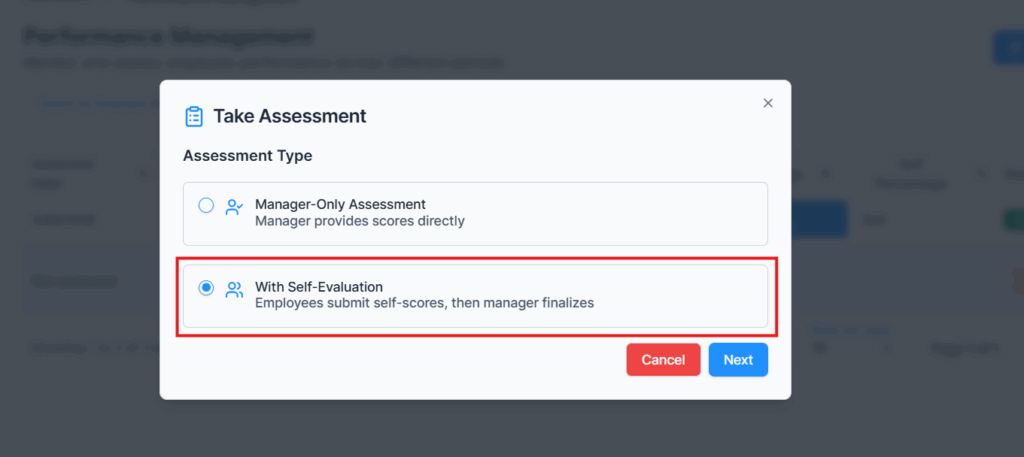
After an invitation is sent, the employee receives a notification. They can then complete their self-assessment by navigating to Performance → Assessments.
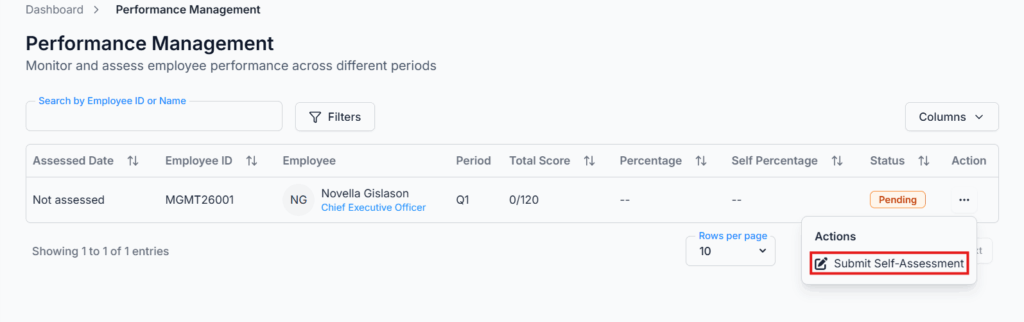
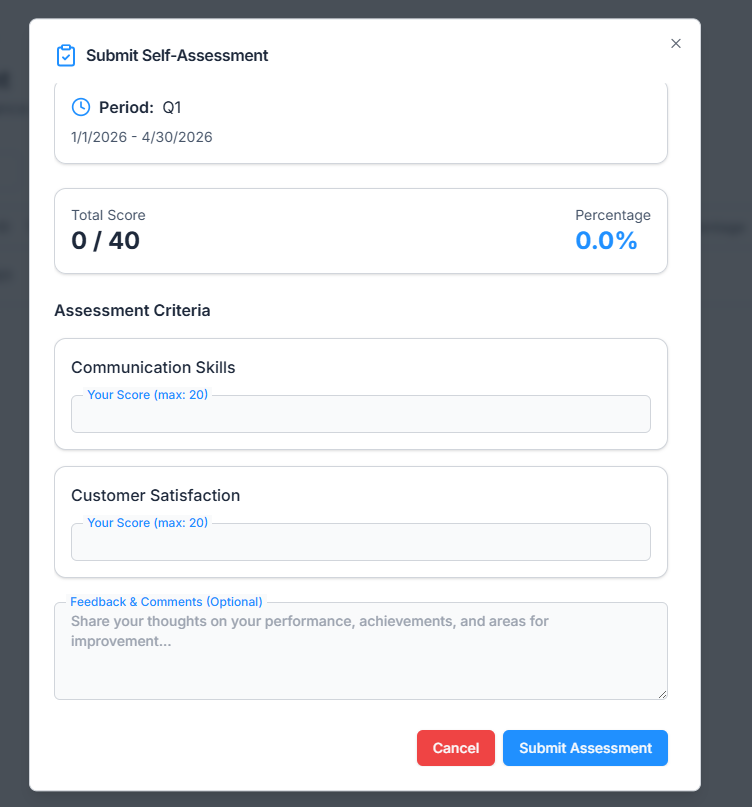
Employee Submit Self-Assessment
- Assessment Criteria: Add self-score for individual criteria.
- Feedback & Comments (Optional): Employee can add feedback here.
- Submit Assessment
Once the self-assessment is submitted, the status is updated to Submitted. The manager can then review and finalize the assessment.
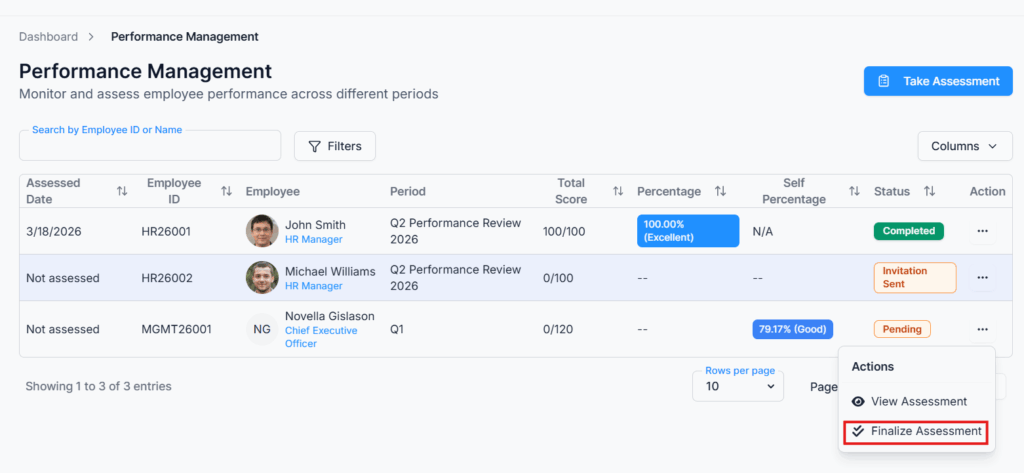
Finalize Assessment
- Review and Adjust Scores: add final score for each critaria.
- Feedback & Comments (Optional): Employee can add feedback here.
- Finalize Assessment
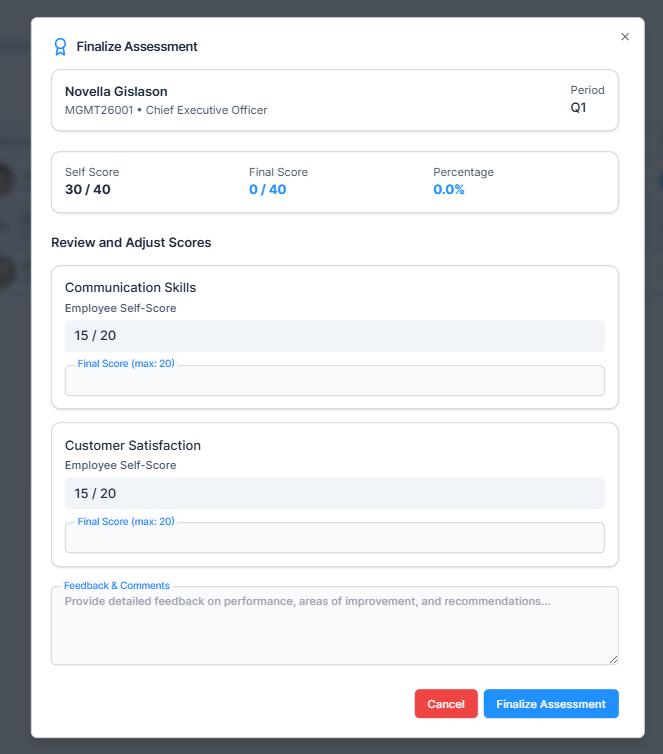
Once the manager submits the final assessment, the status is updated to Completed, and the employee can download the assessment report. On employee Performance → Assessments
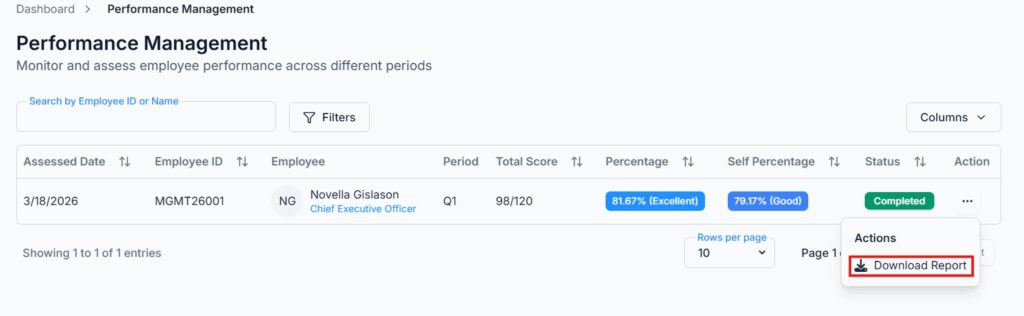
View Assessment Results #
- After assessments are completed, managers can view detailed performance reports:
- Employee Information
- Performance Summary
- Performance Trend (Overall)
- Detailed Criteria Assessment
- Assessment Breakdown by criteria
- Feedback & Comments
Performance Scoring Guide:
| Rating | Score | Description |
|---|---|---|
| Excellent | 81–100 | Performance consistently exceeds expectations |
| Good | 61–80 | Performance meets and often exceeds expectations |
| Average | 45–60 | Performance is acceptable |
| Poor | 0–44 | Performance does not meet expectations |
Why It Matters #
- Provides a structured and fair assessment system for employees.
- Helps managers give objective feedback for growth.
- Tracks performance trends over time for better HR decisions.
- Aligns employee performance with organizational goals.
Summary #
The Performance Module in Office-X streamlines employee evaluations — from setting up assessment periods and criteria to scoring, feedback, and trend analysis — helping your team grow, improve, and succeed.