
The Billing & Payment module in Office-X allows administrators and permitted users to manage subscriptions, invoices, payment methods, and seat allocations efficiently. This section ensures transparency and control over your company’s billing information.
Current Plan & Upcoming Invoice #
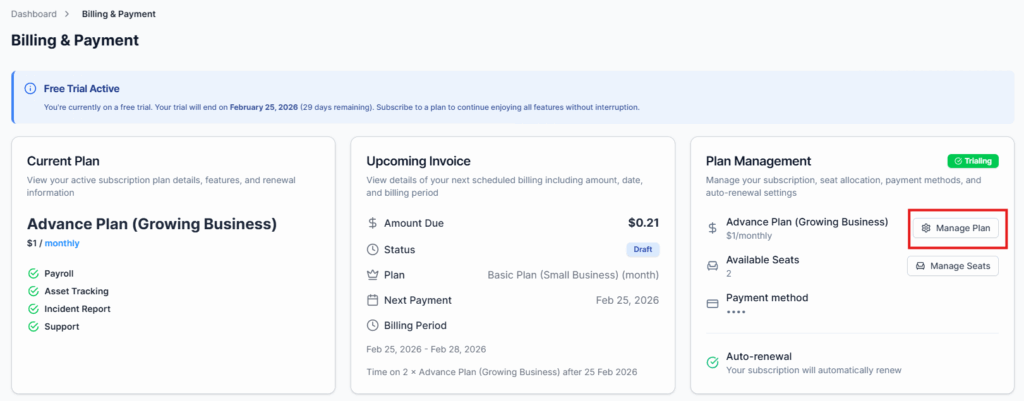
This section provides a snapshot of your active subscription plan and upcoming payments:
- Amount Due – The total payment due for the next billing cycle.
- Status – Current invoice status (e.g., Draft, Paid, Dues).
- Plan – Name and type of your active plan (e.g., Basic Plan – Small Business, Yearly).
- Next Payment – Scheduled date of the next payment.
- Billing Period – The start and end dates for the current invoice.
Plan Management #
Go to Billing & Payment → Manage Plan
This section allows you to manage your company’s subscription efficiently:
- Cancel or adjust your current subscription plan
- Update your payment method (billing card or payment details for future invoices)
Manage Seats #
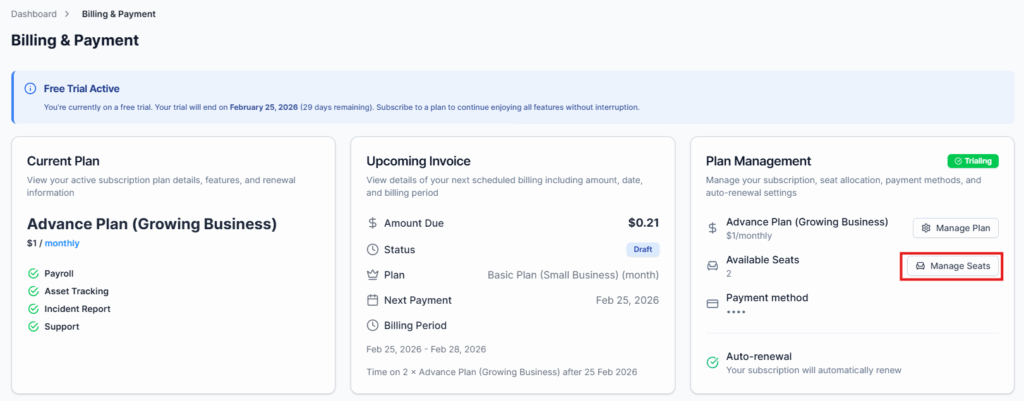
Go to Billing & Payment → Manage Seats
Here you can adjust the number of active seats to align with your team size:
- Current Usage – Shows the number of seats currently in use versus total purchased.
- Seats Available – Number of seats that can still be assigned.
- New Seat Count – Set the desired number of seats.
- Current Cost & New Cost – Displays the pricing impact of changing seat counts.
- Difference – Shows any cost increase or decrease resulting from seat adjustments.
You can increase or reduce seats here. Any changes will be applied in the upcoming billing cycle.
Billing History #
View and download all past invoices in one place for reference or accounting purposes. Historical invoices include:
- Invoice Amount
- Billing Date
- Payment Status
- Billing Period
This ensures easy tracking and record-keeping for all subscription-related payments.
Upgrade/Downgrade Plan #
Switch your subscription plan directly from this section to match business needs. Plan changes are automatically reflected in the next billing cycle.
When you select a new plan and click Update Plan, the system will decide one of three outcomes:
• Apply Immediately (with proration)
• Schedule for Next Billing Cycle
• Block the Change (if not allowed)
Immediate + Prorated Upgrades (Allowed) #
The following transitions must apply immediately, with Stripe proration for the remaining billing period:
- Basic (Monthly) → Advance (Monthly)
- Basic (Monthly) → Basic (Yearly)
- Basic (Monthly) → Advance (Yearly)
- Basic (Yearly) → Advance (Yearly)
- Advance (Monthly) → Advance (Yearly)
- Advance (Monthly) → Basic (Yearly)
Not Allowed (Blocked Immediately) #
- Basic (Yearly) → Advance (Monthly)
Switch After Billing Cycle Ends (Deferred Changes) #
The following transitions must be scheduled and take effect only after the current billing cycle expires:
- Basic (Yearly) → Basic (Monthly)
- Advance (Monthly) → Basic (Monthly)
- Advance (Yearly) → Advance (Monthly)
- Advance (Yearly) → Basic (Monthly)
- Advance (Yearly) → Basic (Yearly)
Subscription Status Rules #
Your subscription phase also affects plan changes:
Trial Phase
• You can change plans freely
• No charge during trial
• First invoice uses the selected plan
Active Phase
• Plan changes allowed
• Proration applies immediately
• Invoice updates instantly
Past Due Phase
• Plan changes allowed
• Full system access remains
• Stripe handles payment recovery
Cancelled Phase
• Plan changes blocked
• Update button disabled
• Message shown: “No active subscription has found.”
Re-Subscription #
Subscriber Admins can recover their subscription and continue using Office-X when payment is overdue or cancelled.
Past Due #
When a payment fails, the subscription becomes Past Due:
- A top banner shows “Outstanding Payment Due” with details and a Pay Outstanding Dues button.
- Clicking the button redirects to the Stripe portal to update payment or pay failed invoices.
- Users retain full platform access; no route is locked.
- After successful payment, Office-X syncs status back to Active automatically.
- Retry attempts continue until the defined retry end date.

Cancelled #
If payment remains unpaid after the retry window, the subscription becomes Cancelled:
- Users can access Billing & Payment only. All other routes redirect here.
- Banner shows “Subscription Cancelled” with button Activate Your Subscription.
- Plan management and seat options are disabled.
- Successful payment via Stripe restores status to Active and route access.
- Any plan change attempts while cancelled are blocked with: “No active subscription has found.”

Summary #
The Billing & Payment module provides full visibility and control over your company’s subscription and invoicing.